|
||||||
Access Beginner 8Combo Boxes, List Boxes, Tab Order, SearchWelcome to Access Beginner 8. In this course you will learn how to create and use combo boxes in Microsoft Access, including value list combo boxes, table-based combo boxes, and multi-column combo boxes. We will discuss using combo boxes to search for records, introduce list boxes, and show you how to control the tab order on forms. You will also see how to participate in student forums and understand the structure of Access course levels. Lessons
Resources
Lesson SummaryWelcome! Combo Boxes, List Boxes, Tab Order - Welcome to Microsoft Access Beginner Level 8. In this course we will focus on combo boxes in Microsoft Access, including value list combo boxes, table-based combo boxes, and multi-column combo boxes. We will discuss how to use combo boxes to search for records and introduce list boxes. We will also talk about controlling the tab order on forms. This class builds on concepts from previous beginner levels, and you are encouraged to follow along by creating the sample database. We will also cover the structure of Access course levels and how to participate in student forums for questions.
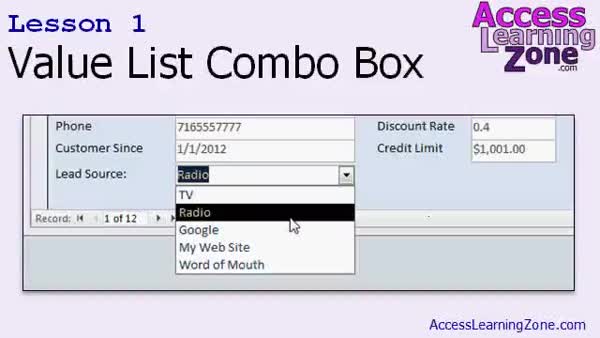
Lesson 1: Create Combo Box With Value List - In Lesson 1, we will walk through how to create a value list combo box in your Access form to help users select options from a predefined list instead of typing them manually. We will discuss why using combo boxes maintains data consistency and see step-by-step how to add a new field to your table, insert the combo box on the form, configure its properties, choose values, and control whether users can add or edit items in the list. We will also mention alternative combo box options and the benefits of limiting entries to the list.
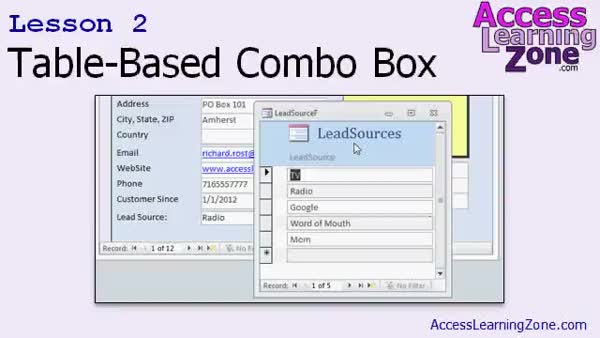
Lesson 2: Editable Table Combo Box Setup - In Lesson 2, we will walk through a better way to build a table-based combo box in Access by creating a separate table for the list of values and setting up a custom form to manage those choices. We will discuss why storing lists in tables is preferable to value lists, cover how to create and populate the new table, and demonstrate how to link the combo box to this table so updates only need to be made in one place. I will also show you how to create and assign a form for editing the combo box options.
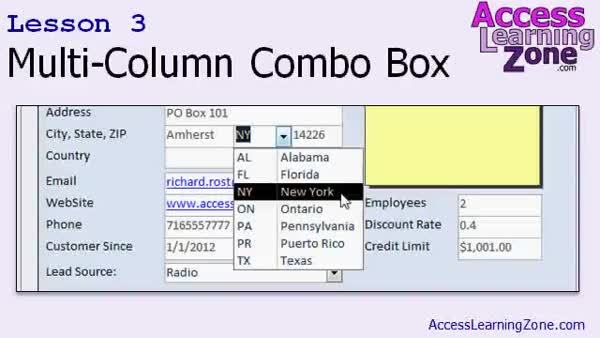
Lesson 3: Multi-Column Combo for States - In Lesson 3, we will walk through how to build a multi-column combo box that displays both state abbreviations and full state names in Microsoft Access. I will show you how to set up a supporting table for states, define the primary key, and enter sample data. We will then add the multi-column combo box to a customer form, configure its properties - including column widths and limiting the list - and discuss how the displayed value changes when the box is open or closed. We will also talk about customizing the combo box layout and briefly mention advanced options for displaying more information.
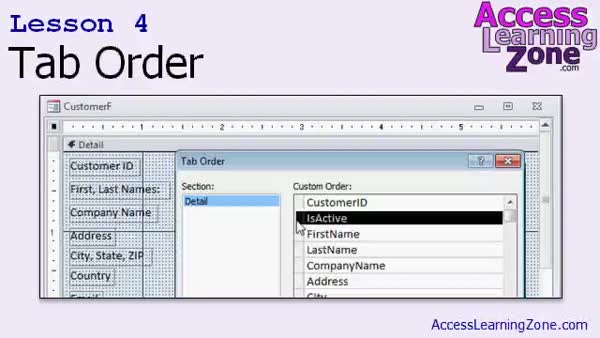
Lesson 4: Set Tab Order, Stops, Cycle - In Lesson 4, we will learn how to control a form's tab order in Microsoft Access. I will show you how to adjust the tab order when new fields are added or rearranged, using both the Auto Order feature and manual settings. We will walk through making fields skip the tab order by changing their Tab Stop property, discuss the Cycle property that controls whether the tab key moves to the next record or stays within the same one, and demonstrate practical tips for improving data entry by customizing which controls receive focus as you tab through a form.
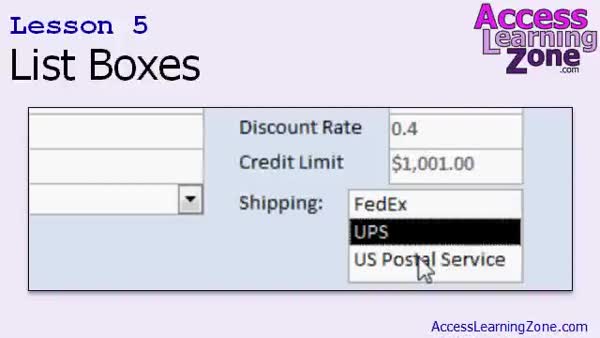
Lesson 5: List Boxes for Shipping Methods - In Lesson 5, we will walk through how to set up list boxes in your Access forms, explaining their differences from combo boxes and when to use them. I will show you how to create a list box to store customer shipping methods, set up the required tables, and configure the list box using the wizard. We will also discuss why storing text values directly in your tables is not the best practice, mention database normalization and relationships, and explain why you should avoid using lookup wizards, reserving a discussion of multi-select list boxes and lookup fields for future lessons.
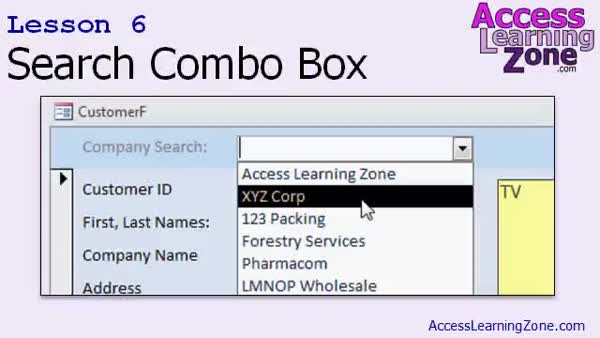
Lesson 6: Search Records with Combo Box - In Lesson 6, we will walk through how to use a search combo box to quickly find and jump to a record in your form based on a single field, such as a company name. I will show you how to add a combo box to your form header, configure it to search using a specific field, and demonstrate how Access automatically hides the key ID column. We will also briefly discuss how repeated values are handled, and I will mention that more advanced tricks with duplicate values will be covered in a future lesson.
Lesson 7: Combo & List Boxes, Tab Order - In this course we learned about combo boxes, including how to create value list combo boxes, allow or limit user editing, and the benefits of table-based combo boxes. We saw how to build multi-column and search combo boxes, created list boxes for shipping preferences, and converted them to combo boxes. We also discussed setting tab order in forms, including automatic and manual ordering, tab stops, and tab cycle options. We reviewed resources for further learning and support, how to get help with Access or other computer questions, and where to provide feedback about the course.
NavigationKeywordscombo box, value list, table-based combo box, multi-column combo box, state abbreviation dropdown, tab order, tab stop, form navigation, list box, shipping methods, search combo box, data entry consistency, lookup wizard, normalization, relationships
More InformationTranscriptWelcome to Microsoft Access Beginner Level 8, brought to you by AccessLearningZone.com. I am your instructor, Richard Rost. Today's class is going to focus primarily on combo boxes. Combo boxes go by many different names. Some people call them drop-down boxes. Some people call them pick lists. Whatever you call them, they allow the user to select from a list of values. We'll start off by learning about value list combo boxes. This is where you type in a list of values right into the combo box that the user can pick from. Then we'll learn about table-based combo boxes, where we actually create a separate table to store our values. Table-based combo boxes let us use the same set of data in multiple forms. We'll learn how to create a multi-column combo box where you can see two or more columns of data when you open the box up. You'll also learn how to create a combo box to search for a record based on a field. Then we'll learn how to create list boxes, which are basically always open combo boxes. Finally, we'll learn how to adjust the tab order on your forms. This class follows Access 2010 Beginner Level 7. In Level 7, we learned how to create navigation forms, a main menu form, our customer list form, and lots more. I strongly recommend that you take levels 1 through 7 before taking this class, Level 8. For more information on these classes, visit AccessLearningZone.com and go to the Access 2010 section. Today's class will be using Access 2010. Most of what I am going to show you in today's class works fine in 2010 and 2007. If you have 2003 and earlier, you might have trouble following along because a lot of stuff involving combo boxes has changed between 2003 and 2007. But everything today will be fine whether you're using 2007 or 2010. You are strongly encouraged to build the database that I build in class. However, if you want to download a copy of the database, you can find it at accesslearningzone.com/databases. Again, you'll get much more out of this class if you build the database yourself from scratch, starting with lesson 1. My courses are broken up into four groups: beginner, expert, advanced, and developer. My beginner courses are for novice users who have little or no experience with Microsoft Access. They are designed to give you an overview of the basic features of Access and cover just what you need to know to be productive. The expert classes are designed for more experienced users who are already comfortable with Access. The expert classes go into a lot more depth about each topic than the beginner classes and will cover more functions, features, tips, and techniques for power users. Once you've mastered the expert classes, move up to the advanced lessons. You'll learn how to work with macros, automation, and many more advanced features that really add enhanced functionality and professionalism to your databases. Finally, my developer-level courses are designed to teach you how to program in Visual Basic for Microsoft Access. This will allow you to create the most advanced databases possible and unlock the true potential of Microsoft Access. Each series is broken down into different numbered levels starting with level 1. Each subsequent level teaches you new and different topics in Microsoft Access, building on the lessons learned in the previous classes. Once you've finished all the beginner classes, move up to the expert series, then the advanced, and finally, the developer lessons. In addition to my normal Access classes, I also have seminars designed to teach specific topics. Some of my seminars include building web-based databases, creating forms and reports that look like calendars, securing your database, working with images and attachments, writing work orders, tracking accounts payable, learning the SQL programming language, and lots more. You can find complete details on all these seminars and more on my website at accesslearningzone.com. If you have questions about the topics covered in today's lessons, please feel free to post them in my student forums. If you're watching this course using my custom video player software or the online theater on my website, you should see the student forum for each lesson appear in a small window next to the class videos as long as you have an active internet connection. Here you will see all of the questions that other students have asked as well as my responses to them and comments that other students may have made. I encourage you to read through these questions and answers as you start each lesson and feel free to post your own questions and comments as well. If you're not watching the lessons online, you can still visit the student forums later by visiting accesslearningzone.com/forums. To get the most out of this course, I recommend that you sit back, relax, and watch each lesson completely through once without trying to do anything on your computer. Then, replay the lesson from the beginning and follow along with my examples. Actually create the same database that I make in the video, step by step. Don't try to apply what you're learning right now to other projects until you've mastered the sample database from this class. If you get stuck or do not understand something, watch the video again from the beginning or tell me what's wrong in the student forum. Most importantly, keep an open mind. Access might seem intimidating at first, but once you get the hang of it, you'll see that it's really easy to use. Now let's take a closer look at exactly what's covered in today's class. In lesson one, we're going to learn how to create a combo box based on a list of values. In lesson two, we're going to learn a better way to build combo boxes by getting the list of values from a table and creating our own form to edit that list. In lesson three, we're going to learn how to build a multi-column combo box so we can see a list of our state abbreviations and the full state names. In lesson four, we're going to learn how to control a form's tab order. In lesson five, we're going to learn how to set up list boxes. In lesson six, we're going to learn how to search for a record using a combo box. IntroIn lesson 8 of my Microsoft Access Beginner series, we will focus on using combo boxes and list boxes to make your databases more interactive and user-friendly. You'll learn how to create value list combo boxes, set up table-based combo boxes, build multi-column combo boxes, and use combo boxes for searching records. We will also cover how to create and use list boxes, plus how to adjust the tab order in your forms. These topics are demonstrated using Microsoft Access 2010, but most of the material will also work in Access 2007. QuizQ1. What is the primary focus of Microsoft Access Beginner Level 8? A. Creating reports in Access B. Working with combo boxes C. Managing relationships between tables D. Writing SQL code Q2. Which of the following is another name for a combo box? A. Toggle button B. Navigation box C. Drop-down box D. Main menu Q3. What is a value list combo box? A. A combo box that displays pictures B. A combo box where values are entered directly into the box for the user to select C. A combo box using calculated fields D. A combo box joined to an Excel sheet Q4. Why might you create a table-based combo box instead of a value list combo box? A. To enter fewer values B. To use the same set of data in multiple forms C. To increase database security D. To avoid using tables Q5. What is a multi-column combo box? A. A combo box with multiple drop-down arrows B. A combo box that displays two or more columns of data for selection C. A combo box inside another form D. A combo box showing numbers only Q6. What is covered in lesson four of this class? A. Creating reports B. Formatting controls C. Controlling a form's tab order D. Designing queries Q7. What is the main difference between a combo box and a list box as discussed in this video? A. Combo boxes cannot display data B. List boxes are always open, displaying all available options C. Combo boxes require code D. List boxes are used only for numbers Q8. According to the instructor, what should you do to get the most out of this course? A. Watch the lessons once and never revisit them B. Apply concepts to other projects immediately C. Watch each lesson completely, then follow along by recreating the sample database step by step D. Focus only on quizzes Q9. What is recommended if you encounter a problem or do not understand something during the lessons? A. Ignore the issue and move on B. Immediately email technical support C. Watch the lesson again or ask questions in the student forum D. Restart your computer Q10. What is the first lesson in this class about? A. Advanced reports B. Searching for records using combo boxes C. Creating a combo box based on a list of values D. Using Visual Basic in Access Q11. Who are the beginner courses designed for? A. People with advanced Access experience B. Novice users with little or no experience with Microsoft Access C. Database administrators only D. Programmers familiar with SQL Q12. What is the purpose of the student forums mentioned in the video? A. To share software updates B. To provide a place for students to ask questions and see answers related to the lessons C. To download course materials D. To purchase access to more classes Q13. Which versions of Access are most compatible with the techniques taught in this level? A. Access 2000 and earlier B. Access 2010 and 2007 C. Access 97 only D. Access XP only Q14. What should students do before beginning Level 8? A. Complete levels 1 through 7 B. Buy a new computer C. Skip beginner classes D. Read only the course outline Q15. What should you do after mastering the beginner and expert classes, according to the instructor? A. Stop taking courses B. Move on to advanced and developer-level lessons C. Start programming in Excel D. Learn about PowerPoint Answers: 1-B; 2-C; 3-B; 4-B; 5-B; 6-C; 7-B; 8-C; 9-C; 10-C; 11-B; 12-B; 13-B; 14-A; 15-B DISCLAIMER: Quiz questions are AI generated. If you find any that are wrong, don't make sense, or aren't related to the video topic at hand, then please post a comment and let me know. Thanks. SummaryToday's video from Access Learning Zone focuses on Microsoft Access Beginner Level 8, where the main subject is working with combo boxes. I am your instructor, Richard Rost, and in this class we'll be exploring the different ways to use combo boxes in Microsoft Access to enhance user experience and data entry efficiency. Combo boxes, sometimes referred to as drop-down boxes or pick lists, provide users with a simple interface to choose from a set of values. We'll begin by discussing value list combo boxes, which involve entering a set list of choices directly into the combo box for users to select from. Next, I will introduce table-based combo boxes, where the list of choices is drawn from a separate table. This approach is advantageous if you need to use the same set of options across multiple forms because it centralizes where your data comes from. You'll also learn how to create combo boxes that show multiple columns of data at once, which helps when you want to display related fields side by side, such as showing both state abbreviations and full state names. Additionally, I'll show you how to use a combo box to search for a specific record based on a particular field. Later in the class, we will cover list boxes, which act much like combo boxes but display all available choices in a constant open view. Finally, I'll explain how to adjust the tab order on your forms, which ensures that users enter data efficiently without having to move their hands from the keyboard unnecessarily. This course continues from Access 2010 Beginner Level 7, where we covered creating navigation forms, a main menu form, and a customer list form, among other topics. I highly recommend completing Beginner Levels 1 through 7 before starting this class so you have a solid foundation. You can find more details about these courses on my website in the Access 2010 section. Today's content is designed for Access 2010, but most of the material will also work in Access 2007. However, if you're using Access 2003 or an earlier version, you might find that many of the methods for working with combo boxes have changed, so please keep that in mind. I strongly encourage you to build the sample database along with me throughout the lessons. However, if you prefer, you can download a copy of the database from my website. Even so, you'll benefit much more from the class if you create the database yourself, starting from the very first lesson. Let me take a moment to explain how my Access courses are structured. There are four series: beginner, expert, advanced, and developer. The beginner courses are aimed at users who are new to Access and want to become productive quickly by learning the essential features. Expert courses are for those who are already comfortable with Access and want to explore topics in greater detail, including more tools and advanced techniques. After mastering expert-level topics, the advanced series will introduce you to macros and automation, adding further control and polish to your databases. The developer-level classes focus on Visual Basic for Applications (VBA), enabling you to build powerful, highly-customized Access solutions. Each of these series is broken down into numbered levels, with each new level building on the previous one. Once you've finished all of the beginner lessons, continue with the expert series, then move on to the advanced and finally the developer courses. In addition to my standard classes, I also offer seminars covering specific skills, such as creating web-based databases, designing calendar-style forms and reports, securing databases, working with images and attachments, managing accounts payable, and learning SQL. Comprehensive details about these seminars are available on my website. If you have questions about any of the topics in this class, I encourage you to join the student forums on my website. If you're watching using my video player or the online theater, you will see a forum window next to the class video as long as you're online. Here you can find discussions from other students, my answers to their questions, and additional comments. Reading through these can be very helpful, and you are always welcome to ask your own questions. If you're not viewing the course online, you can still access the forums later by visiting the website directly. For the best learning experience, I suggest that you first watch each lesson all the way through without pausing to try anything on your computer. Then, go back to the start and follow along as you work through the examples, creating the sample database step by step. Be sure to focus on mastering this sample before trying to adapt these techniques to other projects. If you find yourself stuck, review the lesson again or let me know about your issue in the forums. Above all, remember to keep an open mind. Access might seem complex at first, but with practice, you will find it very approachable and effective for managing data. Here's a summary of what we'll cover today: Lesson one demonstrates how to create a combo box using a list of entered values. Lesson two shows a more advanced technique, building combo boxes based on a separate table and creating a form to edit that list. Lesson three explains how to design a combo box that displays multiple columns, like state abbreviations alongside state names. Lesson four teaches you how to manage the tab order in your forms. Lesson five introduces you to list boxes. Lesson six covers the process of searching for a record using a combo box. For a complete, step-by-step video tutorial covering everything in this lesson, visit my website at the link below. Live long and prosper, my friends. Topic ListCreating a value list combo box Building a table-based combo box Creating a form to edit combo box list values Designing a multi-column combo box Displaying state abbreviations and names in a combo box Controlling a form's tab order Setting up list boxes Searching for a record using a combo box Primary Topicscombo boxes, value list combo boxes, table-based combo boxes, multi-column combo boxes, searching with combo boxes, list boxes, form tab order Secondary TopicsAccess 2010 vs 2007 compatibility, AccessLearningZone course progression, use of forums |
||||||||||||||||||||||||||||||||||||||||||||||||||||||||||||||||||||||||||||||||||||||||||
|
| |||
| Keywords: combo box, value list, table-based combo box, multi-column combo box, state abbreviation dropdown, tab order, tab stop, form navigation, list box, shipping methods, search combo box, data entry consistency, lookup wizard, normalization, relationships PermaLink Microsoft Access Beginner 8 |