|
||||||
Access Beginner 9Contact Tables, Forms, Queries, Reports, FormattingWelcome to Access Beginner 9. In this course you will learn how to build a customer contact history by creating a dedicated contact table and form in Microsoft Access, with an emphasis on maintaining data integrity. We will cover creating queries with explicit parameters to filter records between dates, designing detailed contact reports with features like Can Grow and Can Shrink properties, and discuss techniques such as string concatenation and page numbering. You will also see how this class fits into the broader Beginner, Expert, Advanced, and Developer series. Lessons
Resources
Lesson SummaryWelcome! Contact History Table: Query & Report - Welcome to Microsoft Access Beginner Level 9. In this course we will focus on building a contact history for your customers, starting with creating a contact table and form. We will discuss data integrity, build queries to show records between two dates using explicit parameters, and spend time designing detailed contact reports. We will talk about report sections, Can Grow and Can Shrink properties, and cover tips like string concatenation and page numbering. You will also learn how this class fits into the overall Beginner, Expert, Advanced, and Developer series, and how to make the most of the lessons and community forums.
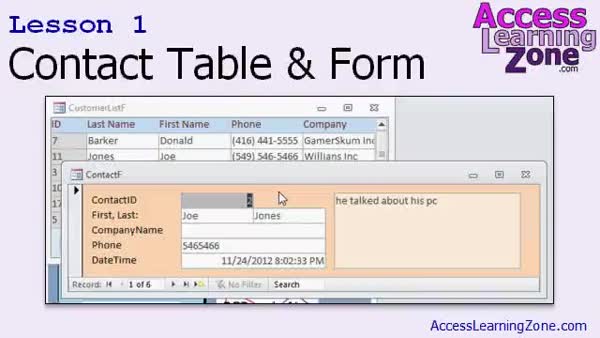
Lesson 1: Contact Table & Entry Form - In Lesson 1, we will walk through building a basic contact manager by creating a contact table and form in Access. We will discuss how to properly track customer contacts with a dedicated table instead of using a notes field, the shortcomings of storing history in memo fields, and why data integrity is important. I will show you how to design the Contact table with fields like first name, last name, company name, phone number, date and time, and notes, set up a form for data entry, and enter some sample data to use in later lessons.
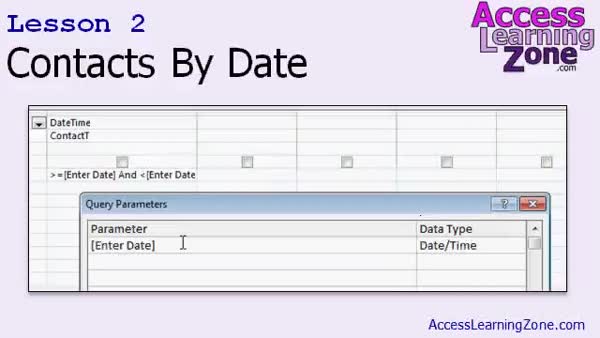
Lesson 2: Query Contacts by Date Param - In Lesson 2, we will build a contact query to show all contacts from a single date and learn about using explicit query parameters in Microsoft Access. I will walk you through creating a query that filters records based on a specific date, show how to use greater than or equal to and less than criteria for filtering date fields with time portions, explain how to prompt the user for a date, and discuss how to declare explicit parameters so you can use input values more than once in a query. We will also save and manage multiple versions of the contact query.
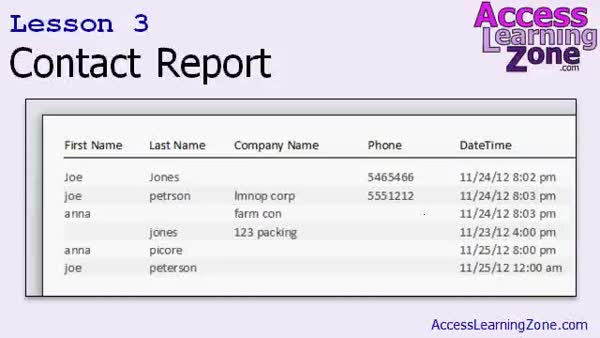
Lesson 3: Create & Format Contact Report - In Lesson 3, we will walk through how to create a contact report from scratch in Access, starting with building the report layout, setting the record source to a contact query, and adding and arranging data fields. You will learn how to format the report, remove borders, adjust layout for printing, use page headers for labels, switch between portrait and landscape orientation, and apply a custom date format. We will also discuss how to handle common formatting issues, add design elements like horizontal lines and label colors, and briefly cover print and export options for your contact report.
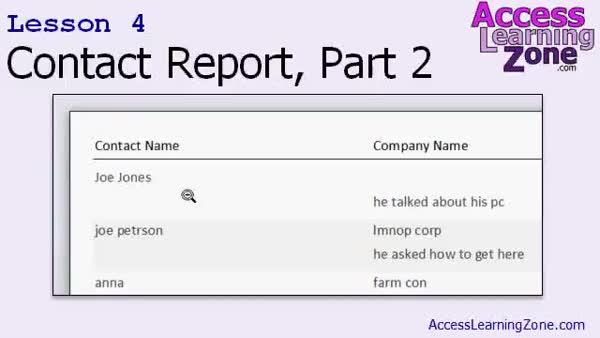
Lesson 4: Can Grow, Can Shrink, Concatenate - In Lesson 4, we continue working on the contact report, focusing on using the Can Grow and Can Shrink properties in Microsoft Access to control the vertical size of text boxes and sections. We will walk through adjusting the report layout for portrait orientation, moving and resizing fields, and reducing wasted space. We will also discuss how to concatenate first and last names using string concatenation in both queries and directly within the report, as well as how to use the Trim function to clean up extra spaces in names.
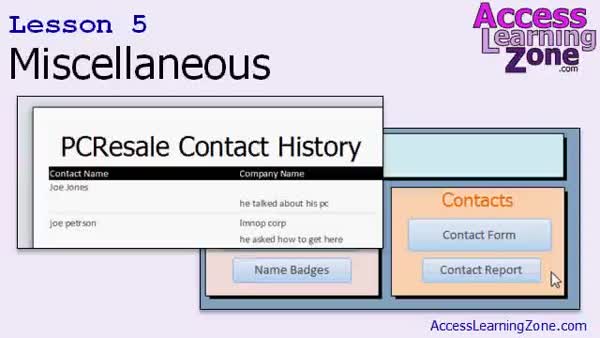
Lesson 5: Line Thickness, Numbers, Headers, Colors - In Lesson 5, we will wrap up our contact report by covering several miscellaneous topics including adjusting line thickness, adding page numbering, modifying section background colors, and working with report headers and footers. I will show you how to manage alternating row colors, use standard versus theme colors, and demonstrate ways to format lines and backgrounds in your report. We will also walk through adding page numbers, report headers, and footers, as well as customizing the main menu to add buttons for opening forms and reports. We will discuss the importance of linking customers and contacts, which will be covered in the next course.
Lesson 6: Contact Tables Forms Tips - In this course we learned how to build a contact table and form, explored data integrity, and discussed why memo fields are not ideal for storing long customer contact histories. We addressed issues with freeform data entry versus using lists, built a contact query, and used features like hiding duplicates, filtering by date, and setting query parameters. We also created a contact report from scratch, customized the design, adjusted page setup options, and used string concatenation. Additional topics included HTML color codes, layout customization, and support resources available for continuing Microsoft Access learning.
NavigationKeywordscontact history table, contact form, query between dates, data integrity, contact report, form design, report formatting, can grow can shrink, concatenate fields, string concatenation, page numbering, date query, alternating row colors
More InformationTranscriptWelcome to Microsoft Access 2010 Beginner Level 9, brought to you by AccessLearningZone.com. I am your instructor, Richard Rost. Today's class is going to focus on building a contact history for your customers. Every time you interact with a customer, whether it is a phone call, an office visit, and so on, you want to track that in your database. That is building a contact history. We will start out by building a simple contact table and form. We will discuss data integrity in your database. We will build a contact query. We will learn how to show records between two dates and how to set up explicit query parameters. We will spend a lot of time building a contact report. We will learn about the different sections, the report header, and the page header. We will learn about the Can Grow and Can Shrink properties, and lots more. We will learn a ton of miscellaneous tips and tricks, including string concatenation, page numbering, and lots more. This class follows Microsoft Access 2010 Beginner Level 8. I strongly recommend you take Level 8 and all of the previous classes before beginning this course. In Level 8, we learned about combo boxes, list boxes, tab order, and lots more. Today's class will be using Microsoft Access 2010. Most of what I am going to be showing you today works just fine in 2007. If you are using 2003 or earlier, you can probably figure everything from today's class out. Some of the menus will be different, obviously, but most of the material should be the same. While I strongly encourage you to build the database that I build in class, if you are lazy like me, you can download the sample database from the website at accesslearningzone.com/databases. My courses are broken up into four groups: Beginner, Expert, Advanced, and Developer. My beginner courses are for novice users who have little or no experience with Microsoft Access. They are designed to give you an overview of the basic features of Access and cover just what you need to know to be productive. The expert classes are designed for more experienced users who are already comfortable with Access. Expert classes go into a lot more depth about each topic than the beginner classes do and will cover more functions, features, tips, and techniques for power users. Once you have mastered the expert classes, move up to the Advanced lessons. You will learn how to work with macros, automation, and many more advanced features that really add enhanced functionality and professionalism to your databases. Finally, my Developer Level courses are designed to teach you how to program in Visual Basic for Microsoft Access. This will allow you to create the most advanced databases possible and unlock the true potential of Microsoft Access. Each series is broken down into different numbered levels, starting with level one. Each subsequent level teaches you new and different topics in Microsoft Access, building on the lessons learned in the previous classes. Once you have finished all the beginner classes, move up to the expert series, then the Advanced, and finally the Developer lessons. In addition to my normal Access classes, I also have seminars designed to teach specific topics. Some of my seminars include building web-based databases, creating forms and reports that look like calendars, securing your database, working with images and attachments, writing work orders, tracking accounts payable, learning the SQL programming language, and lots more. You can find complete details on all these seminars and more on my website at accesslearningzone.com. If you have questions about the topics covered in today's lessons, please feel free to post them in my student forums. If you are watching this course using my custom video player software or the online theater on my website, you should see the student forum for each lesson appear in a small window next to the class videos as long as you have an active internet connection. Here you will see all of the questions that other students have asked as well as my responses to them and comments that other students may have made. I encourage you to read through these questions and answers as you start each lesson and feel free to post your own questions and comments as well. If you are not watching the lessons online, you can still visit the student forums later by visiting accesslearningzone.com/forums. To get the most out of this course, I recommend that you sit back, relax, and watch each lesson completely through once without trying to do anything on your computer. Then, replay the lesson from the beginning and follow along with my examples. Actually create the same database that I make in the video, step by step. Do not try to apply what you are learning right now to other projects until you master the sample database from this class. If you get stuck or do not understand something, watch the video again from the beginning or tell me what is wrong in the student forum. Most importantly, keep an open mind. Access might seem intimidating at first, but once you get the hang of it, you will see that it is really easy to use. Now let's take a closer look at exactly what is covered in today's class. In today's class, we are going to build a basic contact manager. In lesson 1, we will start by creating the contact table and form. In lesson 2, we will build a query to show contacts for a single date and we will learn about explicit query parameters. In lesson 3, we are going to learn how to create a contact report. We are going to see how to build a report from scratch. In lesson 4, we are continuing with the contact report. We are going to learn about the Can Grow, Can Shrink properties, and string concatenation. In lesson 5, we are finishing up with our contact report. We are going to cover a bunch of miscellaneous topics, including line thickness, page numbering, section background colors, report headers and footers, and lots more. IntroIn lesson 9 of Microsoft Access 2010 Beginner, we will build a contact history system for your customers by creating a contact table and form, discuss data integrity, and set up queries to display records between specific dates using explicit query parameters. I will show you how to design a detailed contact report, including using the Can Grow and Can Shrink properties, and cover useful tips like string concatenation, page numbering, and customizing report appearance. This class is designed for users moving up from Beginner Level 8 and focuses on practical database skills in Microsoft Access 2010. QuizQ1. What is the main focus of Microsoft Access 2010 Beginner Level 9? A. Creating forms for data entry only B. Building a contact history for customers C. Managing inventory D. Exporting data to Excel Q2. What is the first step in building a contact history as mentioned in the video? A. Creating a query for contacts B. Building a form for contacts C. Building a contact table and form D. Designing a report header Q3. What is data integrity in the context of Microsoft Access? A. Ensuring the database runs fast B. Eliminating all tables C. Maintaining accuracy and consistency of data D. Using only advanced queries Q4. Which of the following is a topic covered in the contact query lesson? A. Building reports from scratch B. Creating forms only for customers C. Showing records between two dates D. Using VBA automation Q5. What section of a report will you learn about in this class? A. Only the detail section B. Only the report footer C. Report header and page header D. Only calculated fields Q6. What properties are discussed in relation to reports in this lesson? A. Locked and Enabled B. Can Grow and Can Shrink C. Visible and Hidden D. Sorted and Filtered Q7. What is a tip or trick mentioned in the video that will be covered in the class? A. Using only default field names B. String concatenation and page numbering C. Importing pictures from Word D. Sending e-mails directly from Access Q8. Who are the beginner courses in AccessLearningZone.com designed for? A. Database administrators B. Novice users with little or no Access experience C. SQL programmers D. Business analysts Q9. What do expert level courses focus on? A. Basic navigation only B. In-depth topics, features, and tips for comfortable users C. Only working with reports D. Graphic design in Access Q10. Which level teaches how to program in Visual Basic for Microsoft Access? A. Beginner B. Expert C. Advanced D. Developer Q11. What should students do if they have questions about lessons? A. E-mail Microsoft support directly B. Use the student forums on AccessLearningZone.com C. Wait for live webinars D. Ask questions only during in-person sessions Q12. What is recommended for getting the most out of the course? A. Try to build a different project along the way B. Watch each lesson once and then follow along step by step C. Skip the video if it seems familiar D. Apply what you learned immediately to real projects before finishing the sample Q13. What is the purpose of explicit query parameters as discussed in the video? A. To format reports automatically B. To control which data is displayed in a query C. To secure the database D. To summarize data in charts Q14. What does the instructor suggest if you do not understand a topic or get stuck? A. Hire a professional B. Watch the video again or ask in the student forum C. Move on to the next lesson D. Purchase another textbook Q15. What areas are covered in the miscellaneous report topics lesson? A. Database security only B. Line thickness, page numbering, section colors, headers and footers C. Creating charts only D. Formatting tables Answers: 1-B; 2-C; 3-C; 4-C; 5-C; 6-B; 7-B; 8-B; 9-B; 10-D; 11-B; 12-B; 13-B; 14-B; 15-B DISCLAIMER: Quiz questions are AI generated. If you find any that are wrong, don't make sense, or aren't related to the video topic at hand, then please post a comment and let me know. Thanks. SummaryToday's video from Access Learning Zone covers Microsoft Access 2010 Beginner Level 9, where we will focus on setting up a contact history system for your customers. Creating a contact history lets you record every customer interaction, such as phone calls, office visits, or any other communication, and track these activities within your database. We begin this course by building a straightforward contact table and a form to keep your records organized. I will highlight the importance of maintaining data integrity throughout your database. You will also learn to develop a contact query, which includes displaying records only between certain dates and implementing explicit query parameters so you can filter your search results more effectively. A major portion of this class is dedicated to constructing a contact report. Throughout this process, you will discover how to work with the different report sections, including the report header and the page header. We will look closely at the Can Grow and Can Shrink properties to control the way your data appears on reports. Along the way, you will pick up a variety of helpful techniques such as concatenating strings, adding page numbers, and many other valuable tips to enhance your reports. This lesson follows up on the topics from Microsoft Access 2010 Beginner Level 8. If you have not taken Level 8 or earlier courses, I highly suggest you start with those first, as they cover important concepts like combo boxes, list boxes, tab order, and more, which will help you get the most out of today's material. Although today's class uses Access 2010, the features we discuss will also work well in Access 2007. If you are working with Access 2003 or earlier, you may still follow along, but you will likely notice some differences in the menus. Nonetheless, the core ideas remain applicable. I always encourage you to create the database featured in class as you follow along. However, if you prefer, you can also download my sample database from my website. My training courses are organized into four levels: Beginner, Expert, Advanced, and Developer. The beginner classes are intended for those new to Microsoft Access, providing a solid overview and introducing fundamental features. Once you are comfortable, the expert classes offer a deeper understanding and focus on more advanced functions, options, and techniques for power users. When you have completed the expert-level material, the advanced courses introduce you to macros, automation, and other features to further improve your database applications. Lastly, the Developer classes will show you how to program in Visual Basic for Applications, enabling you to create highly customized and sophisticated projects in Microsoft Access. Each series progresses step by step, with each level building on the knowledge gained in the previous one. After finishing the beginner lessons, proceed to the expert series, then to advanced, and finally the developer content for those interested in programming. In addition to the main Access courses, I also offer seminars focusing on specific topics. These include creating web-based databases, designing calendar-style forms and reports, securing your data, working with images and attachments, managing work orders, handling accounts payable, learning SQL, and many others. You can find all the details for these seminars on my website. If you have any questions during the course, feel free to use the student forums. If you are participating through my video player or the online theater, the forum for each video lesson will appear next to the video as long as you are online. In the forum, you will find questions asked by other students, my responses, and additional comments. I recommend reading these discussions before each lesson to see if your question has already been answered, and you are welcome to post your own. For those not watching online, you may still visit the forums by going to the website afterward. To make the most out of this course, I suggest watching each lesson completely once before trying anything on your own computer. Afterward, play it again and follow the steps to build the same database shown in the lesson. Avoid jumping ahead to other projects until you thoroughly understand these concepts. If you get stuck, replay the lesson or post your question in the forum. Most importantly, try to approach Access with an open mind. The program might feel overwhelming at first, but with practice, you will see that it is quite user-friendly. Here is an overview of what we will cover today: First, we will create the contact table and associated form for data entry. Next, you will build a query to view contacts for a given date and learn how to use query parameters effectively. After that, we will move on to designing a contact report from scratch, starting with the basics. We will then explore in more depth by working with properties like Can Grow and Can Shrink, as well as merging fields with string concatenation. To wrap up, we will address a variety of additional features including adjusting line thickness, setting up page numbers, adding background colors for report sections, and working with headers and footers. For complete video tutorials with step-by-step instructions on everything discussed here, visit my website at the link below. Live long and prosper, my friends. Topic ListBuilding a contact history table Creating a contact form Ensuring data integrity in the contact database Building a contact query Displaying records between two dates Setting up explicit query parameters Creating a contact report from scratch Understanding report sections, headers, and footers Using Can Grow and Can Shrink properties in reports Implementing string concatenation in reports Adjusting line thickness in reports Adding page numbering to reports Changing section background colors in reports Primary Topicscontact history, contact table, contact form, contact query, contact report, data integrity, Access 2010 properties, report design Secondary Topicsstring concatenation, page numbering, section formatting, explicit query parameters, database course structure |
||||||||||||||||||||||||||||||||||||||||||||||||||||||||||||||||||||||||||||||||||||||||||
|
| |||
| Keywords: contact history table, contact form, query between dates, data integrity, contact report, form design, report formatting, can grow can shrink, concatenate fields, string concatenation, page numbering, date query, alternating row colors PermaLink Microsoft Access Beginner 9 |