ActiveControl
By Richard Rost

 20 months ago
Use ActiveControl & ActiveForm to Return Value
In this Microsoft Access tutorial, I will show you how to use ActiveControl with ActiveForm to determine where to return a value within your forms. You'll learn how a secondary form can return selected values like dates or customer names to the originating form, making data entry seamless and efficient.
Members
There is no extended cut, but here is the file download:
Silver Members and up get access to view Extended Cut videos, when available. Gold Members can download the files from class plus get access to the Code Vault. If you're not a member, Join Today!
Prerequisites
Links
Recommended Courses
Keywords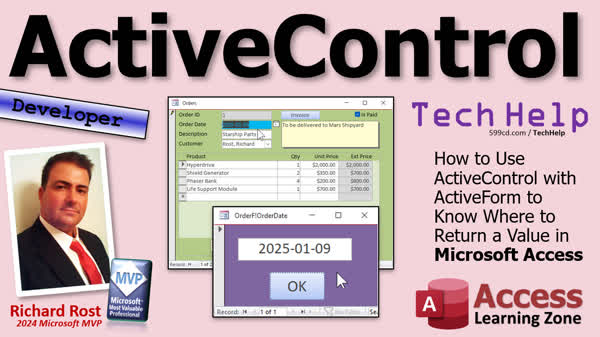
TechHelp Access, ActiveControl, ActiveForm, Microsoft Access, form interaction, value return, cascading combo boxes, event handler function, date picker, tempvar, modal forms, PreviousControl, control collection, global module, public functions, PickDate function
 Subscribe to ActiveControl
Get notifications when this page is updated
More InformationTranscript Welcome to another TechHelp video brought to you by AccessLearningZone.com. I'm your instructor, Richard Rost. In today's video, I'm going to teach you how to use ActiveControl along with ActiveForm to know where to return a value in Microsoft Access. We can have a form open another form, and that second form's job is to let the user pick a value of some kind. It could be a date, a customer, a product, or a whole bunch of stuff. But that form is going to know where to return the value to on its own, and that's what we're going to do today.
Now, if you have not yet watched my ActiveForm video from last Friday, go watch it first so you know what we're doing today, because we need to know this stuff first before we can do what we're doing in today's class. You'll find a link to this down below. Go watch it and then come back.
So, having a form that turns other forms red is a silly example, but I did mention I was going to start with a silly example. Let's copy the red form, copy, paste. Let's make this now a date form. The date form's job is going to be to get a date from the user and then return it back to whoever called it. We're going to double-click on a date field like this one to open the date form, have the user put a value in, and then return it back here.
This is a simple example, but it can be very powerful. If you have a complicated process like three cascading combo boxes, where you want the user to first pick a country, then a state, then a city, once they've finished picking those three things, you can return that final value. The form that is doing the data entry can be pretty complicated, and you might want to use that on several different forms, and this is an easy way to do that. The form will know where to return the value to. That's the benefit of doing this.
Let's design this date form and make it not quite so obnoxious. Click here. I'm going to make the color purple, nice and easy on the eyes. Now that's too dark. There we go. This is going to be our OK button now. You can make OK, cancel, whatever you want to do. I'm just going to put a simple OK button on here. Let's rename this guy to the OK button.
Let's put a date field on here. I'll grab a text box, drop it here like that, and get rid of the label. I'll default this guy. Let's call it "my date," first of all, my date. We'll default it under data here to equal today's date, or whatever date you want. I'll make this a little bit bigger so it looks pretty. Good enough. There's a date form. Save it. Close it.
There it is right there. I'll slide over here. Turn off the record selectors. Turn off the navigation buttons. Those are all beginner things. I'm not going to cover them now. Now, in this guy's formula, this guy's form load event. Let me move it back over here. Events. Let's go to the on load event.
Now we've got "tempvar varPreviousForm." I want to move this up top of the caption thing for now, just a second like that. "PreviousForm" is that we're going to do something very similar to get the previous control. "Control" equals "screen.activecontrol.name." Yes, there is a screen that "previous control." I have a whole separate video on that one. I'll put a link to it down below.
Previous control is useful when you're working on a single form and want to know where the previous control was from this one. If you got the first name, last name, you can jump between them. But you want to grab the active control when this form loads, so you know what control the user was on before this form loaded.
I'll do the same trick here with the caption just to see it. I'll put in it "bang" in there and then "screen.activecontrol.name."
We lost the red button. It's now called the OK button. We'll deal with this in just a second. Before, we could close this right and then open up the form, and it would tell you what the form name was. But it says, "The expression you entered requires the control to be an active window." This will not work if you're launching it from the navigation pane. You have to actually open it from another form for it to work. I want you to see that error message so you know what's going on. But remember, our end users are not going to have this open. You don't want your end users poking around in the navigation pane. You should hide this. I have a whole separate set of videos on security and how to lock this stuff down. But we're going to open it from double-clicking on any date field. That's what we're going to do to trigger opening that form.
So, I'll put in here some date, whatever. Now, this guy says current date. That's fine. Actually, what I like to do is in my databases, I like to make anything that you can click on or double-click on to do something, I make them blue. That's just a training issue; you just have to teach your users. If you see a blue field like that, if you double-click on it, something's going to happen. That's just something that I like to do. You could put control tip text in here, so when they hover over it, it says, "double-click to set date," whatever.
Now this current date is locked because the control source is set to date. So you can't change it. We're going to get rid of that, and you could put it in the default value if you want to. You can change it. But the big thing here is in the event in the on double-click event, where I say, "DoCmd.OpenForm DateF." That's all you have to put in there.
So close that, open it. Now watch this, double-click, and look at that. Open this form up, and this form knows not only what form called it, but what field you are on. See? That's the field current date. So now we can hit the OK button and return this value to that, which is there.
So let's do that. Let's come back over here. Let's find, I'm going to just close this window here and find there's our code.
Down here, we're no longer in the red button click. It's the OK button click. So here's a quick way you can find that. Come up here, find the OK button. And there you go. You're in the OK button click. You don't have to go back to the form and then right-click.
We're just going to move this code down into here. Now we're not setting the form red. We're going to set the value of that control. We've already put it in "tempvar varPreviousControl." So instead of saying "Forms PreviousForm.Section.BackColor," we're going to say right here, get rid of all this after that, "Controls." There's a controls collection. And in here is where you put the name of the control, like "First Name." Right, but we don't want that. We want to put in here the tempvar that we just saved, which is this guy. So put that in there.
"Controls tempvar varPreviousControl" and we're going to set its value equal to "my date," which is the value that's in your text box. That's it. It's just knowing that nomenclature too. I'm going to use the "Forms tempvar control." Take notes. I did not remember all this the first time I did it either. I've been doing this for 30 years. So this is just stuck in my brain now because I've written 5,000 databases. But you'll just take notes down. If you don't remember how to do it, that's okay. You can google it.
Debug compile once in a while. Close this. Close that. Save changes.
Now we're going to double-click. We're going to come over here and pick a different date. Let's see. Oh, I didn't turn it on. Yeah, let's turn the little thing. Data. We've got the plain text date format. Show date picker for dates. We've got to put the format in here short date. That's why it's save it. Close it. Close it. It up. And there. Pick a date. Ready? Hit OK. Go to my back there. And that cute.
Ready for some bonus material? We've got bonus material here. We can use something called an event handler function to make it super easy to simply put that inside here without having to drop a double-click event in every single one. So what we're going to do is we're going to come back in here. We're going to go to the event. We're going to take this on double-click event, which I know it's just one line, but it's still annoying to have to come in here every time you want to do this. Just take this, cut it out. Get rid of the code.
Go to a global module, which I have one. If you don't have one in your database, then go to create and then module. I have a global module right here. We're going to create our own public functions. It's got to be a function. Right. PickDate will call it PickDate. Just like that. And all this is going to do is open that form. That's it. We're going to call it PickDate. I'm going to copy this to my clipboard. Watch this. Now come back here. And all you have to do is in this double-click event, say "=PickDate()" open closed parentheses after it.
Now close this. Open it back up again. Double-click and it works. That's called an event handler function. I have a whole separate video on how that works. Go watch this if you want to learn more. But now the benefit is it's super easy to just say that in any field you want to use it in. Watch. I'll go to the customer form. Design view. My customer senses that date field I like to use that color too. So put the color around there. Go to the on double-click event and just put "=PickDate()" That's it.
Go to the OrderF same thing design view. Let's get rid of this open red form. Order Dates a date field set the color. And then put the event handler in there. On double-click. Now close that close that. Open it up. This one works. Go to the customer form. I accidentally dragged that double-click on this. Hit the button puts the value back there, see that. And you could with a little more work just have it get the value from that control and pull it into here first. You starting on that value. If you want to see how to do that, let me know it shouldn't be hard for you to figure it out. It's really simple.
Same thing with orders. Double-click. It knows what called it hit the button puts the value back. See. And if you want to make it so they can't click off of that, just make this guy locked. But if you want to make it so they have to put a value in here before they can leave this, just make this modal. I've got separate videos on modal too. It's under other set at the modal and now you cannot leave this form. Until you close it. So if I'm on the cut off stuff, I open this one up. I can't click behind it anywhere. I have to hit the OK. If I do it from here. I can't go anywhere else. That's a modal form. Modal and pop-up forms. That's beginner stuff.
I hope you see how powerful this can be. There's ActiveControl and ActiveForm. I have a video that teaches PreviousControl first. That's really handy within a specific form. Just to give you an idea of some of the things you can do with this, I have a date time picker template that I built. These are just some examples. Here's the stock one that comes with access. It's kind of boring. If you want to build your own, I show you how to build your own in this template. It's included with the template. Templates don't necessarily have walkthrough videos that explain how everything was built, but it's got a video that explains how to use it.
You can do your own custom things like this. I built a custom clock, an analog clock that you can use to pick a time. You can call this guy from anywhere. Once the user picks a value and then closes this form, it returns the value to whatever field called it. You can do all kinds of different stuff like this. It's not necessarily related to dates and times. You can use this to pick a customer. Like I said at the beginning of the video, there are all kinds of different methods you can use this for.
If you like learning with me and want to learn more cool stuff like this, I have lots of developer lessons available on my website. Come and check them out.
That's going to do it for your TechHelp video for today. This video is releasing Monday, but I'm recording it on, well, technically it's Friday at about midnight. I'm heading in for some oral surgery in the morning, so I might be out of it all weekend. But I should be back in a couple of days to be making more videos for you. That's your TechHelp video for today. Hope you learned something. Live long and prosper, my friends. I'll see you next time.Juan Soto with Access Experts Software Solutions, Manufacturing Experts Specializing in Access and SQL Server. Sammy Shama with Shama Consultancy, a certified Microsoft Access Expert who offers personalized one-on-one tutoring. Amanda Nicole Consulting, specializing in helping businesses move from complex Excel sheets to an Access database.
TOPICS:
Using ActiveControl and ActiveForm in Access
Form-to-form value return mechanism
Creating a date form for user input
Setting default values for text boxes
Customizing form appearance and controls
Handling form load events
Accessing active control information
Returning values to a calling form
Using temporary variables in VBA
Creating OK button functionality
Implementing double-click events
Creating global functions for event handling
Applying color schemes for user training
Locking controls for user interaction
Implementing modal forms
Date and time picker templates in Access
Customizing user input interfaces
COMMERCIAL:
In today's video, we're learning about ActiveControl and ActiveForm in Microsoft Access. You'll see how to open a form to pick a value like a date, customer, or product, and return that value to its calling form seamlessly. We'll transform a form into a user-friendly date picker, allowing you to select dates and send them back to various forms accurately. If you've been wrestling with returning values between forms, this technique will simplify your process. Tune in and elevate your Access skills. You'll find the complete video on my YouTube channel and on my website at the link shown. Live long and prosper, my friends. Intro In this video, you'll learn how to use ActiveControl and ActiveForm in Microsoft Access to efficiently return values from one form to another. I'll show you step by step how to set up a date picker form that users can launch by double-clicking a field, enter a date, and have the value returned directly to the correct control on the calling form. We'll cover customizing forms, handling form load events, working with temporary variables, creating event handler functions, and using modal forms to guide user input. This approach can be adapted for selecting customers, products, and more. Quiz Q1. What is the purpose of using ActiveControl and ActiveForm in Microsoft Access as discussed in the video?
A. To track user roles within an application
B. To apply different color themes to forms
C. To determine where to return a value from a secondary form
D. To change the font style of form controls dynamically
Q2. What technique is used to create a date form that retrieves a date from the user and returns it back to the calling form?
A. Using VBA macros to automate the process
B. Creating a lookup table to store the dates
C. Implementing ActiveControl to identify the control from which the form was called
D. Designing a static form with pre-defined dates
Q3. Why is it suggested to make clickable fields blue in Richard's database examples?
A. As a stylistic choice to match the application's branding
B. To indicate that clicking or double-clicking will initiate an action
C. To ensure compliance with accessibility standards
D. To highlight errors within the form
Q4. What is the role of tempvar in the context provided in the video?
A. To temporarily store form records between sessions
B. To hold the previous form value before a change occurs
C. To save the name of the previous control for later use
D. To maintain user login credentials throughout the session
Q5. How is the issue of requiring the control to be an active window resolved?
A. By using a macro to force the control to activate
B. Opening the form directly from the navigation pane
C. Opening the form via a double-click event from another form
D. Manually adjusting the focus settings in Access
Q6. What is an event handler function used for in the video?
A. To automate complex task sequences without user input
B. To handle database errors and debugging
C. To simplify the process of assigning actions to multiple controls
D. To lock user inputs until validation occurs
Q7. What is a modal form, as explained in the video?
A. A form that applies a theme based on user selection
B. A form that ensures users complete inputs before they can navigate away
C. A form designed for mobile platforms within Access
D. A lightweight form that loads faster for performance efficiency
Q8. What additional feature does Richard suggest adding to make user interaction easier with date fields?
A. Tooltip text to inform users of possible actions
B. Increasing font size for better readability
C. Enabling right-click context menus
D. Integrating with external calendars for synchronization
Answers: 1-C; 2-C; 3-B; 4-C; 5-C; 6-C; 7-B; 8-A
DISCLAIMER: Quiz questions are AI generated. If you find any that are wrong, don't make sense, or aren't related to the video topic at hand, then please post a comment and let me know. Thanks. Summary Today's TechHelp tutorial from Access Learning Zone focuses on using ActiveControl and ActiveForm in Microsoft Access. I'm your instructor, Richard Rost, and today we'll explore how a form, when it opens another form, can know where to return a chosen value by using these two functionalities.
If you're new to these concepts, it's essential to watch my ActiveForm video released last Friday. You need to understand these basics to follow today's tutorial effectively.
To illustrate, we'll create a "date form" that requests a date from the user and returns it to the calling form. While this example is simple, it demonstrates how such a form can handle complex processes, like returning a value after selecting cascading combo box options for a country, state, and city. This approach allows for reuse of such a form across different data entry scenarios, simplifying the process.
When designing the date form, we'll tweak its appearance for better user interaction. For instance, we can change colors and add buttons like OK or Cancel. A text box can be added to capture a date, defaulting its value to today's date or another specific date. It's crucial to remove unnecessary visual elements like record selectors and navigation buttons for a cleaner interface.
Upon coding this setup, we will use variables to hold information about what control is active when the form loads. By using ActiveControl, the form will understand which control was interacting with the user before it was opened.
To handle user actions, we'll configure events like the double-click event to open the date form when a field is double-clicked. By using a consistent color coding strategy, such as making interactive fields blue, users can easily identify actionable fields.
The code will involve setting the control value using previously stored information. Through understanding and applying such techniques, you can increase the efficiency and reusability of forms within your Access applications.
For added convenience, we'll explore using an event handler function to simplify the process further. This function, which you can place in a global module, eliminates the need to replicate event code across multiple forms.
There's an optional step called modal form settings, ensuring users complete a selection before navigating elsewhere. By setting forms as modal, users are confined to interacting with the form until they choose an option.
The techniques covered here are powerful tools for managing forms in Access. With ActiveControl and similar functionalities, your forms can efficiently handle data operations.
For a full video tutorial that provides step-by-step instructions on the techniques discussed, please visit my website at the link below. Live long and prosper, my friends. Topic List Using ActiveControl and ActiveForm in Access
Form-to-form value return mechanism
Creating a date form for user input
Setting default values for text boxes
Customizing form appearance and controls
Handling form load events
Accessing active control information
Returning values to a calling form
Using temporary variables in VBA
Creating OK button functionality
Implementing double-click events
Creating global functions for event handling
Applying color schemes for user training
Locking controls for user interaction
Implementing modal forms
Date and time picker templates in Access
Customizing user input interfaces Primary Topics ActiveControl property, ActiveForm property, Access VBA, returning values between forms, form event handling, date picker forms, temporary variables (tempvar), controls collection, global functions/event handler functions Secondary Topics user interface customization, modal forms, user training, template previews, analog clock time picker |




