Fitness 29
By Richard Rost

 14 months ago
Search As You Type Combo Box Filtering in FoodCombo
In this Microsoft Access tutorial I will show you how to create a search-as-you-type combo box for a food log, including building a custom query to display active food items with their group names, writing VBA code to filter results based on any text entered, and cleaning up your combo box's row source for better performance and usability. This is part 29.
Members
There is no extended cut, but here is the file download:
Silver Members and up get access to view Extended Cut videos, when available. Gold Members can download the files from class plus get access to the Code Vault. If you're not a member, Join Today!
Prerequisites
Links
Recommended Courses
Up Next
Notes
Yes, I know I said "KeyPress event" at 8:26. I misspoke. Oops.
Keywords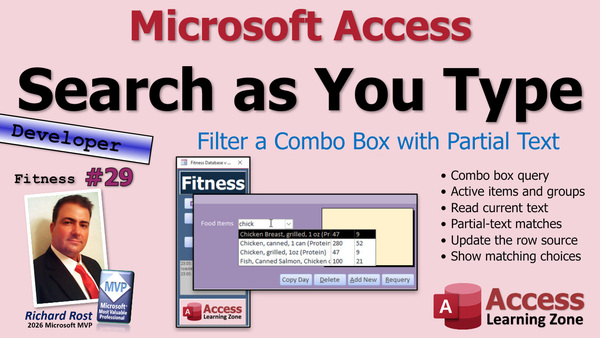
TechHelp Access, fitness database, combo box, food log, search as you type, filter combo box, dynamic SQL, VBA code, on change event, row source, food with group, active only query, auto expand property, food item picker, food group filter, form design, concatenate fields, user input filter, SQL where string
 Subscribe to Fitness 29
Get notifications when this page is updated
More InformationTranscript Welcome to another TechHelp video brought to you by AccessLearningZone.com. I am your instructor, Richard Rost.
We are now on part 29 of my fitness database. As I say before every video, this isn't just about fitness. This is about building a cool database. Today's lesson is the perfect example of that.
I'm going to show you something really super cool that I don't think I've ever shown in a video before. What we're going to do is make a combo box right here on our food log where you can pick a food item to add to the log. I'm going to show you how to do search as you type. As you type in this box, it will limit the list of options down here. Unlike a regular combo box, this text can appear anywhere in the string down here. It doesn't have to begin at the beginning. It can be like over here. See that? Super cool.
I've done search as you type videos before. I've got a couple of them. I'll give you links to them later. This is something I don't think I've ever covered before. It's really new and it's really cool. It doesn't matter what kind of database you're building. This is a game changer.
So here we are in our database. By the way, I was gone for a week last week. I don't know if the members realized because the members can see the videos as I post them. So, I had to queue up a bunch of videos and then I schedule them on YouTube to go out one every day. But if you're not a member, it looks like nothing has changed. I was gone for a week, so I had to kind of review some stuff.
Anyway, here's what we're going to do. We built our log. We got our log offset. Now we need to get a way to get food and meals in here. We're going to start with just food items. Just like we built a basic combo box before to add stuff to meals, we're going to do something very similar here, but I got a really cool trick for you.
First, we have to start off by building ourselves a query to fill in the combo box. Now we've got our food with group query, and I want to just make a little change to this guy. I don't like changing existing queries if they're already being used in other places. It's basically going to be the same as this, but I'm going to smash these together into one field, kind of like how we do in the TechHelp free template. We smash first name and last name together so they appear together in the combo box.
We're only going to show active items in this combo box because there's no sense in looking through all of them when you've got inactive items in there. So let's create a new query, and I'm going to base it on this guy. I'm going to bring in all of the fields we have. We're going to set active to true. IsActive has to be true. I don't want to see two of them, so I'll check that box off. Then I'm going to make a new field. I'm going to call it food with group.
So I've got the food name and the group name, but I want the group name after it like in parentheses, like chicken breast and then in parentheses protein. I think that looks better in the combo box. That's just me. Because then you don't see all the protein, protein, protein, protein, protein all next to each other. I want them sorted by the food name, not sorted by the group. I don't feel like making cascading combo boxes for this because with the search as you type trick, you won't need it.
I'm going to zoom in so you can see this better. Whoa, my zoom box is way over there. Let me move this over here. It's going to be food with group. This is basically going to be the food description and quote space open parenthesis quote and food group and quote close parenthesis quote. So it'll be like chicken space (protein). Okay, everybody got that? I'm going to put this in the front just so it's easy to get to.
Let's save this guy. What do you want to call this? Food with group, whoops, group. Let's call it active only. Okay.
Yeah, I got my Access window stretched this way. That's why everything's kind of appearing over here. Let's take a peek, make sure it's what I want. Let's see here. Okay, that's exactly what I want. That looks good. This is going to be what's in that combo box.
Save it. Close it. Let's build the combo box. Design view, design, where's the combo box at? This guy here, drop it there. Wizard pops up.
Get the value from a table or query. Choose the query that we just built. Next. What do you want to see in the box when the box is open? I want the food ID. Now we're not going to store it directly in here yet, we're going to eventually, but I like to always start the box with the ID first. Then the food with the group, that's going to be what's visible when the box is closed. Then whatever other fields you care about in the box, like calories and protein. So I'm going to put those in there so I can see them.
Next. What do you want to sort by? Let's sort by food with group. Next.
I'm going to hide the food ID. Remember, if this is based on a query, you don't get the little box here that says to hide the key field. Make this as wide as you think it's going to need to be. I like to take a look at some of the data just to make sure. I think that's good. Yeah, some of that's really long, but that's okay.
Shrink these up. It just sets the column widths in the combo box. This is what it looks like when it's open. We can make it shorter, narrower while it's closed.
Next. Now what field is the important field? That's the food ID. Next, we're just going to remember it for later use though. We're not going to bind it to a field. We're not going to bind it to a record yet. We're going to add it ourselves.
Right now we're just concentrating on picking the food item. What label do you want? Let's call this food item. It will be the label and finish. There it is.
Let's do a little format paint. Click on this and then format painter food item. Then we can make it a little bit like that and leave a little room on the right. We're going to put an add button over here to add it up here later on. For now, we're just worried about picking the food item.
Save it. Close it. Open it. Let's see what we got. Looks great. We can pick a food item and it goes in the box.
Now, if you want to find chicken, you could start by typing CHICK and it'll bring you right to chicken breast. But what if that's not what you're looking for? What if you're looking for chicken of the sea? Well, that's down here. You have to remember to start typing in fish.
What I want is, as I type in this box, I want it to filter this list and only show me items that have that text in it. For this, it's important to understand the difference between the value that's actually in that combo box and the text that is visible in that combo box.
Right now, this box has a value of whatever ID I pick in here, and the text that's in the box is that. But if I type in something else like JJJ, the value of that box hasn't changed unless you try to hit tab, in which case it's going to say it's not on the list. But let's assume I picked something else. I'll say I typed in cereal. Whoops, cereal like that. Okay. Right now, as soon as I hit tab, for example, the value changes to whatever this ID is, but the text in here at this moment, for example, is C-E-R-E. That's the text.
Now we can use that text to filter the list. We have to do it with a little bit of VBA code. It's not bad. It's like five or six lines of code. But we have to know some SQL too. I think I mentioned all these prerequisites in previous videos. We're up to level 29 here. So it isn't all you need, some basic SQL and VBA. The text property, I don't think we've used yet so far. Let me escape that.
So, design view. Now for this, we're going to need the key press event. We have to give the box a name first. Let's give it a name. I'm going to give it a name. Let's call this the food combo. Food combo. Oh, combos. It's making me hungry now. Okay.
Now we want to find the event that's going to fire when the data in this box is changed. There are a bunch of different events that fire. You could use key down. You could use key press. I'm going to use on change right there.
This runs every time the value in there is changed, including between key presses. So when you add another letter, it updates the text in that box. It doesn't save it to the table yet, but the text in the box is updated. That's what we want to work with.
So let's use the on change event right here, and we're going to do some stuff. We're going to basically build a where string with a little SQL based on the text that's in the box every time the box changes, and that'll filter the box.
Oh, wait, I forgot one thing. Before we do that, let's go and clean this guy's row source up because the wizard writes that. It's OK, it's technically correct, but it's messy. I want to be able to copy this and use it in my code, so let's clean some things up.
Since we're good little Access developers, we don't use spaces in our field names. This particular row source is only based on one query, so we don't need all these brackets and we don't need all these query names repeated. So we can do this. FoodID. Let me get rid of this. FoodWithGroup. Don't use spaces, don't use anything but letters and numbers. Trust me. I always tell people to trust me and they don't always trust me. Then I get people that post problems in the forums because they use weird characters in their query names and stuff.
We do need the query name there. This is our final SQL statement. Even that, somebody will call this technically optional here.
I'm going to copy that, copy it to your clipboard because we're going to use it in a minute. Save it. Let's come back over here to our code editor and just paste this in on the bottom. We're going to use it in a bit. I just want to see it for now. Let me move this so we can see it better. Hang on to it. It's going to go red because it's not valid, but that's OK. I just want to hang on to it for later use.
Now what we're going to do is we're going to build a where string based on what's in foodcombo.text. That's the text that the user has been typing into the box, not the value of the box itself.
We need a where string as a string. We're going to say if isnull(foodcombo.text) or foodcombo.text is an empty string, then our where string is going to be nothing. In other words, show me all the records. If they don't put anything in the box, show me everything. Otherwise, we're going to build a where string.
So the where string is going to be equal to WHERE FoodWithGroup like. Now we need our wildcard in here, like. Now normally it'd be like this. So it'd be like, quote, star, chicken like that.Okay, but these quotes are inside of another string, so they have to be double, double quotes, and that chick is in foodcombo.text. So the whole thing is going to look like this. It is going to be double, double quotes, asterisk. Close the string and foodcombo.text and open the string asterisk, double, double quotes, and since there is going to be more coming after it in the SQL statement, I want to put one more space there and then close the string.
I know that is confusing. I have several other videos that go over that in more detail. My double, double quotes video, my concatenation video. If you are still stuck on that stuff, watch the videos in the links down below.
End If. Now we have our where string all set. Now we just need to put together the rest of the SQL statement and put it in that foodcombo.rowSource.
So foodcombo.rowSource equals - now I am going to get rid of all this empty space and start with that select statement. There. Select that stuff, continue the line from that query, continue the line, put your where string here, continue the line, order by food group, and there is your statement.
So it will be select my fields from the query, optionally put a where string here - it will be this. Order by food group. And then, when we are done, I want to make sure the box is open so you can see things change. So we are going to do a little foodcombo.dropdown right there.
And that is it. It is a little bit of extra work, but wait till you see the results. You ready? Save it. Debug, compile once in a while. It is actually on a shirt - get it from my shop. And then we are going to close it, close it, close it, open it, are you ready?
If I drop the box down, I can see everything. I am going to type in C, H, I, C, look at that. That is pretty cool. C, H, I. Now you might have noticed it was not perfect. Like if I type in C, H, I, C, K, okay, great, there is the chicken breast, but I am missing some stuff. What is going on here?
I will go back to the C, H, I. Let us try it again, C, H, I, wait, I am just seeing Chi Chi, but why is it not working exactly right? Well, here is the problem - look what is in the box. The text is in the box, Access is trying to fill the rest of that text in, it is trying to guess what record I want. It is doing auto expand, which normally is helpful, but in this case, it is a pain in the butt. So we are going to turn it off.
Go in here, right click, design view, properties, data, auto expand - no. Do not guess what I am on. I will type in what I want. Now try it. Ready? C, H, I. It is perfect now, look at that. C, K, chicken of the C, oh, chicken, there you go. Or if I come back here and type in just C, just chicken of the C. Or if I type in dairy, I get all my dairy. Or I can type in protein, let me see what my proteins are.
I do not need a second box to do all the filtering. See? And this does handle the elusive space problem. Back in my Access Developer, I think it was eight - I will put a link down below. I cover search as you type for using it on a whole form instead of just a combo box. But there is an issue when you put a space in there. So if I type in CHI space, that space gets knocked off. But this fixes that.
See, even I learn stuff as the years go by, how to do stuff better. Pretty cool. See, this is the kind of stuff that you get when you stick around for part 29 of a long series. And I think this deserves a like. So smash that like button right now.
Post a comment down below because yes, comments do actually help with the YouTube algorithm and likes when people engage. And if you are not subscribed yet, what are you waiting for? Hit that subscribe button.
Now we can very easily - if I am looking for an Apple, APPL. But maybe I did not know it was an apple. Maybe I am looking for red delicious or red space. Oh, there it is. See how easy this is now? It does not have to be at the beginning. I love it.
Now all we have to do is after we pick it, get it up top here. And we will cover that in my Rows video. So tune in tomorrow, same bat time, same bat channel. And members, I would like to say you can watch it now, but I probably will not record it tonight. I will probably record it tomorrow morning. So as soon as it is posted, you can watch it.
That is going to do it for part 29 folks. Tune in for part 30, where we are going to continue on with this food log and do some more cool stuff. I hope you learned something today. Live long and prosper, my friends. I will see you tomorrow for part 30.
If you enjoyed this video, hit that thumbs up button right now and give me a like. Also, be sure to subscribe to my channel, which is completely free. Make sure you click that bell icon and select all to receive notifications whenever I post a new video.
Do you need help with your Microsoft Access project? Whether you need a tutor, a consultant, or a developer to build something for you, check out my Access Developer Network. It is a directory I put together personally of Access Experts who can help with your project. Visit my website to learn more.
Any links or other resources that I mentioned in the video can be found in the description text below the video. Just click on that show more link right there. YouTube is pretty good about hiding that, but it is there, just look for it.
If you have not yet tried my free Access Level One course, check it out now. It covers all the basics of Microsoft Access, including building forms, queries, reports, tables, all that stuff. It is over four hours long. You can find it on my website or my YouTube channel. I will include a link below you can click on. And did I mention it is completely free? And if you like level one, level two is just $1. That is it. And it is free for members of my YouTube channel at any level.
Speaking of memberships, if you are interested in joining my channel, you get all kinds of awesome perks. Silver members get access to all of my extended cut TechHelp videos, and there are hundreds of them by now. They also get one free beginner class each month. And yes, those are from my full courses.
Gold members get the previous perks plus access to download all of the sample databases that I build in my TechHelp videos. Plus, you get access to my code vault, where I keep tons of different functions and all kinds of source code that I use. Gold members get one free expert class every month after completing the beginner series.
Platinum members get all of the previous perks plus they get all of my beginner courses, all of them from every subject. You get one free advanced or developer class every month after finishing the expert series. You can become a diamond sponsor and have your name listed on the sponsor page on my website.
So that is it. Once again, my name is Richard Rost. Thank you for watching this video brought to you by AccessLearningZone.com. I hope you enjoyed. I hope you learned something today. Live long and prosper, my friends. I will see you next time.
TOPICS:
Building a food picker combo box in Access
Creating a query to populate a combo box
Concatenating food and group names in a query
Filtering combo box to show only active items
Designing a combo box with a custom row source
Adding multiple fields like calories and protein to combo box display
Sorting combo box entries by food name
Understanding combo box value vs text properties
Programming a search as you type filter for a combo box
Using the OnChange event for real time filtering
Writing dynamic SQL in VBA to filter combo box options
Handling double quotes in SQL strings in VBA
Updating the combo box RowSource property with VBA
Keeping the combo box dropdown open during search
Disabling AutoExpand to support inside-string search
Testing search for any text within combo box entries
Solving issues with spaces in combo box search terms
Naming controls and maintaining clean SQL syntax
Reviewing and cleaning up wizard-generated row source SQL
COMMERCIAL:
In today's video, we're continuing with part 29 of my fitness database series, but this lesson is great for any kind of Access project. I will show you how to create a combo box with a search as you type feature that instantly filters your food item list based on anything you type, even if the text is in the middle of the item. You'll see how to build a query for active items, customize the combo box display, add a little VBA to filter results, and fix the annoying auto expand issue for better searching. You'll learn helpful techniques that make your forms way more user friendly. You'll find the complete video on my YouTube channel and on my website at the link shown. Live long and prosper my friends. Intro In this video, we'll continue building our fitness database project in Microsoft Access by creating a dynamic combo box for selecting food items. I'll show you how to set up a query that combines food names and group names, filter the combo box to display only active items, and add fields like calories and protein. You'll learn how to use VBA to program a search as you type feature that lets you filter combo box options in real time, and how to resolve issues like auto expand and searching for text inside strings. This is part 29. Quiz Q1. What is the main functionality added in this lesson to the food log form?
A. Adding a multi-select list box for food items
B. Implementing a combo box with search as you type filtering
C. Introducing subforms for meal details
D. Adding charting for food group trends
Q2. How does the search as you type combo box differ from a regular combo box search?
A. It only matches from the beginning of the string
B. It searches the entire input, even in the middle of the string
C. It requires an additional search button
D. It only searches numeric fields
Q3. Why does the instructor create a new query for the combo box instead of modifying the existing one?
A. The existing query is not compatible with forms
B. Modifying existing queries can affect other parts of the database that use them
C. Queries cannot be edited once saved
D. It is required by Microsoft Access
Q4. How are the food name and group displayed in the combo box?
A. Only the food name appears
B. Food name followed by the group in parentheses
C. Only the group name appears
D. Group and then food name separated by a dash
Q5. What property of the combo box contains the user's typed text before a selection is made?
A. .Value
B. .RowSource
C. .Text
D. .Selected
Q6. To dynamically filter the combo box results as a user types, what technique is used?
A. Use a parameter query only
B. Adjust the RowSource property with a new SQL statement each time
C. Add a hidden text box for filter input
D. Use conditional formatting
Q7. Which combo box event does the code respond to, so the filtering happens as the text is changed?
A. OnClick
B. AfterUpdate
C. OnChange
D. OnEnter
Q8. When building the filter for the SQL WHERE clause in VBA, what pattern does the filtering use?
A. FoodWithGroup = foodcombo.text
B. FoodWithGroup starts with foodcombo.text
C. FoodWithGroup like *foodcombo.text*
D. FoodWithGroup in foodcombo.text
Q9. What is the impact of setting the combo box's Auto Expand property to "No" in this scenario?
A. The combo box closes after every keystroke
B. The combo box only shows the first item always
C. Auto fill does not override the user's typed input, making the search as you type feature work properly
D. The combo box can no longer be used for data entry
Q10. Why should you avoid using spaces and special characters in field and query names, according to the instructor?
A. They slow down the query performance
B. They cause display problems in reports
C. They may lead to problems in SQL and VBA code
D. They are not visible in combo boxes
Q11. What does the code do if the user has not typed anything into the combo box before applying the filter?
A. Shows only inactive items
B. Shows no items
C. Shows all items
D. Shows a default message
Q12. In context of this tutorial, what is the primary benefit of using the search as you type combo box technique?
A. Increases the maximum number of items in the combo box
B. Allows users to easily find items, even if the search term appears anywhere in the string
C. Makes data entry slower, but more accurate
D. Allows import of data from external sources
Q13. What best describes the modification made to the field shown in the combo box for better readability?
A. Splitting food and group into two separate columns
B. Combining food name and group in one field with formatting
C. Using group icons as images
D. Showing only the group name for brevity
Q14. Why is it important to frequently compile your VBA code while building the solution?
A. It backs up your database
B. It encrypts your code
C. It helps catch errors early and ensures code changes take effect
D. It increases the speed of your combo boxes
Q15. Which of the following is true about the RowSource property when used for dynamic filtering in this tutorial?
A. It is set once at form design and never changed
B. The RowSource is modified in VBA to apply filters based on user input
C. RowSource can only be set in the property sheet, not in code
D. RowSource must contain all fields from the underlying table
Q16. What is a key advantage of this search as you type combo box over creating cascading combo boxes?
A. It is easier to maintain and provides flexible filtering without extra controls
B. It requires less VBA code than cascading combos
C. It is the only way to filter in Access
D. It supports multi-field editing directly
Answers: 1-B; 2-B; 3-B; 4-B; 5-C; 6-B; 7-C; 8-C; 9-C; 10-C; 11-C; 12-B; 13-B; 14-C; 15-B; 16-A
DISCLAIMER: Quiz questions are AI generated. If you find any that are wrong, don't make sense, or aren't related to the video topic at hand, then please post a comment and let me know. Thanks. Summary Today's TechHelp tutorial from Access Learning Zone focuses on enhancing our fitness database project in Microsoft Access. While this series uses a fitness theme, the lessons apply to database building in general, and today's topic demonstrates an especially useful technique you can use in any Access project.
In this lesson, I am excited to share a feature I have not covered in any previous videos: creating a combo box with search-as-you-type functionality that filters items even if your search text appears anywhere in the field, not just at the beginning. This is much more flexible than a standard combo box, and you can use this powerful trick in all kinds of databases.
The goal is to add this search feature to our food log form. You may have seen similar search-as-you-type approaches in other contexts, but the method we cover here is different and, I believe, a real game changer.
To begin, let's look at the setup. We have already built the core of our food log, but now we need to make it easy to add food items to the log. As with our earlier combo box work for adding meals, we start by creating a query to populate this new combo box. I recommend creating a new query instead of modifying an existing one, especially if other parts of the database rely on the current version. This allows us to customize the results specifically for this combo box.
I want the combo box to display each food item with its group in parentheses after the food name – for example, "chicken breast (protein)." This layout is clearer and avoids cluttering the combo box with repeated group names. I also want to restrict the combo box to show only active food items, so we filter the query so that only items where IsActive is true are included.
Once the query is configured correctly with the combined display field and only active items, save and name it appropriately, such as "FoodWithGroupActiveOnly." After verifying the query looks right, we can move on to building the combo box.
In the form's design view, add the combo box and use the wizard to base it on the query you just created. Make sure the FoodID is included, even though we are not storing the value yet. Ensure "FoodWithGroup" is set as the field visible when the box is closed, and bring in additional useful fields like calories or protein if you want them visible when the list is open. Sort the data by the food name, not the group, to keep things intuitive. When you finish the wizard, tidy up the display and label the control as "Food Item."
At this stage, you should be able to open your form and pick an item from the combo box. If you type "CHICK," for instance, it jumps to "chicken breast." However, if you try to enter a word that isn't at the start – say, "red" to find "red delicious apple" – it won't find it unless you start at the beginning of the item. We want to improve on this so the filtering is much smarter.
The trick is to use the text property of the combo box to filter its list as you type, showing only records that contain your typed string anywhere in their display text. We accomplish this with a little VBA. First, give your combo box a clear name, such as "FoodCombo." We'll use the "On Change" event so the code runs each time the user types in the box.
Before adding code, I recommend cleaning up the row source SQL statement that Access generates so it is easier to work with. Use field names without spaces and keep the statement clear of unnecessary brackets or qualifiers. Make a copy of this cleaned SQL for use in your code.
The core VBA logic checks whether there's any text in the combo box. If so, it constructs a WHERE clause using the LIKE operator with wildcards on both sides, so your search text can appear anywhere in the field. If the box is empty, it just shows all records.
Next, update the combo box's RowSource property by combining your earlier SELECT statement, your WHERE string if needed, and the ORDER BY clause. Finally, call the combo box's DropDown method so users can immediately see the filtered results as they type.
After saving and compiling your VBA (which is always a good habit), test the result. Start typing in the combo box and watch as the list filters to show only matching items instantly, no matter where your search term appears in the item's text.
There is one more important tuning step. Access combo boxes often use the "AutoExpand" feature, which tries to guess and complete your entry as you type. For this search-as-you-type solution, AutoExpand actually interferes, so be sure to set AutoExpand to "No" in the control's properties. When you type now, your results should filter correctly for any search input, including those with spaces.
Now, you have a combo box that supports fast, flexible searching by any text string, without the limitations of only matching the beginning of entries. No need for extra filtering controls or cascading combo boxes. This handles all of it in one place and works smoothly, even if your data includes spaces.
If you'd like to see step-by-step details on how to set up every aspect of this, you will find a complete video tutorial on my website at the link below.
Live long and prosper, my friends. Topic List Building a food picker combo box in Access
Creating a query to populate a combo box
Concatenating food and group names in a query
Filtering combo box to show only active items
Designing a combo box with a custom row source
Adding multiple fields like calories and protein to combo box display
Sorting combo box entries by food name
Understanding combo box value vs text properties
Programming a search as you type filter for a combo box
Using the OnChange event for real time filtering
Writing dynamic SQL in VBA to filter combo box options
Handling double quotes in SQL strings in VBA
Updating the combo box RowSource property with VBA
Keeping the combo box dropdown open during search
Disabling AutoExpand to support inside-string search
Testing search for any text within combo box entries
Solving issues with spaces in combo box search terms
Naming controls and maintaining clean SQL syntax
Reviewing and cleaning up wizard-generated row source SQL Primary Topics Access forms, combo box, search as you type, real-time filtering, queries, VBA, SQL row source, food log
Secondary Topics string concatenation in queries, disabling auto expand, UI/UX improvements, naming conventions
|




