Fitness 59
By Richard Rost

 11 months ago
How One Wrong Character Can Break Your VBA Code
In this Microsoft Access tutorial, we'll talk about the important difference between regular and integer division in VBA, and how a single character in your code can change your database results. I'll show you how to set focus to a specific text box when opening your forms, review formatting numbers to zero decimal places, and discuss how to round calculated values in your queries for cleaner reports. This is part 59 of my fitness database series.
Members
There is no extended cut, but here is the file download:
Silver Members and up get access to view Extended Cut videos, when available. Gold Members can download the files from class plus get access to the Code Vault. If you're not a member, Join Today!
Prerequisites
Links
Recommended Courses
Up Next
Keywords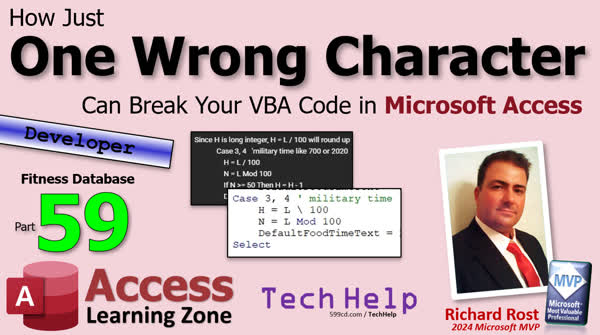
TechHelp Access, integer division, modulus operator, after update event, long integer, tab order, form design, setfocus, on load event, search box focus, food description filter, format numbers, decimal places, thousands separator, round function, FoodLogQ, design view, query rounding, protein calculation
 Subscribe to Fitness 59
Get notifications when this page is updated
More InformationTranscript Today, we're going to learn about how one wrong character can break your VBA code and your Microsoft Access database. This is part 59 of my fitness database series. But even if you don't care about fitness, that doesn't matter. This is about building a database with lots of cool tips and tricks, and today's lesson is no different.
We're going to learn about something called integer division. If you're not familiar with it, we're going to go over it in a little more detail than we did in yesterday's video. We're also going to go over some weird formatting stuff that happens in the forums when you try to format it with stuff.
So here we go. Starting off today, we've got a comment from one of my members, Bartos Spivak 5755. He posted on YouTube; it's a comment about yesterday's video, Fitness 58, where we're doing military time. If we take a number like 455 and we want to figure the hours out, we divide it by 100, right? And that should give us the four.
Bartos specifically says correctly here, since H is a long integer, if you do H equals L divided by 100, it will round up right to five. Now the issue here literally boils down to one character. If you know what it is, post a comment down below. Here I'll give you my code for reference. It's right in here in the after update event.
Alright, there's my code. Let me put them side by side here. There's Bartos' code. Do you see what the character difference is? Do you see what that one character is? It's right there. I use the backslash instead of a forward slash. I even mentioned it briefly in the video, right here, about 7:32 in the video.
So the H, the hours, is going to be L integer divide, not this guy. That's regular divide. We want integer division 100. So 730 becomes 7. We're basically dividing it by 100 and ignoring any remainder. That's what integer division is.
I cover integer division and modulus and all that in my Access Expert Level 26 class. It's one of the more advanced math functions, all this kind of cool stuff.
Now I got that; I got the hours out of it. How do I get the minutes part of it?
So what's the big deal? What's the difference between regular division and integer division? With regular division, Bartos is right. If you take 100 and divide it by, let's say you've got this 455 here, you divide that by 100. It will see the 4.55 and round it up. But with integer division, it doesn't. It just truncates it, chops it right off. So the 455 becomes a four. Then you use the modulus to get the other part of it, the part that was chopped off. So you'll get the 55 here.
This is a perfect example of how literally one character, not even one line of code, one character can change your code. That was easy to miss. Sorry if I didn't go over it in detail.
Doing a search on my website, I don't have a specific video for integer division for TechHelp. I mentioned I covered it in one of my Expert Level classes. I'll probably put together a TechHelp video on it, but I do talk about it in my odd or even video. If you want to go watch this, it covers that and it covers the modulus operator.
Excellent question and thanks for posting it.
Next up, now that I've been using the food log for a long time, I find myself, whenever I come to want to add something - like, what did I have today? Oh, today I had some Miracle Whip. I had a turkey BLT and I want to put a little bit. I know Miracle Whip is awful health wise, but I had just one tablespoon of it. Yes, I measured it out, but I didn't have it in my food table.
When I went to the food list, I noticed it normally starts down here at the tab order. You can set the tab order easily in form design. If you come in here to form design, go to the form design tab, then tab order, and here's where you can set the tab order. The tab order always starts in the detail section.
Why is it starting now down here in the food group ID when I open up this form? Why is it doing that? Because the first field in the tab order is this guy, and we put code in there so when we click up here, it jumps down there. Remember that?
I don't want people clicking up here and trying to think that they can edit stuff up here. We did this in one of the previous lessons. That's okay, I like that, but when I open up this food list lately, I'm finding myself always wanting to search. Usually, I'm in here looking for something. Let me move this up so you can see it. I come in here, I'm looking for Miracle Whip. Let's say I don't find it, I want to add it. So I go over here to the food list and the first thing it pops me down here is on the food group, which I don't want.
So, when I open this, I want to have the focus start there in that search box. You can't do that without a little code because it's going to try to put it in the detail section, and it's our other code that's jumping it down there. We want the focus to start in the food description filter box, and we're going to put that in the form's on load or on open event.
I already have something on load in here. We'll do that first. We'll come in right in here.
Alright, and right before we do this me.timer animal business, we'll come in here and we'll say food description filter.setfocus. That should start us off there.
Let's close it and now open it and perfect, there it is. Now I can come up here and look for Miracle Whip and, oh, there is Miracle Whip - I have it already. It's these little customizations that I think really make the database better. It's the little things and it's the little details like that that sometimes I don't cover in my full course because I'm trying to cover the big picture items. That's what the TechHelp videos are for - all these little edge cases.
Another thing I want to change, I had some lettuce. Now, an entire head of lettuce like Romaine or iceberg is about 75 calories. I have one big piece of lettuce from an iceberg lettuce head, so I put 0.1. But that, of course, gives me fractions down here. I really don't care about fractions of a calorie or fractions of a gram of protein, so let's format all of this stuff to zero decimal places.
This is the stuff you guys probably already know how to do, but it's good review and it's good for teaching you about polishing this stuff. Now I'm going to highlight all these and we're just going to go to format and set decimal places to zero instead of auto.
Now, this brings up a big question. Oh, see, now there you go. See, it didn't format those properly. Why is that? If we come in here, those are all set to decimal places zero. We also need to put a format in there.
How do you want this to look, formatting-wise? I'm going to say #,##0 just like that. Alright, save it. Let's close it, open it, and there we go.
Let me explain what that was just for those of you who aren't familiar with the pounds or with the format here. I'll zoom in so you can see this better.
I have a whole separate video on formatting numbers. Here's that video if you guys are interested and want to learn more. I cover it in a bunch of my courses.
A lot of people ask me what course covers whatever topic. Sometimes a specific topic is covered in a lot of different courses, like something like table properties. What course covers all the table properties? I don't cover them all in one class because there are table properties for beginners, and there are table properties for experts, and there are table properties for developers. So it's spread out. I don't have one course that teaches everything about queries.
But, anyways, what this means is: put a number here if one exists in that place. If there is a thousands number, put one there. This one's optional. This one's optional. This one is not. You must always put a number in this spot, in the ones spot. If you have tens, hundreds, and thousands, this will carry on, too. But this specific format says, I want to see the numbers comma separated, but I only really care about the first one unless there are more numbers, then show them. Basically, that's what this is. This is the default for thousands if you want a thousands separator.
Since I specify zero decimal places, you won't get a decimal. If you want to force a decimal, do that, and obviously, you have to put one decimal place up top. So there's that and that will give you the format that you want.
Now, what I was going to say earlier is this brings up another question: are you sure you want to show a rounded number there? Up here, you might want to leave it so it's not rounded, and just round and display the rounded off number at the bottom. I go over this a lot when we're dealing with invoicing. One of the things my full course covers in detail is doing invoicing and order entry.
You don't want to fall into the trap where you're rounding off individual items behind the scenes and then they don't add up to the final product. If you have a whole bunch of small items that are, you know, fractions of a penny, then you run into the Superman 3 problem. The Office Space problem, where they round off all these little tiny fractions of a penny, and then they add them all up, and then they steal it, and they get in trouble, and then Superman has to come and save the day. Everyone's familiar with that one, right? In fact, I have a whole other video on that one, of course.
Up here, however, I do want to see just one decimal point if it's allowed, but sometimes depending on the calculation, you might get the 3.33333 problem. I don't want to see all that up here. So I would like to only display one decimal point if there is a fractional component, not if it's just an integer.
How did we do that? You'd think you could just come in here, select both of these, and put a format in here of #,##0.#, right? You'd think that would work. That's what it looks like there. Let me close this up a little bit so you can see it better. If it exists, it will show the ones place and then a fractional part if it exists. You'd think that would work, but save it, close it, open it, and you get that. You're going to see the period. I don't like that.
Unfortunately, there's no way to easily put that type of a format in here. If you put the .0, then you're always going to see that .0, which I don't want either. I only want to see the fractional component if it exists. You can't do that with a simple format. Trust me, I've tried. If you come up with a solution, I want to know about it.
But what we can do is round this in the query. For this particular example, I don't care about too many fractions of a calorie or too many fractions of a gram of protein. So that total down here on the bottom is close enough for me. If you're doing this with order entry, for example, you want to round all your pennies at this level here so that they don't all fractionally add up and get down to the bottom and the number is wrong from what you can see.
So this is a case where we're going to just round it off in the underlying query. In this case, it is FoodLogQ. So let's go back to FoodLogQ. Where are you at? There you are. Right-click, design view.
Right here, total calories, at this point here, I'm going to round it to one decimal place. This is going to be Round(that, 1), and if we look at them now, all the total calories should be rounded off to one decimal place.
Do we have any fractions in here? Let's move on to the bottom. Oh, I know someone's got a fraction. I don't have to fret. Where did it go? I know it's in here somewhere.
There we go, so you can see that they're rounded to one decimal place. We'll do the same thing with the other calculations. We just round protein. Round - I'm going to copy that to my clipboard - and we're going to round you, and did it. The comma one. Did I do comma zero on the other one without thinking about it? I bet I did. Nope, we got to put it in there. The comma one. And this guy. There we go. Alright, save it. Run it here. Make sure everything looks good.
Wish I could find that one that was crazy. Maybe I fixed it. Maybe I changed the number so I didn't have to look at that. Looks like everybody's good. But that will avoid that problem up here.
Alright, so that's going to do it for your TechHelp video for today, folks. I hope you learned something. Live long and prosper, my friends. I'll see you next time. Intro In this video, I talk about the importance of using the correct division operator in VBA when working with Microsoft Access, specifically focusing on the difference between regular division and integer division. I show how a single character can impact your database calculations, review formatting tricks for numbers and decimals in your forms and queries, and demonstrate how to set focus in a form's search box on load. Along the way, you'll pick up useful tips for rounding numbers, handling tab order, and customizing your Access database for better usability. This is part 59. Quiz Q1. What is the main difference between regular division ("/") and integer division ("\\") in VBA?
A. Regular division returns the whole part only; integer division returns the decimal part only.
B. Integer division truncates the result to an integer, while regular division includes the decimals.
C. Regular division ignores decimals, while integer division rounds to the nearest whole number.
D. There is no real difference between them in VBA.
Q2. In the context of extracting the hour from a military time value like 455 in VBA, which operator should you use and why?
A. Use "/" for division because it gives the correct integer hour.
B. Use "+" to increment the number to the next hour.
C. Use "\\" for integer division because it truncates decimals and gives the hour.
D. Use "Mod" to get the hour.
Q3. What issue arises when using regular division "/" to assign an integer value in VBA, such as H = L / 100?
A. It always produces a syntax error.
B. It rounds the result up or down, possibly giving the wrong hour.
C. It ignores the integer and gives a decimal only.
D. It reverses the digits.
Q4. What is the purpose of the modulus ("Mod") operator when working with military time in this context?
A. To multiply hours by minutes.
B. To find the fractional part of the hour only.
C. To determine the remainder after dividing by 100, which gives the minutes.
D. To round the hour to the nearest integer.
Q5. When opening the food list form in Access, how can you set the initial focus to the search box in VBA?
A. Set the tab order in form design only.
B. Write code in the form's On Load (or On Open) event using "SearchBox.SetFocus".
C. Change the field names in the table.
D. Manually click the search box each time.
Q6. Why might setting the decimal places property to 0 not always display numbers as intended in Access forms?
A. Decimal places property is controlled by the table only, not by the form.
B. The format property also needs to be set for certain number formats.
C. The decimal symbol must be removed from regional settings.
D. The database is corrupted.
Q7. What custom number format in Access ensures comma-separated thousands with no decimal places?
A. "#,##0.00"
B. "0"
C. "#,##0"
D. "#0.0,"
Q8. What problem can occur if you round off each individual item in a database calculation before summing, such as in invoicing?
A. The sum will be more accurate.
B. Items may not add up to the actual total due to rounding errors.
C. It improves calculation speed.
D. The order of entry no longer matters.
Q9. What is the suggested method to display only one decimal place for totals in the form without showing unnecessary trailing zeros?
A. Set decimal places to 1 and use a format of "#,##0.0".
B. Set format to "#,##0." so the decimal is always visible.
C. Use the Round function in the query to round to one decimal place before displaying.
D. It is not possible to only show the decimal when a fraction exists.
Q10. Why might it be problematic to use formatting alone to hide the decimal if there is no fractional component in Access?
A. Formatting never works in Access.
B. The format property cannot conditionally hide or show the decimal point based on value.
C. It results in data loss.
D. Access does not support numbers at all.
Q11. What is typically the best place to handle rounding for reporting totals in an Access database to avoid cumulative rounding errors?
A. Format at the table level directly.
B. Format in the form only.
C. Round values in the underlying query before summing or displaying.
D. Manually adjust the numbers in each report.
Q12. What is one way you can improve the user experience in Access when users frequently want to search for entries upon form opening?
A. Place a button labeled "Start" on the form.
B. Always open the form in datasheet view.
C. programmatically set focus to the search box in the On Load event.
D. Remove all other controls from the form.
Answers: 1-B; 2-C; 3-B; 4-C; 5-B; 6-B; 7-C; 8-B; 9-C; 10-B; 11-C; 12-C
DISCLAIMER: Quiz questions are AI generated. If you find any that are wrong, don't make sense, or aren't related to the video topic at hand, then please post a comment and let me know. Thanks. Summary Today's TechHelp tutorial from Access Learning Zone focuses on how a single character can cause your VBA code, and your entire Microsoft Access database, to break. This lesson is part 59 in my fitness database series, but the concepts are applicable no matter what type of database you are working on. Today, I am going to discuss integer division, highlight some quirks with number formatting, and share a few useful tips that came up while working on my sample fitness application.
Let me start by talking about integer division in VBA, as I received an insightful comment about it from one of my viewers after the last video. The discussion centers around working with military time in the format HHMM, such as 455, and needing to split out the hour component. If you divide 455 by 100, you get 4.55, which could be rounded to 5 depending on the context. To accurately extract just the hour portion, you have to use integer division in VBA.
The key difference between regular division and integer division is that regular division can result in fractions and rounding, while integer division discards anything after the decimal point. Integer division in VBA uses the backslash character, not the regular forward slash. So, 455 integer divided by 100 simply truncates to 4. If you mistakenly use the regular division character, things will go awry because you may end up with a rounded result instead of the integer you want. This is an excellent example of how a single incorrect character can completely change what your code does.
Modulus is also helpful in this context for retrieving the remainder, which can help you get the minutes portion after you have split off the hours. Integer division and modulus are discussed more thoroughly in my Access Expert Level 26 class, which covers advanced math operations in detail.
As for formatting issues, many people ask what happens if they want to adjust how numbers are displayed on forms and reports, such as rounding calories or protein grams and removing unwanted decimal places. For example, when tracking your food log, you might end up with fractional values, such as 0.1 heads of lettuce. You may find you do not need to see decimal places in every case.
To control how these values appear, use the decimal places and format settings in Access. For instance, you can select the relevant fields in your form design and set decimal places to zero. Sometimes, though, this does not fully solve the problem, since the format property may also require a specific configuration to display numbers without decimals and with proper thousand separators if needed.
A common number format for this is comma zero, which forces integer display with commas for thousands when appropriate. Setting decimal places to zero means you will not see any fractions. If you decide you do want to see a decimal place when it exists, you cannot achieve this with formatting alone; Access will either always show the decimal or never show it. Unfortunately, there is not a built-in way to automatically hide the decimal when it is not needed and show it only when a value is not an integer. If you know a clever trick to handle this, let me know.
If you need to round values at the query level for summary calculations, that works well for most use cases, especially when you are not concerned about small fractional amounts, like a portion of a calorie. This is important for accuracy in things like invoicing as well. You do not want to round individual line items behind the scenes and end up with a total that does not match what you see because of fractional rounding issues. That is known in pop culture as the "Superman 3" or "Office Space" error.
Another usability improvement in the food log form is to control where the focus starts. By default, the focus may drop your cursor further down the tab order, depending on prior code you have set up to help guide users. However, if you are in the habit of immediately searching for a food when you open the form, it is more efficient to move the focus directly into the search filter box. You can control this with a little bit of VBA placed on the form's load event, using the setfocus method. This type of customization, while minor, can really improve the user experience.
Overall, today's lesson just highlights how small things in your code or your form design can have a big effect. Whether it is a single mistyped character in an expression or a subtle formatting option, attention to detail is important and these tips can help make your applications more robust and user-friendly.
If you want to see the exact step-by-step instructions for everything talked about here, you can view the complete video tutorial on my website at the link below. Live long and prosper, my friends. Topic List Integer division with the backslash operator in VBA
Difference between regular division and integer division in VBA
Using modulus operator to extract remainder in VBA
Configuring tab order in Microsoft Access forms
Setting focus to a specific control on form load
Using SetFocus in VBA to control initial input location
Formatting fields to zero decimal places in Access forms
Applying custom number formats to display thousands separator
Rounding values in Access queries using the Round function
Displaying one decimal place for non-integer values
Rounding and displaying totals in Access forms and queries Article When you build applications with Microsoft Access and VBA, even the smallest details—like a single character in your code—can have a big impact. Today, I want to show you how easy it is for one character to make or break your code, using the concept of integer division as a practical example. Whether you're working with fitness data or not, the principles apply to any database scenario.
Let's start with integer division. This is the process of dividing two numbers and discarding any remainder. In VBA, you use the backslash character for integer division, not the regular forward slash. For example, suppose you have a time value like 455, which represents 4:55 in military time, and you want to extract the number of hours and minutes from it. To get the hours, you might be tempted to write code like this:
H = L / 100
However, the forward slash (/) is the standard division operator and returns a floating-point result, so dividing 455 by 100 gives you 4.55. If you assign this to an integer variable, it might round up and give you 5 instead of the 4 you're looking for. What you actually need is integer division, which discards the remainder rather than rounding. Here's the right operator to use:
H = L \\ 100
Notice the backslash. This tells VBA to perform integer division, so 455 \\ 100 equals 4, since the remainder is ignored. If you need to get the minutes part, you use the modulus operator, which in VBA is the keyword Mod. So, to get the minutes, do:
M = L Mod 100
In our example, 455 Mod 100 equals 55. That's how you correctly split a military time like 455 into 4 hours and 55 minutes using just integer division and modulus.
This small difference in operator—a backslash versus a forward slash—can change your results dramatically. It is incredibly easy to miss, but absolutely essential when you want your calculations to work as intended.
Now, let's move on to another detail that often comes up in Access forms—the way you control which field has focus when the form opens. Suppose you have a form listing foods, and you usually want to search for a food item as soon as you open it. By default, Access positions the cursor at the first field in the tab order of the form's detail section. If your first field is something like 'Food Group ID,' that is where the cursor will go every time, which might not fit your workflow.
To improve usability, you can set the focus to the search box automatically as soon as the form loads. You do this by adding one line of code to the form's On Load event:
FoodDescriptionFilter.SetFocus
With this code, as soon as the form opens, the search box is ready for typing without having to click it first. Small touches like this make your database behave more intuitively and are great examples of how to fine-tune user experience.
Speaking of fine-tuning, another common task is controlling how numbers are displayed and rounded in your forms and reports. Say you are logging food portions and sometimes enter fractional values, like 0.1 of a head of lettuce. These fractions might result in calculated fields—such as calories or grams of protein—displaying long decimals you do not want. Often it is better to round these totals to whole numbers or one decimal place for a cleaner display.
To do this, first select the controls you want to format in form design view. In the properties pane, set 'Decimal Places' to 0 for whole numbers, or 1 if you want to allow for tenths. Additionally, you can use a custom format string to control how the numbers appear. For example, entering
#,##0
as the Format property means the number will always be displayed with commas separating thousands (if needed) and with no decimal part. If you want one decimal place, set 'Decimal Places' to 1 and use
#,##0.0
as the format.
However, sometimes you may want to display the decimal only when needed; unfortunately, Access does not let you create a format that hides the decimal point for integers but shows it for fractional values. If a field is set to show one decimal place, even whole numbers like 3 will appear as 3.0. There is no native format string workaround for this inside the properties window.
What you can do instead is handle rounding in your underlying query. For example, if you have a query calculating total calories, you can use the Round function to control the number of decimals. Open your query in design view, find the calculated field (such as TotalCalories), and adjust it like so:
TotalCalories: Round([SomeExpression], 1)
This rounds the result to one decimal place, which avoids seeing numbers like 3.333333 in your form or report. Apply the same logic for any calculated fields where you want to control the number of decimals. This helps ensure your numbers are displayed cleanly and consistently.
Finally, a point of best practice: if you are tracking items that may accumulate tiny fractions (like calories or pennies in an invoice), you should only round results for display, not in your underlying data. Otherwise, many small rounding errors can add up and cause discrepancies—think of the classic 'penny shaving' problem from movies like Superman 3 or Office Space. You want your sum totals to be accurate, and only the displayed values should be rounded for clarity.
To summarize: always use the correct division operator for your needs (backslash for integer results, forward slash for floating point), set the tab order and focus in your forms to match your workflow, and control your number formatting both at the display level and, when needed, in your queries. Small adjustments like these make your Access applications much more powerful and user-friendly. If you keep an eye on these details, your database will work better, look better, and you will avoid subtle errors that can be hard to track down. Primary Topics VBA integer division, SetFocus method, Tab Order in forms, number formatting, rounding in queries, military time calculation, data entry UI improvements, error prevention
Secondary Topics modulus operation, format property nuances, query-level rounding, order entry calculations, edge case handling
|




