|
||||||
Access Developer 9Partial Payments, Linked Forms, Test Taker DBWelcome to Access Developer 9. In this course you will learn how to enhance partial payments in your order entry database, improve main menu functionality, and begin building a test taker database from the ground up. We will discuss setting up tables, working with relationships, designing new forms for entering questions and answers, and start implementing forms for taking tests, including filtering, assigning test taker IDs, and storing results using introductory VBA and SQL techniques. Lessons
Resources
Lesson SummaryWelcome! Partial Payments & Test DB - Welcome to Microsoft Access Developer Level 9. In this course we will make enhancements to the partial payments system in the order entry database, address housekeeping items like improving main menu functionality, and begin building a new test-taker database. We will discuss table structure, relationships, and how to set up new databases, then start creating supporting forms for the test-taker project, including a question form with an answer subform. We will also begin developing forms to take tests, covering filtering and assigning test taker IDs, and storing results, along with some introductory VBA and SQL techniques.
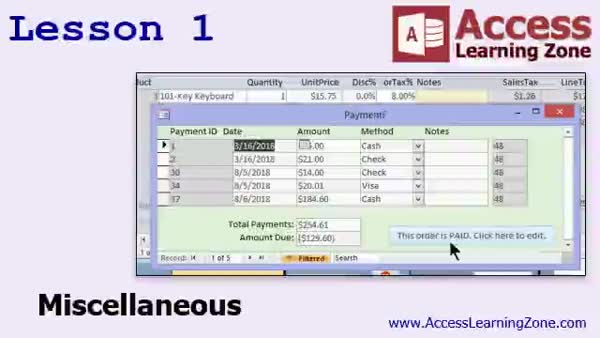
Lesson 1: Search, Payments, Hide, Fix Subform - In Lesson 1, we will cover a variety of miscellaneous housekeeping tasks in your database, such as adding a search form button to the main menu, creating a double-click event to open a customer record, and hiding the manager button when appropriate. We will also address issues related to payment records, including marking orders as unpaid when payments are deleted and ensuring forms refresh correctly to reflect data changes. Additionally, we will walk through how to lock or disable form fields once an order is marked as paid and discuss the use of the IsPaid field versus calculating payment status with a query.
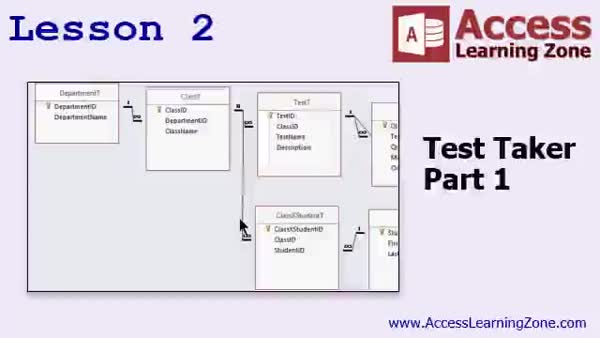
Lesson 2: Test Taker Database Design - In Lesson 2, we begin a new project called the Test Taker database, focusing on building a system where students can take tests on a computer and have their answers stored for reporting. We will walk through setting up the tables needed for departments, classes, tests, questions, answers, students, and the necessary relationships, including many-to-many structures using junction tables. We will also cover test results and storing individual answers, discuss design choices, and introduce basic referential integrity concepts. This lesson provides a full walkthrough of creating the core table structure for the Test Taker database.
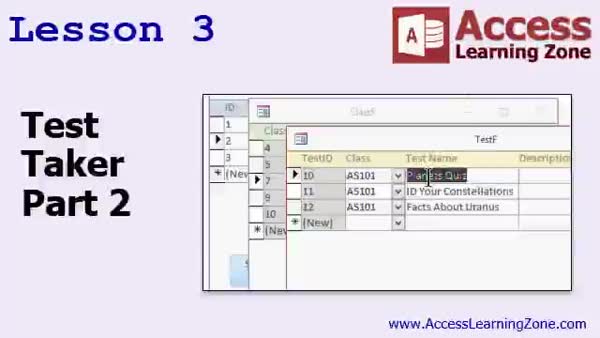
Lesson 3: Linked Continuous Forms & Combos - In Lesson 3, we will continue building the Test Taker database by walking through the creation of forms to improve usability and manage one-to-many relationships. I will show you how to design continuous forms for departments, classes, and tests, including customizing layouts, using combo boxes for data selection, and adding buttons and double-click events to link related forms. We will also discuss techniques like setting default values, adjusting tab order, and applying simple formatting to make the forms easier to use.
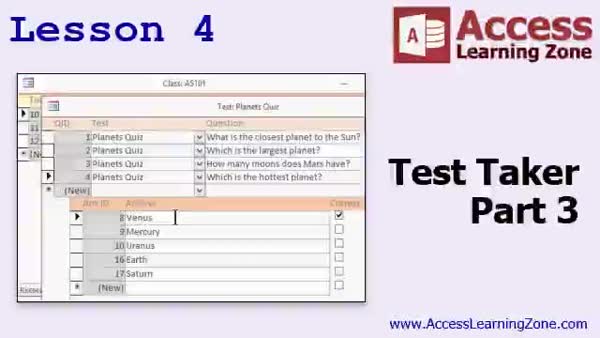
Lesson 4: Question Forms with Answer Combos - In Lesson 4, we continue building our Test Taker 3 database by creating a question form with an answer subform, allowing for easy entry and modification of answers and marking correct ones with a checkbox. We will walk through copying and modifying forms, setting up combo boxes for selecting related tests, adjusting form layouts and captions for clarity, and addressing issues with subforms in continuous forms. We will also discuss setting default values, organizing the form layout, and managing answer records in relation to their corresponding questions, as well as mention order for presenting test questions.
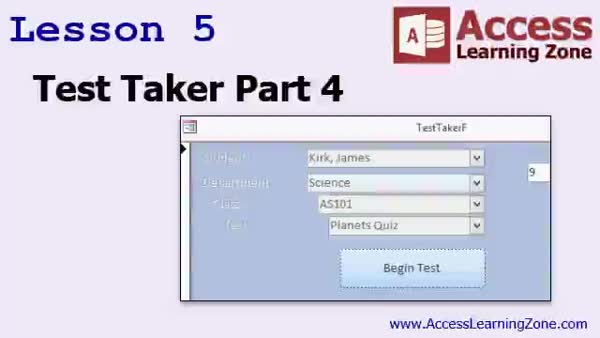
Lesson 5: Test Taker Form: Cascading Combos & SQL - In Lesson 5, we continue working on the Test Taker 4 tutorial by building the main form that allows users to select a student, department, class, and test using cascading combo boxes. I show how to configure these controls to filter options and enable or disable them as appropriate, ensuring only valid selections are available. We will walk through creating a Begin Test button that inserts a new test result record using SQL, handles issues with reserved keywords, and retrieves the TestResultID with DMax for use during the test-taking process.
Lesson 6: Review & Next Steps - In this course we learned how to work with Access Developer Level 9, including building a test database, saving test results in a table, and generating scores. We discussed upcoming plans for Access Developer Level 10, where we will continue working with databases and explore new material. I also mentioned additional resources on my website, such as seminars on database images, security, and especially relationships between tables. I encouraged participation in forums, surveys, and following social media channels for support and updates.
NavigationKeywordspartial payments, order entry database, test taker database, tables and relationships, subforms, answer subform, cascading combo boxes, continuous forms, SQL insert, DMax, test results table, referential integrity, payment records, question form
More InformationTranscriptWelcome to Microsoft Access Developer Level 9 brought to you by AccessLearningZone.com. I am your instructor, Richard Rost. In today's class, we are going to do some additional enhancements and modifications to the partial payments system that we worked on in our order entry database in previous classes, Level 8 and before. We are also going to start a new project today. We are going to start building a Test-Taker database. Even if your business or personal needs have no reason to build a Test-Taker, this lesson is going to have a lot of new information and a lot of cool stuff for you. I get a lot of requests from people who have been asking me to start a new project and to show some additional ways to set up tables and relationships. So we are going to get into starting a new project. We are going to go back to the order entry database, obviously, but we are going to take a little side trip here and build a brand new database. You can use this in a lot of different types of businesses, such as employee certifications and all that kind of stuff, but the lessons and concepts that are going to be covered are vital. Let me get back into our order entry system. So this is one of those things where, trust me, even if you think you do not need it, watch the Test-Taker lessons. There is a lot of cool stuff in there. For prerequisites, of course, you should have taken Access Developer Level 8 and everything that comes before it, including my Beginner, Expert, and optionally the Advanced series. The Advanced series covers macros, but there is still a lot of good stuff in there with event programming. For those of you who have never taken my classes before, they are broken up into Beginner, Expert, Advanced, and Developer. This is the Developer series, and every series is broken up into different levels. This is Level 9. The student databases for today's class can be found at 5NNCU.com/databases. I am recording using Microsoft Access 2016 with Office 365. However, everything covered in today's class should work all the way back to Access 2007. In fact, now that I am thinking about it, it probably will work with 2003 and before as well. I really did not do too much different stuff. I think you are good all the way back to 2003. But if you are using 2003, you really should consider upgrading to 2016. It is getting kind of old now. Alright, so let's take a look at exactly what is covered in today's class. In lesson one, we are going to take some time and do some miscellaneous housekeeping. A bunch of little things that came up over the last couple of lessons that I am going to fix today. For example, we are going to add our search form to our main menu. We are going to have it open a customer when you double-click on it. We will show or hide the manager button. We have some problems when we delete a payment - it needs to mark the order unpaid. It is a lot of little things like that that we are going to go over in this lesson. In lesson two, we are going to begin a new project called the Test-Taker database. I have gotten lots of emails from people throughout the end of the Expert series, the Advanced series, and even now in the Developer series. People have been asking me if I could take a little more time and go through setting up a new database with table layouts, structures, and relationships - just some different examples rather than the customers and orders. I do have the Relationship Seminar, which is a great seminar. Watch it. It covers all the different types of relationships. But I started recording a different seminar. I was going to make this Test-Taker thing a separate seminar a few years ago. I started it, in fact. I recorded a bunch of video for it, which you are going to see in just a few minutes. But I was thinking to myself, this is the perfect database to show you again how to set up a new database with some different tables. We are basically going to be building a database where students can take a test on the computer. It will ask questions, and you can have multiple choice, fill in the blank, and even though this might not be something relevant to your business or what you are using Access for, I am going to cover a lot of new techniques. The first lesson or two is just going to be some database setup, but do not worry. I am going to add extra lessons onto the end, so that is why today's course is going to be a little bit longer. The first lesson or two is just table setup and relationships and stuff. But watch it because I want you to follow along with it. If you are struggling at all with table structure and relationships, then take the time. I know this lesson is about 40 minutes long. Watch it because I go through setting up all the different tables and make sure you comprehend exactly what I am doing. As you can see here in the screenshot, you get departments like Math, English, Science, and they relate to certain classes like Math 101, Math 102, Math 103. Each class can have different tests, each test can have different answers. There are students as you can see in the bottom there. So I want you to see how all the relationships work between the different tables. I want you to understand the referential integrity and what is going on there. So this lesson is mostly going to be review. But when we get into the actual taking of the test stuff, we are going to get into some really cool VBA. I am going to show you how you can have the database actually ask the questions and store the results in the table. We will do some SQL and some really cool stuff. This is just going to be a little bit of setup involved before we get to the really cool stuff, which we will do very shortly. Alright, so enjoy this. You will notice the date. I actually recorded this back in 2016, but we are going to do more advanced stuff with this soon. So enjoy. In lesson three, we are continuing with the Test-Taker database. We started in part two. We are going to build some supporting forms. In lesson four, we are continuing with our Test-Taker. We are going to build a question form with an answer subform right below it so we can very easily and quickly add new answers or change them, delete them, whatever. We will have a check box we can indicate which answers are correct. In lesson five, we are continuing with our Test-Takers as part four. We are going to make a form to begin actually taking the test. We will have different combo boxes so you can pick a student and then we will drill down department, class, test. We will disable them as we go along. So when we pick Science, it will filter the class and show you just the classes from that department, and so on. We will make a begin test button that will assign the Test-Taker ID with a little INSERT INTO SQL statement. Then we will use DMax to look it back up again so we can use it for actually taking the test. So that is going on in this lesson. IntroIn lesson 9, you will learn how to make additional improvements to the partial payments system in the Microsoft Access order entry database, perform housekeeping tasks like fixing issues and enhancing form functionality, and begin building a brand new Test-Taker database from scratch. We will walk through the process of table design, setting up relationships, and creating key forms, including a question form with subforms and a test-taking form using combo boxes, filters, and SQL. This lesson includes plenty of practical examples and techniques you can apply to any Microsoft Access project. QuizQ1. What is the main focus of Microsoft Access Developer Level 9? A. Enhancing the partial payments system and starting a new Test-Taker database project B. Reviewing only the partial payments system in the order entry database C. Designing reports for employee management D. Focusing on importing and exporting data to Excel Q2. Why does the instructor encourage all students to watch the Test-Taker lessons, even if they do not need a Test-Taker system? A. The lessons cover essential database concepts and techniques applicable to many scenarios B. The Test-Taker database is required for all Access projects C. The examples are only relevant for schools and universities D. The Test-Taker database is the only way to learn about user forms Q3. Which of the following is NOT mentioned as a prerequisite for this class? A. Access Developer Level 8 B. The Beginner series C. Microsoft Access Mastery D. The Expert series Q4. What is a key topic covered in lesson one of this course? A. Database performance tuning B. Miscellaneous housekeeping and minor fixes in the order entry system C. Importing data from external applications D. Advanced SQL Server integration Q5. What is the primary purpose of starting the Test-Taker database project? A. To demonstrate new examples of table layouts and relationships B. To replace the order entry database completely C. To practice report design techniques D. To create a payroll management system Q6. What concept related to databases does the instructor emphasize when setting up the Test-Taker database? A. Referential integrity and relationships between tables B. Data encryption and security C. Automatic backup scheduling D. User interface customization Q7. In lesson four, what new feature is added to the question form in the Test-Taker database? A. A report generator for test questions B. An answer subform to easily manage answers and indicate correct ones C. A direct export to Excel feature D. A countdown timer for timed tests Q8. What technique is introduced for assigning the Test-Taker ID when beginning a test? A. Using an INSERT INTO SQL statement and DMax to retrieve the new ID B. Manually entering the Test-Taker ID into a form C. Generating a random number as the ID D. Importing the ID from an external file Q9. What motivation does the instructor give for revisiting table structures and relationships in this lesson? A. To ensure students understand these fundamental concepts B. Because it is required by Microsoft C. To prepare for exporting data to cloud services D. To eliminate the use of VBA entirely Q10. What version of Microsoft Access does the instructor use for recording the class? A. Access 2016 with Office 365 B. Access 2003 only C. The very latest preview version D. Access for Mac OS Answers: 1-A; 2-A; 3-C; 4-B; 5-A; 6-A; 7-B; 8-A; 9-A; 10-A DISCLAIMER: Quiz questions are AI generated. If you find any that are wrong, don't make sense, or aren't related to the video topic at hand, then please post a comment and let me know. Thanks. SummaryToday's video from Access Learning Zone covers Microsoft Access Developer Level 9. I am your instructor, Richard Rost. In this course, we will focus on further enhancing and refining the partial payments system that we developed in our order entry database in earlier classes, specifically Level 8 and prior. Alongside these upgrades, we are also embarking on something new today - the creation of a Test-Taker database. Even if you do not have a direct need for a Test-Taker system in your business or personal projects, this lesson still contains several useful concepts and new techniques that can benefit you in a variety of scenarios. Many students have reached out requesting fresh examples of database design, especially ones that go beyond standard customers and orders, so we will use this opportunity to start a new project. While we will return to our order entry system later on, this temporary shift will enable us to cover important principles related to table and relationship setup, which are valuable no matter what type of database you build. You might eventually use this structure for things like employee certifications, but regardless of the specific application, the underlying lessons are significant. Before we begin, I want to remind everyone about the recommended prerequisites. You should have completed Access Developer Level 8 and all prior courses, including the Beginner, Expert, and, optionally, the Advanced series. The Advanced series focuses on macros, but it also contains useful information about event programming. For those unfamiliar with my classes, they are organized into Beginner, Expert, Advanced, and Developer tracks. Each track is divided into multiple levels, and this is Level 9 in the Developer series. You can find the student databases used in this class on my website at 5NNCU.com databases. This tutorial was recorded using Microsoft Access 2016 on Office 365, but all material presented will also work with older versions, going back to Access 2007. In fact, much of what we will be doing today could even be adapted for Access 2003. However, if you are still using 2003, I strongly encourage you to upgrade, since it is becoming increasingly outdated. Let me run through the structure of today's course. Lesson one focuses on what I like to call miscellaneous housekeeping. We will tackle a number of small but important issues that have popped up in recent lessons. For instance, we will add the search form onto our main menu, enable it to open a customer record upon double-click, and introduce logic to show or hide the manager button as needed. There are also issues with deleting payments; when a payment is deleted, we must ensure the order is correctly marked as unpaid. These are just a few examples of the refinements handled in this segment. Lesson two marks the beginning of our Test-Taker database project. Requests for walkthroughs of new database builds and alternative table relationships have been coming in for a while, and this is the perfect way to address those. While I do have the Relationship Seminar, which is a comprehensive look at all types of Access relationships, I also began recording a separate Test-Taker seminar some time back. You will see some of those recordings in this course. This Test-Taker database provides an excellent opportunity to revisit from scratch how to plan and implement table structures and their relationships. We will build a system that allows students to take tests on the computer, using question types like multiple choice and fill in the blank. Even if you do not need a test system, follow along for exposure to new techniques. The first couple of lessons are all about laying the groundwork - designing tables, setting up relationships, and organizing our structure. I know this takes a bit of time, but even if you think you are comfortable, this review is helpful. Pay close attention as I explain all the relationships, including how different departments (such as Math, English, Science) connect to their classes (like Math 101, Math 102, Math 103), and how classes tie to individual tests and answers. Students are integrated into this system as well. My goal is to ensure you can confidently handle referential integrity and understand how everything fits together within the database. Much of this will be a review, but as we move into programming the actual test-taking interface, we will explore some advanced VBA techniques. The database will be able to present questions and record responses directly to the tables. We will use SQL and other practical skills to make this interactive and robust. The setup phase will be fairly brief, and then we will progress into more complex features very soon. You may notice that some of the sample content was originally recorded in 2016. Rest assured, we will build on that base and add more advanced components as we continue. So stay tuned. In lesson three, we keep working on the Test-Taker project and develop the necessary supporting forms. Lesson four continues this work, focusing on building a question form that incorporates an answer subform. This makes it easy to add, change, or remove answer options, and you will be able to select which answers are correct using a simple check box. Lesson five moves us forward to creating a form where the test-taking actually happens. This form will let you select a student, and then refine your selection by department, class, and test, using linked combo boxes. As users make selections, options will be filtered accordingly - for example, choosing Science will show only classes in that department. We will build a "begin test" button that creates a new Test-Taker record and makes use of DMax to retrieve its ID for the ongoing session. If you want a step-by-step walkthrough of all these features and more, you can find a complete video tutorial with detailed instructions on my website at the link below. Live long and prosper, my friends. Topic ListAdding a search form to the main menu Opening customer records with double-click Showing or hiding the manager button Handling deletion of payments to mark orders unpaid Introduction to the Test-Taker database project Designing table structures for Test-Taker Setting up relationships for Test-Taker tables Understanding referential integrity between tables Creating department, class, test, and student tables Building supporting forms for Test-Taker database Creating a question form with answer subform Indicating correct answers with a checkbox Building a form to begin taking tests Using combo boxes to select student, department, class, and test Filtering combo boxes based on selections Disabling and enabling fields dynamically Creating a Begin Test button with SQL INSERT INTO Using DMax to retrieve newly inserted Test-Taker ID Primary Topicspartial payments enhancements, order entry housekeeping, database table setup, relationships, Test-Taker database project, forms design, answer subforms, test-taking interface, combo box filtering, SQL insert usage Secondary Topicsreferential integrity, VBA basics, DMax function, database examples beyond customers/orders |
||||||||||||||||||||||||||||||||||||||||||||||||||||||
|
| |||
| Keywords: partial payments, order entry database, test taker database, tables and relationships, subforms, answer subform, cascading combo boxes, continuous forms, SQL insert, DMax, test results table, referential integrity, payment records, question form PermaLink Microsoft Access Developer 9 |