|
||||||
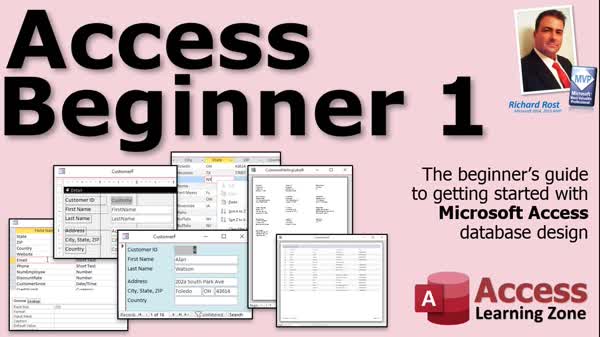
Access Beginner 1The Absolute Beginners Guide to Microsoft AccessWelcome to Access Beginner 1. In this course you will learn the basics of Microsoft Access, including key terminology, the benefits of using a database, and the main components such as tables, queries, forms, and reports. We will discuss how to plan your database, create new database files, and customize interface settings. You will see how to build your first table, enter and manage data, sort and filter records, and create basic forms and reports. We will also review the recommended learning path and introduce the different levels in the Access course series. Lessons
Quick Start!
Database FilesLinks
Resources
Printed Handbook
Ready for Level 2
NavigationLesson SummaryWelcome! Intro to Database Design & Tables - Welcome to Microsoft Access Beginner Level 1, where we introduce you to the basics of Microsoft Access Database Design. In this lesson, we will discuss key terminology, the benefits of using a database, and the main components like tables, queries, forms, and reports. We will talk about planning your database, creating new database files, and customizing interface settings. I will show you how to build your first table, enter and manage data, sort and filter records, and create basic forms and reports. We will also discuss the recommended learning path and the different course levels in the Microsoft Access series.
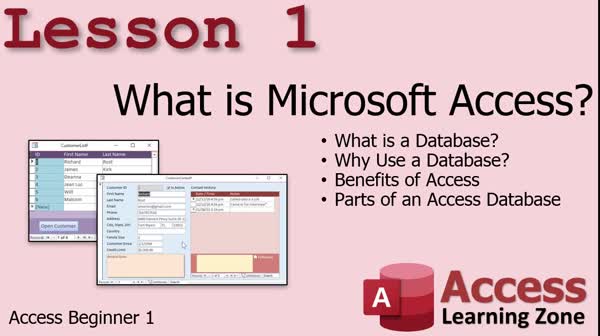
Lesson 1: Tables, Forms, Queries & Reports Basics - In Lesson 1, we will learn what Microsoft Access is and what it is used for. We will discuss basic database terminology, the benefits of using a database, and how Microsoft Access compares to tools like Excel. We will also talk about the main parts of an Access database, including tables, queries, forms, and reports, and introduce more advanced tools like macros and modules. The lesson covers how Access handles data organization, relationships between data, data validation, and building user-friendly interfaces.
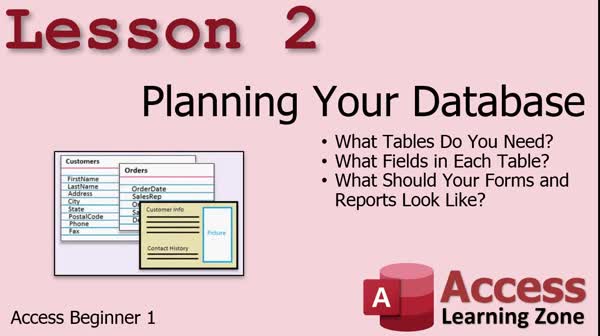
Lesson 2: Planning Tables, Fields, Forms & Reports - In Lesson 2, we will discuss planning your database, covering how to determine what tables and fields you need, what information belongs in each table, and the importance of organizing your data properly from the start. We will talk about sketching out forms and reports on paper before building them, deciding what features you want, and how to separate different types of data into their own tables. You will learn why careful planning is necessary to avoid problems later, and we will discuss some basic naming conventions and best practices as you prepare to move forward with your database project.
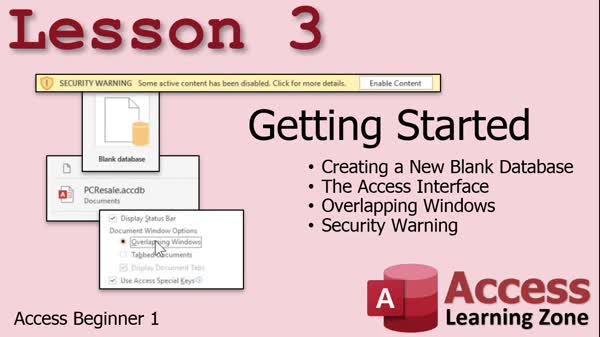
Lesson 3: Blank DB, Interface, Overlapping Windows - In Lesson 3, we are getting started by creating a new blank database in Microsoft Access. We will talk about the Access interface, walk through finding and launching the program, discuss how to pin Access to your taskbar, and explain why Access starts differently from Word or Excel. I will show you how to create and name your first database file, introduce the basic parts of the Access window, and describe how to adjust the navigation pane and ribbon. We will also walk through switching from the default tabbed document interface to overlapping windows and discuss what to do if you see a security warning.
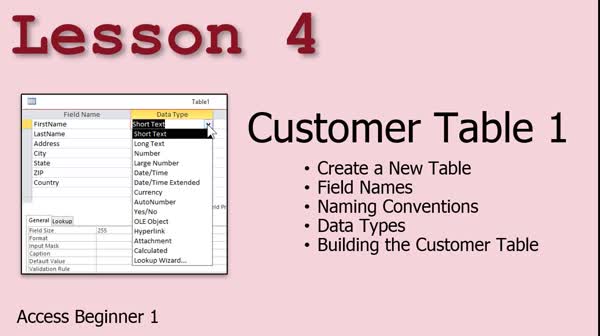
Lesson 4: Create Customer Table & Set Fields - In Lesson 4, we begin building our customer table in Microsoft Access. I will show you how to create a new table using Design View, discuss best practices for choosing field names and naming conventions, and explain the various data types available, such as Short Text, Long Text, Number, Date/Time, Currency, and others. We will walk through adding fields like FirstName, LastName, Address, City, State, and Zip, and I will explain when to use different data types and why. We will also discuss which data types and naming conventions to avoid.
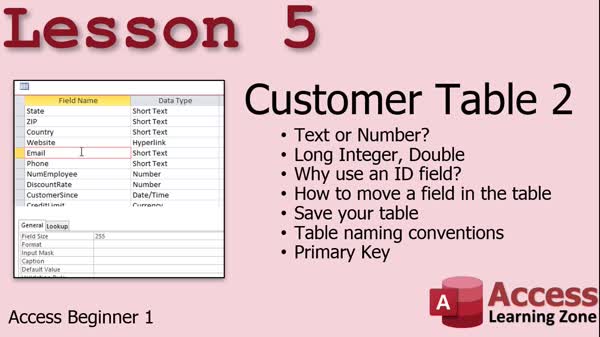
Lesson 5: Designing Customer Tables & IDs - In Lesson 5, we continue designing the customer table by deciding on appropriate data types for each field, such as using short text for phone numbers and hyperlink for websites. We will discuss when to use text or number fields, explain the difference between long integers and doubles, and cover why and how to add an ID field using auto number. I will show you how to move fields around in the table, discuss naming conventions, saving the table, and introduce primary keys and indexing. We will also talk about other important fields like notes, active status, and structuring your customer table efficiently.
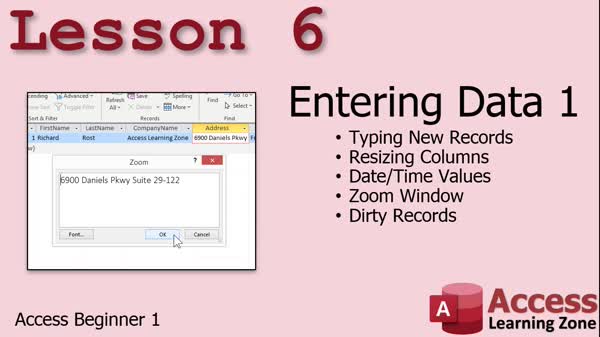
Lesson 6: Enter Data, Resize Columns, Zoom, Dirty - In Lesson 6, we are going to learn about entering data in Access tables. We will walk through typing in a new record, talk about resizing columns, and look at how to enter different date and time values. I will show you how to use the Zoom window for larger fields and discuss what it means when a record is "dirty." Along the way, we will see keyboard shortcuts for efficient data entry and tips for handling fields like state, zip code, phone, and notes. We will also touch on default values, data formatting, and explain the difference between fields and records in Access.
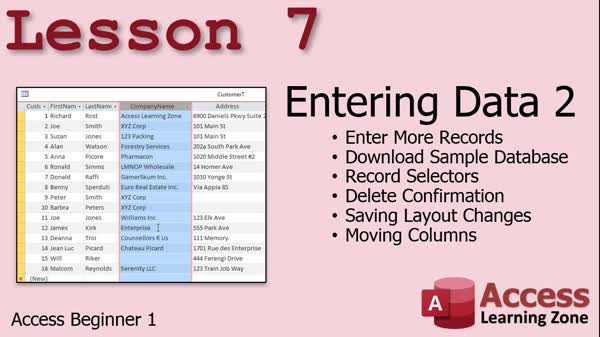
Lesson 7: Edit Records, Columns, and Layouts - In Lesson 7, we are continuing with entering data in Microsoft Access. We will walk through adding more records to the table, discuss record selectors, deleting records, and how Access handles auto number IDs. I will show you how to download a sample database from my website to save time on data entry. We will also cover turning off the delete confirmation warning, backing up your data, saving layout changes, resizing and moving columns, and why it is important not to force users to enter unnecessary information. This lesson focuses on entering data efficiently and managing your table layout.
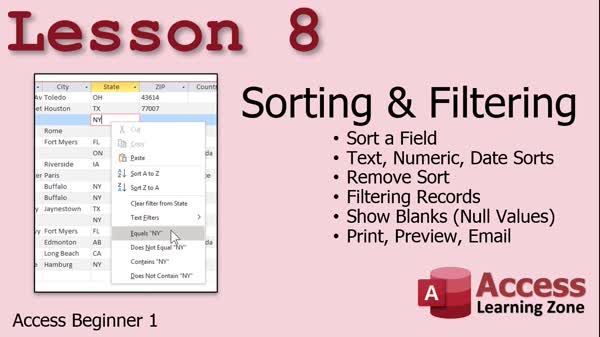
Lesson 8: Sort, Filter, Show Blanks & Print Tables - In Lesson 8, we will cover the basics of sorting and filtering data in Access tables. We will walk through how to sort fields by text, number, or date, and discuss the difference between numeric and alphanumeric sorts. You will learn how to remove a sort, filter records using selections or checkboxes, display blank or null values, and print, preview, or email your tables. I will also show you how sorting and filtering work temporarily in datasheet view and explain why queries are better for saving custom views of your data, which we will discuss in the next lesson.
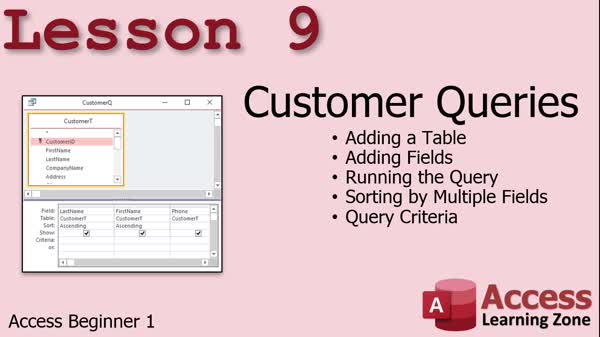
Lesson 9: Build & Sort Customer Queries by Criteria - In Lesson 9, we will focus on building customer queries, including how to add tables and fields, run a query, sort by multiple fields, and apply query criteria. We will walk through creating a query to display customers from New York sorted by last name, demonstrate saving queries for future use, show how to copy and modify queries for different states, and discuss the difference between queries and tables. We will also look at how to edit, move, or hide fields, explain the function of the show checkbox and star symbol, and briefly discuss parameter queries and other advanced query types.
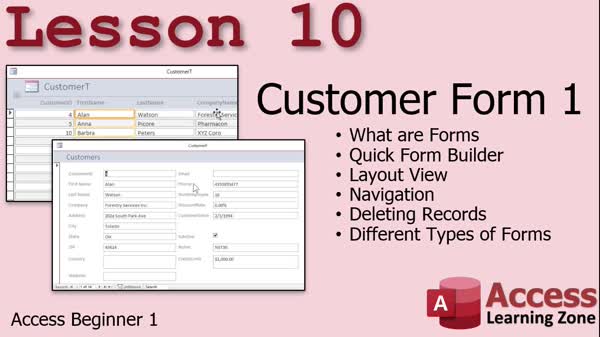
Lesson 10: Build Form, Use Layout, Edit Data - In Lesson 10, we will walk through how to build a customer form in Microsoft Access, using the Quick Form Builder to create a user-friendly interface for adding and editing customer records. We will discuss the benefits of forms over tables and queries, look at layout view, and explore navigation, editing, deleting records, and form types such as basic forms, form wizards, multiple items forms, split forms, and modal dialogs. This lesson focuses on creating quick forms using layout view, while we will discuss using design view for more advanced form design in the next lesson.
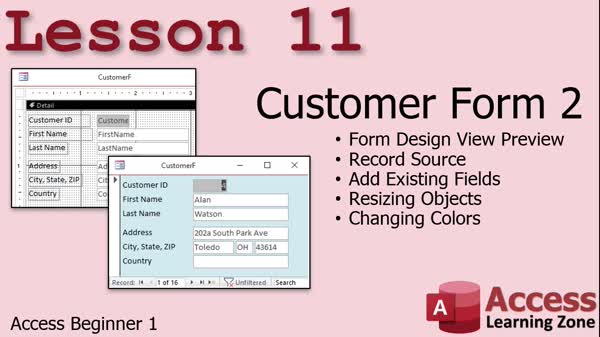
Lesson 11: Build a Customer Data Entry Form - In Lesson 11, we will walk through building a customer form the right way using Form Design View in Microsoft Access. I will show you how to create a blank new form, set the Record Source to your customer table, add existing fields, resize text boxes and labels, arrange and align controls, and adjust label and background colors. We will discuss basic formatting and layout options, plus tips for organizing fields like city, state, and zip. This lesson offers a preview of more advanced form design topics we will cover in Level 2.
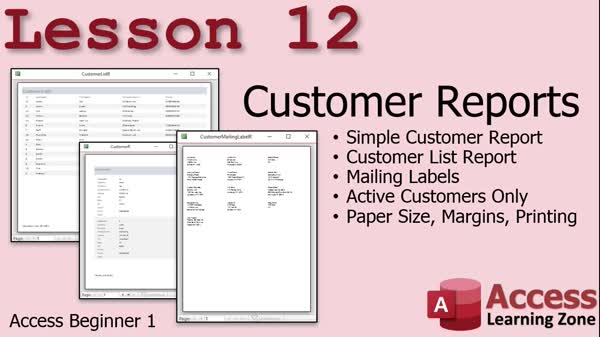
Lesson 12: Create Reports, Lists & Mailing Labels - In Lesson 12, we will learn how to create several different customer reports in Microsoft Access. I will show you how to build a simple customer report for one customer at a time, a customer list report displaying all customers, and mailing label reports for active customers only. We will walk through using the Report Wizard, adjusting layout and formatting in Design View, and discuss report options like paper size, margins, and exporting to various formats. We will also create a query to filter active customers for mailing labels and talk about best practices for working with customer reports.
Lesson 13: Top Beginner Questions Answered - In this lesson, Q&A From Students, we will cover the most common questions asked by students over the last 20 years about working with Microsoft Access. I will explain how to set up customer lists and navigation forms, fix function key issues on laptops, zoom in on reports, change datasheet font sizes, delete tables, use autonumbers, handle mail merge and letters, distribute Access databases using the runtime version, manage multiple contact details, import data from Excel, handle customer classifications, secure your database, run Access remotely, create menu systems, and properly back up your database.
Lesson 14: Beginner Level 1 Review & Next Steps - In this course we learned about Access database terminology, the benefits of using a database, and the main parts of an Access database including tables, queries, forms, and reports. We discussed planning a database on paper, creating tables and fields, entering and editing data, as well as sorting and filtering records. We built simple queries to display information in different ways, created forms in Design View, and designed basic reports such as mailing labels. We also reviewed what you can expect in the next courses, including more advanced form design, table options, queries, and an introduction to relational database concepts.
Keywordsdatabase design, database table, data entry, tables, queries, forms, reports, planning database, table fields, primary key, data types, sorting, filtering, customer table, design view, data validation, record layout, field naming conventions
More InformationTranscriptHere is the full transcript for Access Beginner 1 IntroIn lesson 1 you will get a complete transcript for Microsoft Access Beginner 1, making it easy to follow along or review the key points covered in the video. QuizSee updated quiz <A HREF="/blog/display-article.asp?ID=3145"><B>HERE</B></A>. SummaryToday's video from Access Learning Zone is the first in my Access Beginner series. Here, I am going to introduce you to Microsoft Access and walk you through the basics of working with this powerful database management tool. To get started, I first give you an overview of what Microsoft Access actually is, how it fits into the Microsoft Office suite, and why you might want to use a database as opposed to tools like Excel when you need to organize large amounts of information. This is especially useful for people who need more advanced data tracking, reporting, and searching capabilities that go beyond what a spreadsheet offers. Next, I explain the basic terminology within Access. The core object you'll interact with is a table, which is essentially a collection of related data arranged in rows and columns. Each row in a table is called a record, and each column is a field. Think of a table as a simple list or a grid where all the data is stored in an organized way. I also talk about other object types, such as queries, forms, and reports, which you'll get to know more about as you keep learning Access. Then, I demonstrate how to set up your very first database. I show you how to create a new blank database file and walk you through naming and saving it properly so you can find it again later. From there, I take you through the steps of creating a table in design view, where you specify what fields you want in your table and what kind of data each field should hold, such as text, numbers, or dates. I emphasize the importance of choosing the right data types and setting up a primary key to uniquely identify each record in your table. After setting up the initial structure, I show you how to enter some sample data into the table in datasheet view. This is where you can directly type information into each field, much like working with a simple spreadsheet. I explain a few shortcuts that will help you move around quickly and efficiently as you input your data. I also go over the benefits and basic concepts behind data integrity. I talk about why it is important to avoid duplicate or inconsistent information. Having a primary key set up, as we did earlier, goes a long way toward preventing accidental errors like entering the same information twice. Along the way, I address some common questions and potential pitfalls, such as what to do if you make a mistake entering data or how to edit your records. This lesson is intended as a gentle introduction to Access, giving you the fundamental ideas you need before moving on to more advanced topics like relationships between tables, queries, and data analysis in future videos. If you want to follow along step-by-step with all the material I covered here, you can find a complete video tutorial on my website at the link below. Live long and prosper, my friends. Topic ListThis is a video tutorial, so here is a list of topics that are typically covered in an "Access Beginner 1" video, based on standard content for an introductory Microsoft Access tutorial: Introduction to Microsoft Access Difference between Access and Excel Launching Access and the user interface Creating a new blank database Understanding tables, records, and fields Creating a table and adding fields Setting field data types Entering and editing data in tables Saving and naming your table Primary key usage and importance Sorting and filtering data in a table Introduction to forms and reports voices Basic navigation in Access Primary TopicsMicrosoft Access overview, database concepts, tables, fields, records, database objects, starting a new database Secondary Topicsnone |
||||||||||||||||||||||||||||||||||||||||||||||||||||||||||||||||||||||||||||||||||||||||||
|
| |||
| Keywords: database design, database table, data entry, tables, queries, forms, reports, planning database, table fields, primary key, data types, sorting, filtering, customer table, design view, data validation, record layout, field naming conventions PermaLink Microsoft Access Beginner 1: How To Build a Customer Database, Enter Data, Sort, Filter, and Create Forms in Microsoft Access |