|
||||||
Access Expert 15Student Attendance, Junction Tables, Append, DeleteWelcome to Access Expert 15. In this course you will learn how to use append and delete queries to manage student attendance and archive old contact data in Microsoft Access. We will set up tables and forms for tracking attendance, build many-to-many relationships with a junction table, automate tasks with macros, and design reports to organize class participation. You will also see how to copy and delete records for archiving purposes, while discussing key skills for effective data management and troubleshooting common issues encountered in these processes. Lessons
AddendumLearn More...
LinksResources
Lesson SummaryWelcome! Track Attendance with Append/Delete - Welcome to Microsoft Access Expert Level 15. In this course we will continue working with action queries, focusing on append and delete queries. We will begin with tracking attendance for students or employees in training classes, including setting up tables, managing many-to-many relationships, designing forms and reports, and automating tasks with macros. We will also walk through archiving old contact information by copying and deleting records using append and delete queries. This class builds on concepts from Expert Levels 13 and 14, and covers necessary skills for effectively managing student attendance and basic data archiving in Microsoft Access.
Welcome! Many-to-Many: Classes & Students - In this lesson, we will walk through the concept of many-to-many relationships in databases using a classes and students example. I will show you how students are linked to classes through a junction table, explain how class types and individual class sessions are set up, and demonstrate adding and managing class records with attendees from different companies. We will discuss the purpose of each table and subform, how the relationships work, and why this setup is often challenging to grasp. This lesson aims to clarify many-to-many relationships by building the example from scratch and reviewing the underlying structure.
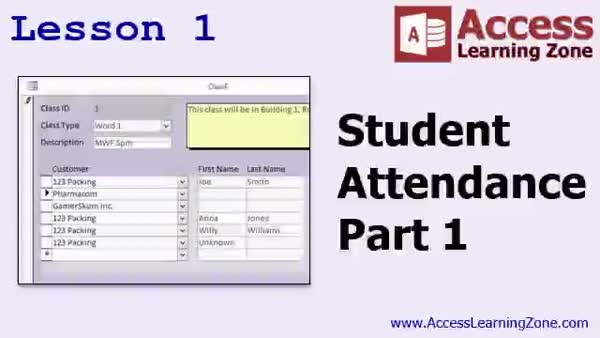
Lesson 1: Track Attendance with Class Types - In Lesson 1, we begin setting up a system for tracking student attendance in classes by creating tables for class types and individual classes, and then building a many-to-many relationship using a junction table to assign students (customers) to specific classes. We will walk through creating and filling sample tables, setting up related queries, and building forms and subforms to manage classes and enroll students, including support for companies sending multiple attendees. We will discuss how to use these tables and forms to simplify attendance tracking, with further instruction on actually taking daily attendance to be covered in the next lesson.
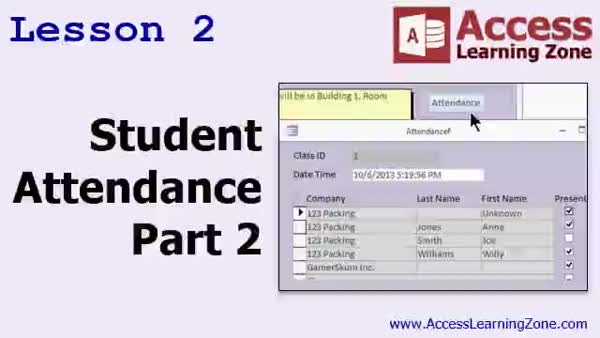
Lesson 2: Student Attendance Table & Form - In Lesson 2, we will set up the student attendance table by creating an attendance form and subform, and design an append query to automatically add all students in the selected class to the attendance table. We will discuss relational table design and normalization considerations, then walk through building the attendance form, configuring defaults, using queries to manage records, and ensuring the attendance subform only shows records for the current day. We will also cover troubleshooting common issues, updating data types, and organizing the attendance data for easy use by instructors. Creating the button to run the append query will be covered in the next lesson.
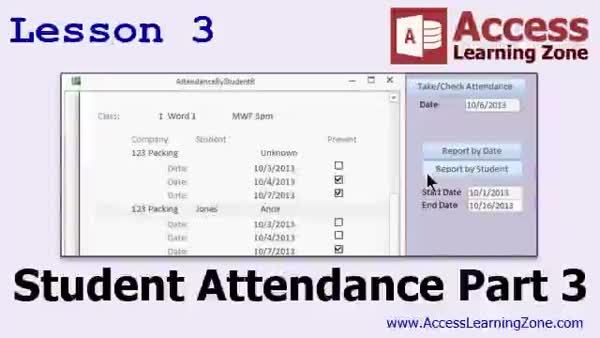
Lesson 3: Auto-Add Students & Date - In Lesson 3, we will finish up with student attendance by adding a button to automatically add all students to the daily attendance form, turning off system warning messages for smoother use, and ensuring the attendance list refreshes after updates. I will show you how to adjust the attendance form to use dates instead of date-times, display attendance by any specific date, and address issues with duplicate records. We will also walk through creating attendance reports organized by date and by student, and discuss additional options such as listing all classes and building related reports.
Lesson 4: Archive Old Contacts: Append & Delete - In Lesson 4, we will walk through how to archive old contacts in your database by using an append query to copy records more than a year old from the contact table to a contact archive table, and then use a delete query to remove those same records from the original table. We will also discuss why archiving is important for managing database size, how to set up date criteria, issues with autonumber fields when appending records, and the importance of backing up your data before running delete queries. Homework includes creating a button to automate the append and delete steps for the contact archive process.
Lesson 5: Class Tables, Attendance & Actions - In this course we learned how to set up class type, class, and junction tables to manage many-to-many relationships between customers and classes; created forms and subforms for entering class and student information; set up attendance tracking with an append query and an automated button; designed reports for viewing attendance by student or date; and began working with delete queries and archiving contacts. We also discussed what is coming up next, including more on delete, update, append, make table, and union queries, as well as recommendations for further Access learning and support resources.
NavigationKeywordsappend query, delete query, attendance tracking, many to many relationship, junction table, class enrollment, attendance form, attendance report, subform, contact archive, duplicate records, action query, date criteria, archiving contacts
More InformationTranscriptWelcome to Microsoft Access Expert Level 15, brought to you by AccessLearningZone.com. I am your instructor, Richard Rost. In today's class, we are continuing our coverage of action queries. We will be working with more append queries and will be learning about delete queries. We are going to start off with a very popular topic, something I get asked about all the time: tracking attendance, whether it is students in classes or employees in meetings. These techniques will work for any kind of situation where you have to track attendance. We will start off by tracking customers in classes for our fictional PC resale company. We are going to do computer training, so we will track each of our customers in different computer classes. We will set up a many-to-many relationship so each of our customers can be in multiple classes and vice versa. We will also allow each customer, which might be a company, to send multiple employees for training. Then we will set up a form to track attendance for each of those customers in each session of the training classes. We will create an append query to take all of the students that are registered and put them in the day's class session. That way all the instructor has to do is check the box indicating whether they are present or absent. This keeps the instructor from having to type in the names every time there is a class. Next, we will learn how to edit a button macro so that the append query can run automatically. The instructor can click on one button and all of the students are added to the day's class. All of the warning messages are turned off, so you are not bothered with those. Then we will create two printable reports. One will show attendance by date so you can see which students were missing from which class. The second will show attendance by student so you can get a list of each student and what days he was absent. Next, we will learn about delete queries and how to delete records from your tables automatically. The example we will use is archiving old contact information from our customer database. If you talk to customers every day, after several years, you might have extra information in there that you do not want to delete, but you want to move it so it is not in your main customer database. We will use an append query to copy old records to a new table, then we will use a delete query to remove them from the original contact table. This class follows Access Expert Level 14. I strongly recommend you watch Levels 13 and 14 before continuing with this class. Level 13 is the intro to action queries and covers update queries. Level 14 continues with update queries and teaches append queries, which we will be using today for the student attendance portion. This class was recorded with Microsoft Access 2013. It should work fine with 2007 and 2010. The action queries themselves work just fine in pretty much any version of Access, but today I am going to show you how to edit embedded macros that were new in 2007. If you are using Access 2003 or earlier, I recommend you get my Access 222 class, which covers all of these action queries in detail for Access 2003. My courses are broken up into beginner, expert, advanced, and developer level classes. Beginner level classes are for novices. You should understand all the topics covered in them by the time you get to the expert level classes, which you are in now. When you finish all of the expert level classes, the advanced classes will cover event programming in macros, and the developer classes will cover Visual Basic for Applications. Each group of classes is broken down into multiple levels, Level 1, 2, 3, and so on. In addition to my normal Access classes, I also have seminars designed to teach specific topics. Some of my seminars include building web-based databases, creating forms and reports that look like calendars, securing your database, working with images and attachments, writing work orders and running a service business, tracking accounts payable, learning the SQL programming language, creating loan amortization schedules, and lots more. You can find details on all of these seminars and more on my website at accesslearningzone.com. If you have questions about the topics covered in today's lessons, please feel free to post them in my student forums. If you are watching this course in the online theater on my website, you should see the student forum for each lesson appear in a small window next to the class video. Here you will see all of the questions that other students have asked, as well as my responses to them and comments that other students have made. I encourage you to read through these questions and answers as you start each lesson and feel free to join in the discussion. If you are not watching these lessons on my website, you can still visit the student forums later by visiting accesslearningzone.com/forums. To get the most out of this course, I recommend you sit back, relax, and watch each lesson completely through once without trying to do anything on your computer. Then, replay the lesson from the beginning and follow along with my examples. Actually create the same database that I make in the video, step by step. Do not try to apply what you are learning right now to other projects until you have mastered the sample database from class. If you get stuck or do not understand something, watch the video again from the beginning or tell me what is wrong in the student forum and I will do my best to help you. Most importantly, keep an open mind. Access may seem intimidating at first, but once you get the hang of it, you will see that it is real easy to use. Now I strongly encourage you to build the database that I build in today's class by following along with the videos. However, if you would like to download a sample copy of my finished database file, you can find it on my website at accesslearningzone.com/databases. Sometimes, if you get stuck, the easiest way to learn is to tear apart someone else's database. One of the ways that I taught myself Access years ago was by tearing apart the Northwind Traders database that comes with Microsoft Access. You will find there is a sample database for each of my courses on my website. Now let us take a few minutes and go over exactly what we are going to cover in today's class. In lesson one, we are going to begin setting up tracking student attendance in classes. We are going to create a class type table and an individual class table. We will assign customers and students into these classes, and then set up a many-to-many relationship to track each student in each class. In lesson two, we will set up the attendance table with the attendance form and subform. We will create an append query so we can run it and automatically add all of the students for the currently selected class to the attendance table. In lesson three, we are going to finish up with student attendance. We are going to make a button to automatically add all of the students to the attendance form for the day, and we will make a couple of attendance reports: student attendance by date and student attendance by student. In lesson four, we are going to archive old contacts from our customers by running an append query to copy all of the contacts that are more than a year old into a different table. Then we are going to learn how to use a delete query to delete those records from the original contact table. IntroIn lesson 15, you will learn how to use Microsoft Access action queries to track attendance in classes, manage many-to-many relationships between customers and training sessions, and automate the attendance process with append queries and button macros. I will show you how to build forms and reports to make attendance tracking easy, including creating printable reports by date and by student. You will also learn how to archive and delete old contact records using append and delete queries. This lesson builds on topics covered in Access Expert Levels 13 and 14. QuizQ1. What is the main topic covered in Access Expert Level 15? A. Creating and editing tables B. Action queries, specifically append and delete queries C. Formatting reports in Access D. Importing data from Excel Q2.Which scenario is used as the example for tracking attendance in this course? A. Doctors and patient appointments B. Inventory levels in a warehouse C. Customers and employees attending computer classes D. Product sales and discounts Q3. Why is a many-to-many relationship set up between customers and classes? A. Each customer can only be in one class B. Each class can only have one customer C. Each customer can attend multiple classes and each class can have multiple customers D. To keep track of payment details Q4. What is the purpose of creating an append query for class attendance? A. To update student names in the database B. To automatically add all registered students to the day's class session table C. To delete students from a class D. To summarize attendance totals Q5. How does the video suggest making marking attendance easier for the instructor? A. By using a manual register B. By creating a macro button that runs the append query C. By exporting data to Excel D. By using email notifications Q6. What are the two types of printable attendance reports created in this class? A. Attendance by payment and by class location B. Attendance by date and attendance by student C. Attendance by teacher and by subject D. Attendance by semester and by grade Q7. What example is used when teaching delete queries in this course? A. Removing duplicate products B. Deleting outdated student grades C. Archiving and removing old customer contact records D. Deleting entire classes Q8. What is the recommended order for watching the Access Expert levels? A. Start with Level 1 and skip to Level 15 B. Only watch Level 15 C. Watch Levels 13 and 14 before taking Level 15 D. Watch Level 15 first, then Level 13 Q9. What special consideration is mentioned for Access 2003 and earlier users? A. Use a different database format for reports B. Take the Access 222 class which covers action queries in detail for Access 2003 C. Skip append queries altogether D. Only use VBA programming Q10. What is recommended for getting the most out of the course? A. Complete the lessons as quickly as possible B. Only read the written materials C. Watch the lessons first, then follow along step by step building the database D. Focus on unrelated projects while watching Q11. Where can a student find sample databases and additional resources related to the course? A. Only in the Microsoft Access help files B. By requesting them through email C. On accesslearningzone.com D. On the Microsoft Office website Q12. What is a recommended strategy if you get stuck or do not understand something in the class? A. Ignore the problem and move forward B. Watch the video again or ask in the student forums C. Skip the lesson completely D. Wait for a personal call from the instructor Q13. What is the purpose of the student forums mentioned in the video? A. To download additional software B. To view and discuss questions and answers about the lessons C. To register for new courses D. To report technical issues only Q14. What key advice does the instructor offer to those new to Microsoft Access? A. Memorize every feature before starting B. Never use templates C. Keep an open mind and do not be intimidated D. Avoid using relationships in tables Answers: 1-B; 2-C; 3-C; 4-B; 5-B; 6-B; 7-C; 8-C; 9-B; 10-C; 11-C; 12-B; 13-B; 14-C DISCLAIMER: Quiz questions are AI generated. If you find any that are wrong, don't make sense, or aren't related to the video topic at hand, then please post a comment and let me know. Thanks. SummaryToday's video from Access Learning Zone continues our journey into action queries in Microsoft Access. In this lesson, we will explore append and delete queries in more depth and apply them to practical scenarios like attendance tracking and archiving old data. We begin by tackling a common request: how to track attendance. This skill is helpful whether you are keeping tabs on students attending classes or employees participating in meetings. The strategies you will learn are flexible enough for any situation where recording attendance is necessary. We will work within the fictional setting of a PC resale company that offers computer training. The goal is to record which customers attend different classes. Since a customer can sign up for multiple classes, and the same class will likely have multiple customers, we need to set up a many-to-many relationship in our database. Further, since a customer could be a company sending several employees, we will plan our structure so that each employee's attendance is tracked correctly. Once we have that in place, the next task is building out a form that makes recording class attendance efficient and straightforward. Rather than making the instructor enter each name for every session, we will use an append query to automatically populate the attendance form with all students registered for a class session. The instructor just needs to check off who is present or absent. To streamline this workflow, we will enhance the form with a button. By linking the append query to this button, running the query becomes a single click. We will set the macro up so that all warning messages are suppressed, which removes unnecessary interruptions. Afterward, we will develop two attendance reports for analysis and recordkeeping. The first report will provide a view of class attendance by date, allowing you to see which students missed specific sessions. The second will summarize attendance by student, making it easy to track absences over time for each person. Moving on, we will shift our attention to delete queries and how they are useful for data management—specifically, for archiving old contact records from the customer database. Over time, as you interact with many customers, your contact table can become unwieldy. Rather than deleting valuable older records, it makes sense to move them out of your main table. We will accomplish this by copying the aging records with an append query into a separate table, and then use a delete query to remove those same records from the original. This lesson builds directly on concepts covered in Access Expert Levels 13 and 14. If you have not worked through those levels yet, I suggest you do so, since Level 13 introduces action queries and update queries, and Level 14 continues with update and append queries, which play a crucial role in our attendance tracking example. The video was originally recorded using Microsoft Access 2013, but the techniques shown will also work in Access 2007 and 2010. Action queries have not changed much in recent versions, though I will be using some macro editing features that first appeared in Access 2007. If you happen to be using Access 2003 or earlier versions, consider looking at my Access 222 course for relevant coverage. My Access courses are divided into beginner, expert, advanced, and developer levels. You should already feel comfortable with the foundational topics from the beginner material by the time you take these expert classes. Advanced lessons will teach event programming in macros, while the developer series covers Visual Basic for Applications. Each tier is broken down into multiple levels for easy progression. Beyond the regular courses, I offer seminars that focus on specialized database topics such as web-based database building, calendar-style forms and reports, security features, image handling, managing work orders, accounts payable, SQL programming, loan amortization, and more. You can find in-depth details about these seminars on my website. If you have questions about anything covered in the lessons, please use the student forums. If you are watching through my website, the forum for each lesson appears right next to the class video. Here you can browse questions from other students, read my responses, and join the discussion yourself. If you are not viewing on my website, you can still reach the forums any time by visiting the accesslearningzone.com forums section. For the smoothest learning experience, I recommend watching each lesson all the way through before trying things out on your own computer. Then, replay the lesson and follow the steps to build the example database incrementally. Focus on mastering these samples first before attempting to adapt the methods to your own database projects. If you get stuck at any point, do not hesitate to watch the lesson again or post your question in the student forum. I am always happy to help work through any issues. Most importantly, approach this with an open mind. Microsoft Access can seem complex at first, but you'll find it becomes quite manageable once you get used to it. I highly encourage you to construct the same database example along with the lessons. However, for additional help or reference, you can download a copy of my finished database from the website. Sometimes the fastest way to learn is by examining and experimenting with someone else's completed project. This is how I first learned Access—by exploring the Northwind Traders sample database included with the software. There is a sample database available on my website for each of my courses. To summarize the lesson structure for today: In lesson one, we will begin by creating tables that allow us to track which students are in each class. This includes setting up class types, individual class sessions, student assignments, and establishing the many-to-many relationships needed for attendance tracking. In lesson two, we will construct the attendance tracking system with a main form and subform, plus an append query to add all the students scheduled for a class session into the attendance records with a single action. In lesson three, we will finish the attendance solution by adding a button to the form for one-click student add-ins, as well as generating both date-based and student-based attendance reports. In lesson four, we will shift to archiving by copying older customer contact records into a separate archive table before using a delete query to clean up the main table, demonstrating safe data cleanup processes. You can find a complete video tutorial with step-by-step instructions on everything discussed here on my website at the link below. Live long and prosper, my friends. Topic ListTracking attendance using tables and forms Setting up class type and class tables Configuring many-to-many relationships for classes Assigning customers and students to classes Creating an attendance table Building an attendance form and subform Appending students to the attendance table with a query Automating append queries with a button macro Suppressing warning messages in macros Generating attendance reports by date Generating attendance reports by student Archiving old contact records with append queries Deleting archived records with delete queries Primary Topicsattendance tracking, many-to-many relationships, append queries, delete queries, button macros, printable reports, table archiving, Access forms Secondary TopicsAccess version differences, class progression structure |
||||||||||||||||||||||||||||||||||||||||||||||||||||||||||||||||||||||||||||||||||||||||||
|
| |||
| Keywords: append query, delete query, attendance tracking, many to many relationship, junction table, class enrollment, attendance form, attendance report, subform, contact archive, duplicate records, action query, date criteria, archiving contacts PermaLink Microsoft Access Expert 15 |