Combo Box Select One
By Richard Rost

 2 years ago
Add Custom Hint Text to Combo Box in MS Access
In this Microsoft Access tutorial, I will show you how to add "Select One" or custom hint text to a combo box before user selection. This tutorial covers using VBA, creating a union query for fake records, and implementing a before update event to ensure correct user input.
Ludwig from Dessel, Belgium (a Platinum Member) asks: Can you do this [Text Box Hints] with combo boxes?
Prerequisites
Links
Recommended Courses
Up Next
Keywords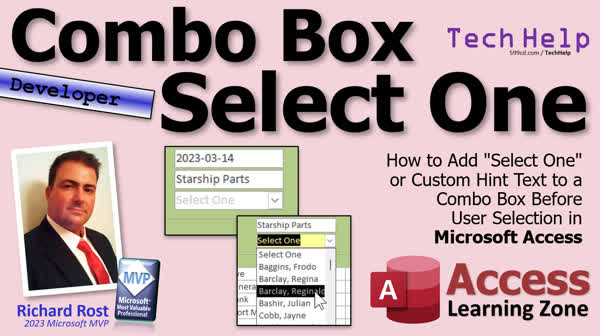
TechHelp Access, custom hint text, combo box tutorial, add select one, improve combo box, Access form hints, VBA for combo box, SQL union query, Access programming, combo box placeholder, user selection guide, form before update event, highlight combo box, VBA code tutorial, SQL view Access, union query Access, data validation Access, combo box default value, prevent empty selection
More InformationTranscript Welcome to another TechHelp video brought to you by AccessLearningZone.com. I am your instructor, Richard Rost.
Today, I am going to show you how to put a little "Select one" gray option at the top of your combo box like this. Users will see "Select one," and then they can click through. You can put whatever instructions you want there, such as "Pick a customer," or "What is your favorite starship?" I will show you how to do that in your combo boxes in Microsoft Access.
Today's question comes from Ludwig in Dessel, Belgium, one of my Platinum members. For those of you who are familiar with the forums on my website, people get badges. He is from Belgium, and I think that means he is a Rear Admiral. You get a rank. He is a Platinum member and has been with me for two years. He is a Developer Student, and I use the Developer Student tag to know that I can answer the question with some VBA. Ludwig asks, "Can you do this with combo boxes?" The "this" he is referring to is my Text Box Hints video from about a week ago.
In the Text Box Hints video, I showed you a cool trick that Alex figured out. You can put "Enter last name," "Enter phone number," etc., using the Format property inside your forms and text boxes. You cannot do this with a combo box, and that is what Ludwig wants to see how to do.
If you have not watched that video, go watch it first.
Now, the Text Box Hints was only an Expert-level video because we could do it with no programming. Today, we are going to use a little bit of programming since Ludwig is a Developer Student, so I can use some VBA. If you do not know VBA, go watch my Intro to VBA video. It will teach you everything you need to know in about 20 minutes to get started. You should watch this.
You are also going to need to know a little SQL. We could do this without SQL, but we are going to do it the right way. There is a cheesy way you could do it, or there is a right way. We are going to do it the right way today. Go watch this if you are not familiar with SQL.
We are going to use a union query. That is taking two data sets and putting them together. You can use it for adding a bogus, fake record at the beginning, like a "Select one" record. Go watch this if you have never used a union query before.
To verify that the user actually selected something and did not leave the combo box saying "Select one" when they really had to select something, we are going to use a "Before Update" event for the form to check on that.
These are all free videos. They are on my YouTube channel and on my website. Go watch them if you have not yet. Watch those first and come on back.
Here I am in my TechHelp free template. This is a free database you can grab a copy of off my website if you want to. This database has customers, and customers have orders. On the order, we use this little combo box here to pick who the customer is. Now, this comes from a query. Let's see what the record source is here. Data: it is the "CustomerLFQ." All the CustomerLFQ does is put together last name and first name into a calculated query field. If you watch the invoicing video where I explain how I built this database, you will know that.
Now, what we are going to do is - like I said before - there is a cheesy way you could do this. You could add a bogus record to the customer table. Whatever its ID happens to be, you can edit it. The first one will be ID 1 or whatever. The ID really does not matter as long as you know what it is. But instead of doing that, which is kind of cheesy, we are going to build a query and then we are going to union it to a fake record. That will be record zero, which will be our "Select one" text.
Keep in mind how this CustomerLFQ looks. It is CustomerID and then LF. That is all we need to know for now.
Let's create another query. Create - Query Design. I am going to bring in my CustomerLFQ. I want in here the CustomerID and the LF.
Now, at this point, I am going to switch to SQL View because we are going to build a union query and with a union query you have to build it in SQL.
Here is where I select the CustomerID, the last name, first name from the CustomerLFQ. Now, on top of this, before that, I am going to create a bogus record. I am going to say "SELECT 0 AS CustomerID," comma, and then the words "Select one" inside quotes. Let me see if I can zoom in here. There we go. Shift-F2. Select 0 as the CustomerID and then "Select one" as LF. I am saying call that LF. It is going to match up with the same field names down here.
Now, you have to give it a FROM. I know it is weird, but just put CustomerLFQ in here. It is not going to find those records, but that is okay. It is just the way that you have to format the union query.
Now, we are going to bring these two things together. So UNION and then that stuff.
Now, hit OK. Let's save this query. I am going to call it "CustomerLFSelectOneQ." If I run it now, look at that. It is working.
I want to add - I still want to sort it, because my customer list is not sorted at all now. If I come back in here at the very end, let me zoom back in for you, get rid of that semicolon there because you have to put that at the very end. You do not have to have the semicolon in Access, but some other database platforms require it.
If I come in here now and just say "ORDER BY LF," that is the last name, first name, if I do that and then run the query, it looks okay, but "Select one" gets sorted in with the rest of the customers, right in the middle. I do not want that. I want this option to be up top.
What am I going to do? We are going to add another fake field called our sort order field. Are you ready for this?
We are going to go comma 1 AS SortOrder for the fake record, and then for this one we are going to say 2 AS SortOrder for the real records. Then, our ORDER BY is going to be "ORDER BY SortOrder, LF." What that is going to do is: we are saying this record is going to be a 1, every other record is going to be a 2, and your sort is going to sort this "Select one" first. Then, all of the real ones will be sorted by last name, first name.
Hit OK. Run it now, and look at that. We have "Select one" up top and then everybody else is properly sorted.
Here is the query that we are going to use to feed the combo box. Could you, if you wanted, put this SQL right in the combo? Yes, you could. But there is a reason why we have the option to make queries, so we can just do this in one place. If you want to have this combo box in several places and want to make a change to the SQL, then you would have to change it in five different combo boxes. I like using SQL statements in combo boxes for real simple things, like "SELECT ID, FirstName." But if you have something complicated, like this, that might possibly change in the future, make a query out of it. That is what they are for. There is no shame in using queries.
Close this, save changes - yes - and now we have our little query all set to go. Perfect.
Let's go take a look at our order form. It is right here. Let's change it so this combo box gets its values from the query that we just created. Open this guy up. We do not need this long SQL statement here anymore. We can just pick our query that we just built: CustomerLFSelectOneQ.
The way that this database is built, the order form gets its default value for the customer from the customer. We are going to change this just for now, just for experimentation purposes. We are going to set this to zero so the default is "Select one." We are going to assume that we are not coming in from the customer form.
Normally, you would probably still want to leave that defaulting to the original value, but that is okay. Save it and close it.
Open it back up again. If I open up the order form and go to a new record, there is my "Select one." You can see that it is all sorted.
Here is the problem. If the user leaves "Select one" in there and starts putting stuff in here, just a new order, putting details in, puts some stuff, oh - what's that? It is just the Access database engine saying it cannot find a record in the customer table with a key matching field, CustomerID. What does that mean? Well, there is no CustomerID zero because we faked it.
So we cannot save this record because there is no matching value. We have to hit Escape. We are going to prevent the user from leaving this record, from saving the order, unless they put a customer in there.
We are also going to do some other tricks. We are going to make this gray, maybe select it, make the highlight a different color here, and do all kinds of cool stuff in tomorrow's class, part two. Tune in tomorrow, same bat time, same bat channel, or if you are a member you can watch it right now because I am going to record it in just a few minutes.
That is your TechHelp video for today. I hope you learned something. Live long and prosper, my friends. I will see you tomorrow for part two. Intro In this video, I will show you how to add a gray "Select one" instructional option at the top of a combo box in Microsoft Access, so users know they need to pick a real value. We will create a union query to add this fake option to your combo box, use sort order to keep it at the top, and change the combo box's row source to use the new query. I will also explain how to handle situations where the user doesn't select a valid record. This is a standalone video with step-by-step instruction. Quiz Q1. What is the main purpose of adding a "Select one" option at the top of a combo box in Access?
A. To guide users to make a selection rather than leaving the combo box blank
B. To display the last option entered by the user
C. To add stylish formatting to the combo box
D. To prevent the combo box from showing any items
Q2. Which SQL technique is used to add a "Select one" option at the start of the combo box list?
A. Inner join query
B. Union query
C. Cross join query
D. Aggregate query
Q3. In the solution shown in the video, what value is assigned to the fake "Select one" record for CustomerID?
A. The highest existing CustomerID
B. Null
C. 0
D. 1
Q4. Why is it not recommended to add a bogus record directly to the customer table for this purpose?
A. It could cause duplicate records
B. It is considered a bad practice and could lead to data integrity issues
C. It slows down database performance
D. It makes the combo box display incorrectly
Q5. How does using a union query help with the "Select one" option?
A. It merges real and fake records for display in the combo box
B. It removes duplicate records from the table
C. It deletes unnecessary records
D. It speeds up the combo box loading
Q6. How is the "Select one" option kept at the top of the combo box list?
A. By renaming it alphabetically
B. By using an ORDER BY clause with a custom sort order field
C. By marking it as a favorite option
D. By manually moving it to the top in the design view
Q7. If a user tries to save a record with "Select one" still selected, what problem occurs?
A. The record saves with incomplete information
B. Access cannot find a matching record in the customer table for CustomerID 0
C. The combo box resets
D. Access automatically assigns a real customer
Q8. What event is suggested in the video to prevent saving a record with "Select one" selected?
A. On Click event of the combo box
B. Before Update event of the form
C. On Load event of the form
D. After Update event of the combo box
Q9. Why is it beneficial to store the union query as a separate saved query instead of embedding the SQL directly in the combo box's Row Source?
A. It makes future changes easier and avoids duplicating SQL in multiple places
B. It reduces the size of the database file
C. It provides more sorting options
D. It increases database security
Q10. If you want to learn the basics of VBA or SQL required for this video, what does Richard recommend?
A. Reading the Access manual
B. Watching his Intro to VBA and SQL videos
C. Searching on third party forums
D. Hiring a developer
Answers: 1-A; 2-B; 3-C; 4-B; 5-A; 6-B; 7-B; 8-B; 9-A; 10-B
DISCLAIMER: Quiz questions are AI generated. If you find any that are wrong, don't make sense, or aren't related to the video topic at hand, then please post a comment and let me know. Thanks. Summary Today's TechHelp tutorial from Access Learning Zone focuses on enhancing your combo boxes in Microsoft Access by adding a helpful "Select one" option at the top. Many users want a clear prompt for their combo boxes, such as a grayed-out instruction like "Select one," "Pick a customer," or even something more specific, like "What is your favorite starship?" In this article, I will walk you through the process of adding this instructional option to your combo boxes using proper Microsoft Access techniques.
This lesson was inspired by a question about combo boxes, specifically whether you can have a default instruction like we do with text box hints, as shown in my previous Text Box Hints tutorial. In that video, I demonstrated how to display temporary instructional text within a text box using the Format property, but unfortunately, that method does not work with combo boxes. Today's tutorial will show how to achieve a similar user experience for combo boxes, but this will require some programming and query design.
If you have not already watched the Text Box Hints video, I recommend reviewing it for an introduction to hint text concepts in Access. Additionally, today's solution will involve using VBA and SQL, so if you are not familiar with these tools, now would be a good time to review my Intro to VBA and SQL tutorials. Also, understanding union queries will be important, as this is the method we will use to combine your real data with a fake instructional record.
The core idea here is to present a prompt like "Select one" as the first item in your combo box. At a technical level, we will add a fake record using a union query. This lets you add a row that says "Select one" without compromising the integrity of your customer data or needing to add any fake entries in the actual customer table.
To get started, I am working with my free TechHelp template database. This database includes customers and orders, with a combo box on the order form for selecting a customer. Normally, this combo box gets its data from a query that combines the customer's last and first names.
To implement the "Select one" instruction, the efficient (and not cheesy) method is to use a union query. The union query will combine your real customer data with an additional row at the top containing your instructional text. Here is the approach: the real customer records stay below, while the instructional record sits at the top with an ID of zero and the text "Select one."
First, I create a new query based on the current customer query (which combines last and first name). In SQL view, I add a select statement first for the instructional row, giving it a CustomerID of zero and the text "Select one." I make sure the field names match the real records from the Customer query. Then, I "union" this with the existing customer data. This union brings both record sets together as one, and because Access union queries require matching fields, the fake record needs to look structurally like the real ones. Although including a FROM clause for the instructional row might seem odd, it is just a quirk of the syntax and does not affect your results.
Next, to keep "Select one" at the very top (instead of being sorted alphabetically with the other names), I add a sort order field to the union query. The fake "Select one" record gets a sort order value of one, while real customer records are assigned a value of two. Finally, I sort by sort order first, then by the concatenated last name and first name. This ensures the prompt is always on top, regardless of customer name sorting.
This finished query can now be used as the combo box record source. While you can technically paste complex SQL statements directly into the combo box, it is much easier to manage them as saved queries within your database. This makes your database cleaner and easier to maintain, especially if you use the same combo box in multiple places.
Once the new query is saved and assigned to the combo box, you will see that "Select one" appears at the top as intended. Setting the combo box's default value to zero ensures that new records start with this instructional prompt.
However, there is a caveat to consider. If a user tries to create an order without selecting a real customer (leaving "Select one" in place), Access will throw an error because there is no actual customer with an ID of zero. What this means is that you must prevent users from saving records unless they have made a real selection. You can achieve this with a form's Before Update event to check for the default value and prevent saving until a real customer is chosen.
In the next session (part two), I will explore further enhancements, such as customizing the combo box appearance with different colors for the instruction and adding more interface improvements. If you are interested in these advanced features, make sure to watch the follow-up.
You can find a complete video tutorial with step-by-step instructions on everything discussed here on my website at the link below. Live long and prosper, my friends. Topic List Adding a "Select one" item to a combo box in Access
Using a UNION query to insert a fake record
Writing SQL for a UNION query in Access
Creating a sort order field in SQL
Ordering combo box items with custom sort order
Saving the UNION query as a reusable query
Changing a combo box row source to a query
Setting combo box default value to show "Select one"
Handling missing lookup values from fake record
Explaining why not to put SQL directly in combo box row source
Testing the combo box with the new "Select one" item
Preventing users from saving a record with the default selection
Demonstrating error caused by missing CustomerID in table Primary Topics Microsoft Access, combo box customization, union queries, form validation, SQL for Access
Secondary Topics sorting combo box items, default form values, query design, data entry error prevention
|





