Fitness 14
By Richard Rost

 15 months ago
Aggregate Query for Meal Totals, Meal List Form In this Microsoft Access tutorial I will show you how to improve the user experience on your forms by positioning the cursor at the end of a text field using the SelStart property, enforce referential integrity between tables to prevent unwanted deletions, handle errors when deleting items that are in use, and create an aggregate query to display total calories and protein for each meal in a list form. You will also learn how to keep your meal list up to date as data changes and add navigation buttons to your main menu. This is part 14. MembersIn the extended cut, we will set up cascading combo boxes for the meal detail form so you can filter food items by group (like dairy), select from the filtered list, and add items with an Add button. I will show you how to increment the quantity if the item already exists in the meal. Silver Members and up get access to view Extended Cut videos, when available. Gold Members can download the files from class plus get access to the Code Vault. If you're not a member, Join Today!
PrerequisitesLinksRecommended CoursesUp Next
Keywords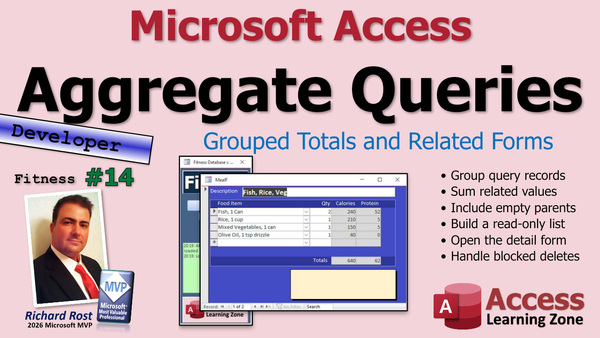 TechHelp Access, fitness database, meal form, meal detail form, referential integrity, relationships, aggregate query, sum calories, sum protein, error handling, dbFailOnError, DLookup, outer join, continuous form, On Got Focus, SelStart, MealListF, main menu button, AfterUpdate event, OnCurrent event, cascading combo box, increment quantity, IsLoaded, requery, CurrentDB.Execute
 Subscribe to Fitness 14
Get notifications when this page is updated
More InformationTranscript Today is part 14 of my fitness database series, and as I say every time, whether or not you're tracking fitness, the stuff I'm teaching in this series is great for any database. So if you haven't watched parts one through 13 yet, go watch those and come on back.
It just occurred to me I've never done a series this long before. I think the longest one I had before was like 9 or 10. So we're setting records here, folks.
Last time we set up the meal detail form and the meal form, this guy. One thing that bugs me whenever I go to a form like this and the first field gets highlighted like that. You can change it in the system options for every field in general. I normally like that when I'm tabbing through different fields. Just not in that first one and that description gets focused. I want the cursor to be like that.
Here's what I'm going to do just for this form. I'm going to go to the description field here, open up its properties. Find the On Got Focus event. This fires when this field gets the focus, when the cursor goes into that field, when you click on it, when you tab to it.
Here's what we're going to say. We're going to say Description.SelStart equals the length of Description. A couple things here. First, Length gives you the number of characters in that field. So if it's the word radar, there are five. So that'll be a five, and SelStart is where you want the selection to start. You can do Selection 0, 3. You'll get that. If you set the SelStart equal to the length of the field itself, it basically puts the cursor at the end like that. Watch. I'm going to close it, close it, close it, open it, and look at that. See, cursor sitting right there. And now if you accidentally hit a key, you don't wipe everything out. I've had that happen before. Normally it comes in like this. You hit a key and it's oh, what was there? And if you don't know enough to hit Escape, you lose it. I like that.
This video explains SelStart and SelLength in more detail.
Let's make referential integrity now for this. So if we have, for example, food items used in a meal, we can't delete that meal. Now this is up to you. You might want to allow people to be able to do that. I don't. If I've got a meal all set up and then I delete a food item, I don't want it to disappear from the meal and then I'm going to plan my meals all out. And it's like, oh, that's only 400 calories. And then I forgot, oh, I deleted that fish. I don't want that to happen.
So again, Database Tools, Relationships. This time we're going to add Meal Detail table and we're going to add Meal table. Meal ID to Meal ID here, Enforce Referential Integrity. That's correct. Then it's going to be Food ID to Food ID here, Enforce Referential Integrity there as well. So you won't be able to delete a food item if it's in a meal and you won't be able to delete a meal if it's got detail items. So we're starting to interlock all these things together.
Close it.
I was also thinking we could, if you wanted to, put our own delete button here and handle all the stuff like we did with the food list. But I don't think that's necessary. Again, I think meals are one thing that I'm going to just come in here once in a while and set one up and then not work with them that often. We might, we might not. We'll see. If we end up using that a lot, then maybe I'll put that stuff in there.
Now that I have an item in here, let's say rice. If I were to try to delete that item from here. Here's rice. Let's try to delete it. You can't do it because Meal Detail T includes related records. That's fine.
Now what if I try to delete rice going this way? Make some more. We're running out of space now. We're going to that point where the forms are getting kind of squished. Let's try it. Find rice. Where is rice? All right. Let's hit delete. Delete? Are you sure? Yes. And OK. The form closed, but rice is still there. What's going on with that?
If you try to delete from here, we've got delete turned off. So the only way we can do it is with our delete button, and our delete button is using an SQL statement to do the actual deletion. It's using CurrentDB.Execute and then an SQL statement. Now the problem is, and I talk about this in the Execute video and in my course, the problem is db.Execute doesn't return any error messages unless you tell it to. Another parameter you can put on over here called dbFailOnError. What that'll do is it'll throw an error for you. So you can see, hey, I was unable to do that.
You can also use DoCmd.RunSQL, but I don't like RunSQL for a couple of different reasons. I talk about why in my Execute video. I'll put a link to it down below.
Now that we've got this in there, this will actually throw an error if it's unable to delete that record. With that in mind, we can throw our own little error handling in here. On Error GoTo MyError or whatever you want to call it. Then after that, we'll turn it back off again On Error GoTo 0. Then down here, if everything succeeds, we're going to Exit Sub. After the Exit Sub, we're going to have MyError. This is where it goes if an error is thrown. MessageBox, unable to delete item as it is used in a meal, for example. You can actually do a DLookup here and look it up if you want to. Then what'll happen is at this point, it'll just exit out of the sub. Or, if you want proper programming, you should always resume after an error. We'll say Resume MyExit.
So if it throws an error, it comes down here, MessageBox, resumes up to here, which then exits out. I know it's a bit crazy, but I have several videos on error handling. I cover error handling in detail in my full course. This video will get you started.
We got that taken care of now. Let's test it real quick and try to delete that rice. Yes. Unable to delete the item as it is used in a meal. You could do a DLookup and see if it actually is and say, sorry, it's used in a meal. You have to remove it from the meal first. I don't care about going into that much detail.
Next, I want to make a meal list, and we'll use that to get to/from our main menu, just like the food list. I want the meal list to show a list of meals and their total calories and protein. So I got fish, fish rice and veg, 640 calories, etc. Next one, morning cereal with this total here. To get this total, we're going to use a query and we're going to use an aggregate query.
If you've never used an aggregate query before, watch this video. These are very powerful. I'm going to show you in just a second how you can use it.
Let's create a query. I'm going to bring in my Meal table and the Meal Detail Q because the Detail Q has the calculations in it. Let's make this an outer join because you might have a meal with no items on it. You still want to be able to see it in the list. You might start making it and then forget it. You close it, you go to lunch, and you forget to put the items in your meal. So you still want it to show up on the list.
I need the Meal ID. Need the description. I need total calories, total protein. If I run it at this point, we get pretty much each item. But I want to group these by the Meal ID. What that'll do is allow us to sum these up. So we'll go to Query Design, turn on Totals. This creates an aggregate query. These two should be Group By because they'll be the same. The other fields will be Sum.
Now when I run it, look at it. See? You get each meal grouped by Meal ID and then the sum of the total of calories. I'm going to leave that. That's a good field name: SumOfTotalCalories.
Let's save this as MyMealListQ. Now we'll use this guy to make the meal list form.
I'm going to copy the meal detail form because it's already a continuous form. Copy and paste. We'll call this the MealListF. Design view.
We don't need totals because you're not going to total up all of your meals. Let's bind this to that query we just made, the MealListQ. It's going to be a continuous form still, that's fine. Get rid of this combo box. The quantity can now become the description. Slide it over here. Go to All. Let's see what we got. This can be description. Copy, paste. Don't forget to change the name too. Left align it.
This is now going to be the sum of total calories from the aggregate query, and this will be the sum of total protein.
We just have to change this stuff. So we got a meal name. Those are still right. We'll go there. Looks good. Save it. Close it. Let's take a peek.
That looks pretty good. We don't need this scroll bar down here on the bottom. So we can get rid of that. Go in here and make sure under Format, Scroll Bars, where are we? Scroll Bars is just vertical only. Save it. Close it. Take a peek.
That looks a lot better. In fact, I think in our meal detail we could turn that scroll bar off. Let's see. Scroll bars. This one can be vertical, because I need to get that big border area. Let's see if it looks better. That looks about the same, but that's OK.
Our meal list. Let's stick a button for this guy on the main menu. So right here, design. We're going to copy the big button. Let's make this bold too. There we go. Copy and paste. We'll be our meals or meal list, whatever you want to call it. Name the button, and so Alex doesn't yell at us, MealListButton. Right click, build event. DoCmd.OpenForm "MealListF". No parameters. Close it. Open it. Click it. Good. Maybe slide it up here.
Now, I'm going to do the same kind of triggering. When this guy gets a value, it's going to open up to the right of it. It's going to open up the meal list or the individual form. For this one, though, since we only really have one field and you can't go to these other ones unless you click on them, but I don't care if you click on them. We just really need to put that in the On Current event. So in here, we're going to go Events, On Current. In here, we're going to open up the meal that you're on. So DoCmd.OpenForm "MealF", , , "MealID=" & MealID.
That should handle that. So if I open you up, you automatically get this guy open. We're going to put it next to it over here. We're running out of room again. Save. I might make it a little bit smaller. In fact, I can sacrifice a little space there. That doesn't need to be quite so much. Just enough for that scroll bar to appear, and it's a little big. Come here. What's taking up all that space? Let's go over there. OK, that's better. Beautiful.
You go over here and you got that one. You go over here, and you got that one.
If you are interested in more videos like this, check out my TechHelp video series. My name is Richard Rost.OK, now you can't make changes over here. This record set is read-only because it's an aggregate query. And when I make changes over here, this one will not update unless I manually update it. Because if you put changes in here and you come back over here, it doesn't matter. Unless you close this form and reopen it, or requery it, you're not going to see any updates.
So let's put it in the AfterUpdate event of this description field to reload this. Also, let's put it in the OnCurrent event down here. So if you change what this is or change the quantity, as soon as you move off of that record, it'll update all the numbers, too.
It's not too hard to do this. We've done harder. So, in the description field's AfterUpdate event, we're going to first save this record:
Me.Dirty = False
That'll save the record. And then:
If IsLoaded("MealListF") Then
Forms!MealListF.Recordset.Requery
That way it leaves the cursor where it is. Save that.
Let's check that out and make sure it works. Morning cereal 33, then click OK. Good, see that updated over here.
Now let's do it in the form's current event down here. It'll run every time you move from record to record. But actually, let's put it in the AfterUpdate event for this form right here:
If IsLoaded("MealListF") Then
Forms!MealListF.Recordset.Requery
Give that a try. Sometimes, with some forms, the timing can be weird.
Let's change this to two and see if it updates from 640. OK, good, it's 850. Let's try to add something, and good, that updated. Let's delete it. See, that's the one case where it doesn't update. I hate using OnDelete events too, so I think I'm going to go back to what I had before. I think I'm going to go back to putting it in the OnCurrent event. It'll just recalculate this every time you move from record to record, but that's OK. It covers everything then. There are just so many ifs, ands, or buts. And you don't want to have the same code in multiple places. I prefer doing it in the OnCurrent event.
Unless you have a calculation that's really crazy. Let's take this and just stick it in the form's current event right there. So yes, it'll run when you move from record to record, but that's OK. Save it. Debug compile once in a while.
Now let's try that again. Here, let's change this to three. Make sure it updates. Yes. Now it won't update if you just change this, it won't update until you leave the record.
If I add something in here, let's say I add another "cover rice," whatever, and then I delete it, then as soon as you go to a different record, you're good.
Close enough. We'll probably come back and do more with this. I might put our own delete button on here. I'm not exactly sure yet. This is one of those things that I haven't started really using myself yet, so the more I use it, which I will be over the next couple days, then we'll make some tweaks to it.
You can see why I like controlling deletes myself. There is an undelete event, but it's not reliable. I've got a whole video on why I don't like the undelete event.
Now, if you want to add another item to this, you've got to drop it down and search through this entire list of stuff or start typing what it is. Wouldn't it be nice if you could filter this list based on the food group?
In the extended cut for the members, we're going to set up cascading combo boxes down here. That's why I had to leave some extra space here. You can pick the group like dairy, and then it'll filter this box so you can see all the dairy items in there. You can pick your yogurt. We'll hit an Add button, it'll drop it up top. And if the item's already up there, when you hit the Add button, it'll just increment the quantity.
Here's a little preview. Let's add protein. It drops out automatically. Let's pick an egg, and then I'll go add. And then I'll hit add again. And then I'll hit add again. And now that's a four-egg lunch or breakfast or whatever this is. Some smoked salmon. Add it, add it again, add it again. All the totals are updating.
Pretty cool, huh? Oh, and I already made this thing where you can double-click here, and then it'll open up the food item. We're going to do this in the next lesson, in lesson 15. That's not special for the members, that's not just for the members. You're going to get that too. But the members are going to get this: it's a little cascading combo box and the increment in the quantities. And that's all covered in the extended cut for the members. Silver members and up get access to all of my extended cut videos. I think we counted them -- there are over 400 of them now. Gold members can download these databases and all that good stuff. Everybody gets some free training and nobody has to type if you're a gold member.
So what are you waiting for? Join today.
But that is going to do it for your TechHelp video for today. That's part 14. I hope you learned something. Live long and prosper, my friends. I'll see you tomorrow for part -- wait for it -- 15.
TOPICS:
Setting cursor position at end of text in a form field
Using the SelStart property in form fields
Explaining SelLength for text selection
Creating referential integrity between tables
Setting up relationships with enforced integrity
Preventing record deletion when related records exist
Handling deletion attempts with custom error messages
Using dbFailOnError with CurrentDB.Execute
Implementing error handling for SQL deletions
Displaying user-friendly error messages on deletion failures
Creating an aggregate query to sum calories and protein
Using outer joins for meals with no items
Grouping records by Meal ID in a query
Configuring Query Design Totals for aggregation
Building a meal list form from a continuous form
Binding a form to an aggregate query
Customizing scroll bars for forms
Adding a navigation button for the meal list on the main menu
Opening related forms using the On Current event
Saving and requerying forms after updates
Syncing aggregate form data when related records change
Using Me.Dirty to save form records
Calling Forms!FormName.Recordset.Requery
Choosing event placement for requery logic
Debug-compile after code changes for reliability
COMMERCIAL:
In today's video, we're continuing with part 14 of the fitness database series. We'll learn how to set the cursor position in a form's field using SelStart, enforce referential integrity between meals and their food items, and handle deletion errors with custom error messages. I will show you how to build a meal list form that summarizes calories and protein using aggregate queries, and link it all to your main menu for easier navigation. You'll also see how to update your meal list automatically when changes are made and why placing code in the right form events matters. In today's Extended Cut, you'll learn how to set up cascading combo boxes to filter food items and increment quantities with a single Add button. You'll find the complete video on my YouTube channel and on my website at the link shown. Live long and prosper my friends. Intro In this video, we continue building the Microsoft Access fitness database in part 14 by learning how to set the cursor position at the end of a text field using the SelStart property, enforce referential integrity between related tables, and implement custom error handling for deletion attempts. I will show you how to create an aggregate query to sum meal calories and protein, build a meal list form based on this query, add navigation from the main menu, and keep your list updated automatically with form events and requery logic. Quiz Q1. What is the purpose of using the Description.SelStart property in the Meal form?
A. To automatically center-align the description text when the form loads
B. To move the cursor to the beginning of the field upon entering
C. To highlight all text so it can be easily deleted
D. To place the cursor at the end of the description field when it gets focus
Q2. Enforcing referential integrity between Meal, Meal Detail, and Food tables ensures what?
A. You cannot edit any records in either table
B. Records in child tables cannot exist without parent records, and deletions that would cause orphaned records are prevented
C. Any changes in the Meal table are automatically copied to the Food table
D. You can freely delete any food item without affecting related meals
Q3. What happens when you attempt to delete a food item that is currently used in a meal after enforcing referential integrity?
A. The item is deleted, and all related meal details are also removed
B. The deletion is blocked and an error occurs
C. The system prompts you to confirm, then proceeds to remove the item from all meals
D. The form automatically removes the food item from any meals
Q4. What is the advantage of using dbFailOnError with the CurrentDB.Execute method when deleting records?
A. It makes deletions run faster
B. It always deletes all related records without error
C. It enables error messages if an error occurs during deletion
D. It prevents any deletion from taking place
Q5. What is the purpose of the error handler (On Error GoTo MyError) added when attempting to delete items?
A. To automatically retry the deletion three times
B. To display a custom message if deletion fails because an item is used in a meal
C. To force the database to restart
D. To log every deletion in an external file
Q6. Why is an aggregate query used in creating the meal list?
A. To list each food item used in all meals
B. To calculate total values like calories and protein for each meal
C. To display only meals with zero calories
D. To show all fields from the Meal Detail table directly
Q7. Why is an outer join used between the Meal table and the Meal Detail query for the meal list?
A. To ensure only meals with at least one food item are shown
B. To prevent meals from appearing if they lack food details
C. To include meals even if they have no details assigned yet
D. To duplicate each meal record for every detail record
Q8. What restriction does aggregating data in a query place on forms based on that query?
A. The form cannot be filtered
B. The form is read-only and cannot be edited directly
C. The form cannot display calculated fields
D. The form requires a unique index on each field
Q9. Why is the Me.Dirty = False line used in the AfterUpdate event in the description field?
A. To format the description field
B. To discard changes and revert the record
C. To explicitly save any edits made to the current record
D. To prevent the field from accepting any new data
Q10. How does the application ensure that the Meal List form is updated when changes are made to individual meal details?
A. It rebuilds the entire database file after every change
B. It runs a SQL update command directly on the Meal List form
C. It calls Forms!MealListF.Recordset.Requery if the MealListF is loaded after an update
D. It requires closing and reopening both forms every time
Q11. Why is it preferable to place the requery code in the OnCurrent event rather than in multiple other events?
A. To minimize code duplication and ensure the Meal List is recalculated whenever the record changes
B. Because OnCurrent events cannot contain errors
C. So that the form design view remains accessible
D. To allow calculations to run only after deleting a record
Q12. Why do cascading combo boxes improve the process of adding items to a meal?
A. They automatically add every item in the group at once
B. They filter the list of available food items by food group, making selections faster and more organized
C. They delete items that do not match the selected group
D. They combine all nutrients into a single column
Q13. What is a limitation when forms are based on aggregate queries in Access?
A. They cannot display any data from related tables
B. Calculated totals cannot be printed
C. They are read-only and cannot be used to enter or modify data directly
D. Forms must be closed before running any queries
Answers: 1-D; 2-B; 3-B; 4-C; 5-B; 6-B; 7-C; 8-B; 9-C; 10-C; 11-A; 12-B; 13-C
DISCLAIMER: Quiz questions are AI generated. If you find any that are wrong, don't make sense, or aren't related to the video topic at hand, then please post a comment and let me know. Thanks. Summary Today's TechHelp tutorial from Access Learning Zone continues my Fitness Database Series with part 14. As always, even if you're not interested in tracking fitness specifically, the concepts and techniques in this series are useful for any database project. If you have not yet watched the previous thirteen parts, I recommend checking those out first to get the most out of these lessons.
This is actually the longest video series I've put together so far. The previous record was around 9 or 10 parts, so we're breaking new ground here.
Previously, we built the meal detail form and the primary meal form. One small detail has always bothered me: when you first open this form, Access automatically places the cursor and highlights the first field. While this is usually a helpful feature for data entry, I find it annoying in this context, especially for the description field. I would prefer the cursor simply sits at the end of the existing text, so if you start typing, you don't accidentally erase what's already there.
To address this, I adjusted the description field's properties in the form. I used the On Got Focus event, which triggers whenever this field becomes active - either by clicking into it or by tabbing over. The solution involves setting the cursor position (using SelStart) to the end of the current text, which is achieved by matching it to the length of the field's contents. This places the cursor after the last character, rather than highlighting the entire field. Now, if you hit a key, it appends your entry rather than wiping out the description.
If you're interested in more information about how SelStart and SelLength work, I have another video dedicated to those properties.
Next, let's set up referential integrity for our meal data. If we have food items that are being used in meals, we want to prevent those records from being deleted without proper handling. For my purposes, I do not want anyone to be able to delete a food item that is currently used in a meal. Without referential integrity, you risk accidentally invalidating or altering meals and nutrient records, which could lead to significant data inconsistency.
To set this up, I opened Database Tools and established relationships between the Meal, Meal Detail, and Food tables. By enforcing referential integrity between Meal ID fields and also between Food ID fields, we ensure that meals cannot be deleted if they have detail records, and food items cannot be deleted if they're used in any meal. This creates a system of interlocking protections that keep our data consistent.
I considered adding a custom delete button to handle food deletions more gracefully, just as we did on the food list, but for now, I decided it is unnecessary. Meals are not manipulated as often, so the built-in protections are sufficient for now.
Testing this setup, when you attempt to delete a food item, such as rice, from a meal, Access now prevents the deletion if the item is still in use. If you try to delete through the custom delete button, it's important to know that our VBA uses the CurrentDB.Execute method to run an SQL delete statement. By default, this doesn't provide any useful error messages unless you specify the dbFailOnError parameter. Adding dbFailOnError will force Access to throw an error if there's a problem deleting the item, like referential integrity being violated.
To handle these errors properly, I set up some basic error handling in our delete code. If the deletion is blocked, we catch the error and display a user-friendly message: for example, "Unable to delete item as it is used in a meal." Optionally, you could use a DLookup to provide more details about where the item is being used, but for now a simple warning suffices. I discuss error handling in various other videos and go deeper into these techniques in my full courses, but this gives you the basics needed here.
With that taken care of, I wanted to build a meal list—similar to the food list—that the user can access from the main menu. This form will show a list of all meals, including their total calories and protein contents. To accomplish this, I used an aggregate query that pulls in the Meal table and the calculated data from the Meal Detail query. I made this an outer join so that meals without detail records still show up in the list (which is important in case someone starts building a meal and forgets to finish it).
In the query, I grouped by the Meal ID and description, then summed the total calories and protein for each meal. The result is a concise summary: each meal listed once, along with its nutrient totals. I saved this as MyMealListQ for use with the new form.
Rather than start from scratch, I copied the existing meal detail form, converted it to a continuous form suitable for lists, and bound it to MyMealListQ. I customized the controls to display the meal description, total calories, and total protein. A quick design pass later, and it was ready to go.
To tidy things up, I made sure to turn off unnecessary scroll bars and ensured the layout was clear and easy to read. Then, I added a button on the main menu to open the new meal list form. I named the button properly so it would be easy to recognize in the code.
I also set things up so that selecting a meal in the list would automatically open up its detail form to the side. This was achieved using the OnCurrent event, which opens the corresponding meal form for whatever record is currently selected.
One thing to keep in mind: the meal list query is an aggregate query, which means its recordset is read-only. You can't edit the summaries directly. Additionally, when you make changes in the meal detail form—like adjusting quantities or descriptions—the meal list does not automatically refresh unless you requery it. To fix this, I added code to the AfterUpdate event of the description field and in the OnCurrent event of the form. Every time you move to a new record or update data, the list gets refreshed to keep your totals in sync.
There can be odd timing issues when updating forms and queries, so I tested different placements for the requery code. Ultimately, putting it in the form's OnCurrent event proved best, as it covers the widest range of update scenarios without duplicating code in many places. This ensures that changes are reflected whenever you move from one record to another.
From here, further improvements are possible. For example, I might add a custom delete button if it turns out to be useful, but I want to see how it performs in real use before making that decision. Handling deletes is tricky, and although there's an undelete event, it's not always reliable—something I discuss in detail in another video.
One enhancement I am considering is to make it easier to add items to a meal detail. Instead of searching or scrolling through a long list, it would be helpful to filter available foods by their group (such as dairy, protein, grains, etc).
In today's Extended Cut, for members, we will set up cascading combo boxes to make this process more efficient. Members will be able to pick a group (like dairy) and see only the relevant items in the combo box, then quickly add them to the meal. Clicking the Add button will automatically add the chosen item to the meal, incrementing the quantity if it's already there. You can see a short preview of this in the main lesson, but all of the code and setup for this feature is covered in detail in the extended cut, which is available to Silver members and higher. Gold members also get to download the databases themselves and enjoy other benefits.
As always, you can find a complete video tutorial with step-by-step instructions on everything I discussed here on my website at the link below. Live long and prosper, my friends. Topic List Setting cursor position at end of text in a form field
Using the SelStart property in form fields
Explaining SelLength for text selection
Creating referential integrity between tables
Setting up relationships with enforced integrity
Preventing record deletion when related records exist
Handling deletion attempts with custom error messages
Using dbFailOnError with CurrentDB.Execute
Implementing error handling for SQL deletions
Displaying user-friendly error messages on deletion failures
Creating an aggregate query to sum calories and protein
Using outer joins for meals with no items
Grouping records by Meal ID in a query
Configuring Query Design Totals for aggregation
Building a meal list form from a continuous form
Binding a form to an aggregate query
Customizing scroll bars for forms
Adding a navigation button for the meal list on the main menu
Opening related forms using the On Current event
Saving and requerying forms after updates
Syncing aggregate form data when related records change
Using Me.Dirty to save form records
Calling Forms!FormName.Recordset.Requery
Choosing event placement for requery logic
Debug-compile after code changes for reliability Primary Topics SelStart property, referential integrity, relationships enforcement, error handling, CurrentDB.Execute with dbFailOnError, aggregate queries, outer joins, continuous forms, form events, Me.Dirty usage, live form requery Secondary Topics scroll bar customization, main menu navigation, code placement strategy, form-debug compile, none |




