Fitness 38
By Richard Rost

 13 months ago
Manage Combo Box Events w TempVars & AfterUpdate
In this Microsoft Access tutorial, I will show you how to improve the usability of your fitness tracking database by managing combo box behaviors, using TempVars to handle selection events, and optimizing keyboard navigation for rapid data entry. I will also address user questions about tracking bar weight in workout logs and discuss plans for moving the database online in the future. This is part 38.
Members
In the extended cut, we will fix the bounce subroutine for the food log so added items will automatically scroll into view, and I will show you how to add window positioning code to open your database in a specific spot on your screen.
Silver Members and up get access to view Extended Cut videos, when available. Gold Members can download the files from class plus get access to the Code Vault. If you're not a member, Join Today!
Prerequisites
Recommended Courses
Up Next
Keywords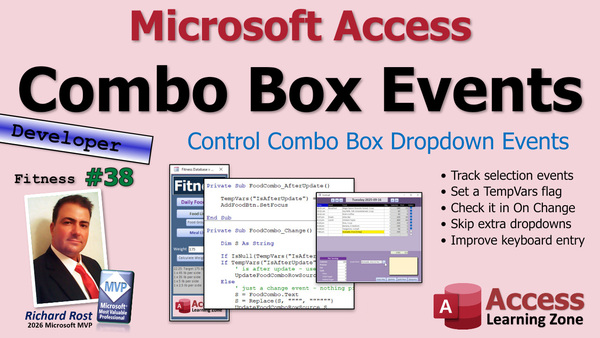
TechHelp Access, fitness database series, event order, combo box AfterUpdate, combo box OnChange, TempVars, SetFocus, keyboard navigation, Null handling, plate calculator, tracking plates, SQL Server migration, online database, web interface, bounce subroutine, window positioning
 Subscribe to Fitness 38
Get notifications when this page is updated
More InformationTranscript Welcome to another TechHelp video brought to you by AccessLearningZone.com. I am your instructor, Richard Rost. Today is part 38 of my fitness database series.
This is a video about making databases, not necessarily about fitness, so there are lots of cool tips and tricks. Watch parts one through 37 first, and here we go.
Alright, we're back. The next thing I want to do, and again, we're still covering a bunch of pet peeves. Sometimes I'll go for a couple of days and just pick a whole ton of notes of things I want to fix, things that have aggravated me while I was using the database.
Like I said, I think in the last video or two, I like it when you're typing in here and you pick something like that. But then once you pick something, I want the box to close. I don't want it to sit there once I have made a selection. Close it.
The problem is, in our code, what happens is we've got an OnChange event. So we can tell it in the OnChange event to drop that box down or not, unless we've made a selection. Once you actually make a selection, then the AfterUpdate event fires.
The AfterUpdate event actually fires before the last OnChange event. It's weird. The order that these events are in is weird. If you want to see how they run, just put a message box in here or, in our case, we can status it. Watch this.
So, OnChange. In here, we'll just status "change" like that so we can see it. Then, in the AfterUpdate event, we'll put in a status "update" so we know it's AfterUpdate. You can see how they fire.
So if I come in here, if I type something, "a p," you can see the change event firing. Now if I pick something, you get update and then change again.
So what we're going to do is say, if the update event just fired, don't run that drop-down. The only way we can tell the OnChange event not to fire the drop-down method—it's technically a method when you do that—is to either store it in a variable or a form field, or my favorite, TempVars.
We'll use a TempVar and say, once the AfterUpdate event runs, then when you get back to the change event, don't drop the box down. I know it sounds kind of convoluted, but that's really the only way you can do it.
I just wanted to give you my train of thought here.
Back in the code, in the AfterUpdate event, instead of that status there, we're going to say TempVars!IsAfterUpdate = True.
Also, what I kind of like to do at this point: instead of keeping the focus on that drop-down box, since we have made a selection, let's move over to the Add Food button. AddFoodButton.SetFocus, because a lot of the times when I was typing, I want to type in a food—banana—hit Enter, that'll move me to the plus button, I can hit Enter again, it'll add the item, and then I want to put the focus back on the combo box so I can just type in a bunch of stuff.
I'm a keyboard freak. Sometimes I like to work without having to touch the mouse.
Now, we've set that up here. The problem is this is going to run a bunch of times before that guy runs, and we have to look for it in here. We have to do a little more work here.
First thing you have to check for whenever you're dealing with TempVars: if you're going to look at the status of the TempVar, you want to make sure it's not Null first, because that will throw off everything. Remember, nothing is equal to Null. Null isn't even equal to itself. Null is Null. There is a whole separate video on Null math and how Null behaves. Go look those up on my website.
With a TempVar, if you're going to check to see if it's True or False, if it's Null, it's neither True nor False; it's Null. What I like to do is initialize it before actually checking its value.
So I'm going to say: If IsNull(TempVars!IsAfterUpdate), then TempVars!IsAfterUpdate = False, because this hasn't run yet.
So the very first time this comes in here, it's going to say, "Oh yeah, IsAfterUpdate, this TempVar is Null, we're going to set it to False," which is fine; that's what we want.
Now, if they get to this point and that TempVar is False, then we're going to do everything in here that we have before. I hate checking to see if it's not False because we're going to do something else if it is True. So we're going to say if that is True, if it is the AfterUpdate, then we're going to do some stuff here, something slightly different. We'll talk about that in a minute.
Otherwise, it's just the change event, nothing picked yet. We'll do all this stuff because the user just picked the item. We can End If here.
If we get down to the bottom here, in either case, we can say IsAfterUpdate = False. We're going to reset it to False down here because if it's True, it's going to set True up here, come into here, and then we're going to do some other stuff.
So here it's going to be IsAfterUpdate: user made a selection. What are we going to do here? All we're going to do is update the combo box to just everything—set it to the whole list. Because here we're taking the value in there that was changed and we're limiting it to just "Apple" or whatever the user is typing.
But at this point, they made a selection, so I'm going to update the whole box and set it equal to blank like that. I think that's a default, isn't it? Let's see. Where are you? Oh, you're down here. Yeah, the default is blank, so we have to do that. But sometimes even though that is the default, I like to put that there. So you can just see that we're resetting it—reset combo box to all items—because they made their selection. They picked the value, made a selection, put everything back in the box. Now it's ready for you hitting the plus button.
Let's see it in action. Save it, debug compile.
Now if I come in here and I type "a pp," "Apple." Let's do something else, let's do "chicken." There's chicken, I got all my chickens. If I pick one, look at that. They put the value in the box, it didn't drop down, and it reset the whole row source. So it's cleared everything, but it's got my value in there. Now I can add it.
If I come over here and I type in "PROT"—let's do "clip bar," let's do "clip," "CLI," okay, that's fine. Enter, and then Enter. So that's working. Let me get rid of these. I don't need to eat those today.
Next, I think what I'd like is when I pick a value and I add it, I don't want it sitting up here because I almost never make changes at that point. I almost always just want to add another item, especially once we get meals in here, which we're going to do very soon. I just want to type and go, type and go, type and go. So instead of putting it up here, I want the focus to go back here so I can add the next item.
Again, let's delete this. And I know we wrote this whole code so that we return—let's go and sit here—yeah, we're returning the ID so we know which item to find. But after doing all this, I kind of don't like the way that it behaves. If you like it, leave it. I don't.
So what I'm going to do is—we don't need this new ID anymore, so get rid of that. I don't care where you're sitting up top. We can change this now to just a call of the subroutine. That means we can do that. We're just saying AddFoodItem, or log with the food combo. We don't care about what the return value is.
You can do that with a function. Even though this is a function, you don't have to get the return value. You can just call it like a subroutine and basically you're saying, I don't care what it returns.
We're going to get rid of this. I don't care about the FindFirst. We still have to requery.
Now instead of FoodDescription.SetFocus, I'm going to say FoodCombo.SetFocus. That's all. It's going to put us right back on the combo box.
So now I can rapid fire, debug compile, and this is how I was wanting to use the database for the whole last week. I want to come down here, type in "Apple," Enter, Enter. "Orange." What do we have? "Tangerine." "Tangerine," Enter, Enter. "Yogurt," Enter, Enter. That's how I want to use it. "Protein," Enter, Enter. And we have to do that bounce thing eventually because we want it to scroll down. Members will do that. The bounce function is something I wrote for the members. There are going to be some extra features that are members only. I'm sorry; I have bills to pay, too. I'm giving you guys lots of stuff for free.
Before we finish today, I just wanted to go over a question or a comment that someone posted on YouTube.
When we did, in part 34, the plates that you want to track—how many plates you want to put on the sides—we did a plate calculator. That was fun. I enjoyed that. Peter K. I-65 said, I think you forgot the bar weight.
Well, no, I didn't really forget it. The point of the exercise was to say, I need to add 120 pounds onto what I'm lifting right now. For me personally, if I am using a bar, I consider that a constant. Personally, I have a PowerTech Leverage. It's a leverage machine that does use free weights, but there's no bar. It's connected to a lever. It's safer so you don't drop the bar on your neck, and I like it. So I don't bother tracking bar weight myself because I'm not lifting to see, "What's your max bench press, bro?" I don't care about that. I care about knowing what I did last time so I can progress the next time I work out.
So, if I'm benching 100 pounds, 120 pounds, whatever it happens to be, next time I know I can add five. That's why I track that, and I want to know how many plates I put on the side.
If you want to track your bar weights—I have talked to some people that do keep track of that because sometimes they do different exercises with different bars and they want to know the weight—that's fine. I would just add that onto whatever you're doing if you want to track that in your log.
Personally, and for the point of that exercise, I just care about the plates themselves. That's up to you, and that's easy to do. If you want to add it to that calculation, that's fine. That's a personal setting, so you can do whatever you want with it. That's the beauty of building your own database—you can do whatever you want.
Thanks for the comment. Keep commenting. I love reading your comments. I don't necessarily mention everybody every time. Some of these were fitness questions that I do cover in my regular Quick Queries on Fridays, so watch those too.
If it's a generic Access question that I can answer in Quick Queries, I've been answering them there. If it's something specific to this database, I'll try to answer it after one of my actual lessons here.
One more comment.Georgio says he wants to know what online means because at time index, whatever he says, do you want to see the online stuff in here? Sorry if I was not clear what I am talking about. I mean, taking the database online. One of my goals is to be able to edit this stuff on my phone. If I am out to lunch, I want to type in what I ate. If I am working out, or if I am somewhere else, I want to be able to put that in. So I want this eventually to be online, meaning you can get to your data from the web, from your phone, from wherever.
We are building it as an Access database, but eventually I want to take the data, the tables, and put it up on an SQL server on my website. Whether or not I include that as part of this series of TechHelp videos, I am not sure yet. I might, because I have been wanting to do something to get people to get their data up on SQL server. I have got a whole seminar on it, but I am not sure if I am going to do it here or make it something separate yet. That is what I said. Do you want to see the online stuff in here? I was trying to get people's feelings for who wants to see it and who does not. So far, not a lot of you have said that you care. We will get to that. That is something that I usually do when the database is finished. Like, it is finished. It is working in Access. I can use it. It is perfect. Now, we will put the tables up on SQL server and see about building a web interface for it.
All right, members, we are going to do an extended cut today. I have a little tiny fix to the bounce subroutine that we built in whatever previous class. We are going to add bounce to this food log. So as we add items, if we add below where we can see, it will bounce up like we love to do. I am going to add my window positioning code to this database. I have it in a couple other databases. I used to actually have it in the TechHelp free template, but I took it out of there because it was too complicated and it was confusing newbies. So I took that out.
On my desktop, I have got it so that different databases open in different positions. Like, my company database opens in one spot, my account balances database opens in a different spot, and I have got my own little task database that just opens up in the corner. The problem with Access is that every database will just open wherever the last database you had was. I do not want that. I like to have it positioned in a specific spot. So we have code for that. We are going to add it too. That is all going to be in the extended cut for the members.
Celebrators and up get access to all of my extended cut videos, and Gold Members can download these databases and get the code vault and all kinds of other cool perks. So check it out.
That is going to do it for part 38, folks. Hope you learned something. I will see you tomorrow for Quick Queries Friday, and then we will see you again on Monday, probably Monday, maybe Monday. I am not sure because today is Tuesday, the 16th of September 2025. We might do the next one after this on Monday. I am not sure.
We are going to start meals next. We are ready to start meals. We are going to add meals to the food log. So then when you pick a meal, it adds all those food items. That is my next thing that I have really been wanting. We will do that. Yeah, we will do it on Monday.
I want to do a non-fitness Access class next week too, because you have to get new eyeballs in here too. People see Fitness 38 and then they stop.
Did you notice I did the updated thumbnail for the last two classes? Let me know what you think about them. This is the one for 37. I rearranged it a little bit. People said they would like to see a little bit of text up here, what it covers, and I made the fitness database a little less prominent. A few people commented that I might be losing eyeballs because people see fitness, which we have probably had since day one. Same thing for part 36. I just tried to be a little more descriptive on here. Let me know what you think.
All right, so that is it. That is part 38. Hope you learned something. Live long and prosper, my friends. See you on Monday for part 39.
TOPICS:
Handling combo box dropdown after selection
Using OnChange and AfterUpdate events in combo boxes
Tracking event firing order with status messages
Controlling combo box dropdown behavior with TempVars
Initializing and checking the value of a TempVar
Resetting the combo box value after making a selection
Setting focus to the Add Food button after selection
Rapid data entry using keyboard shortcuts
Updating code to remove unused return values from functions
Changing focus back to combo box for rapid entry
Discussion on handling Null values in VBA
Requerying the food log after adding an item
Managing event logic to support streamlined data entry
COMMERCIAL:
In today's video, we're continuing with part 38 of the fitness database series. We're learning about how to streamline combo box selections, manage focus with the keyboard, and use TempVars to handle complex event timing in Access VBA. I'll show you how to make data entry faster by moving the focus automatically and resetting the combo box after each entry. We'll also discuss handling Null values with TempVars, getting rid of unneeded return values, and making your workflow more efficient without touching the mouse. Plus, I answer some viewer questions about plate calculators and plans for putting the database online. In today's Extended Cut, we'll tweak the bounce subroutine and add window positioning code so your database always opens in the perfect spot. You'll find the complete video on my YouTube channel and on my website at the link shown. Live long and prosper my friends. Intro In this video, we continue building the Microsoft Access fitness database in part 38 of the series. You'll learn how to control combo box dropdown behavior using the OnChange and AfterUpdate events, manage event timing with TempVars, handle Null values in VBA, and make rapid data entry easier by moving focus automatically and resetting controls for keyboard efficiency. We'll also talk about improving the data entry workflow by updating code logic and respond to questions about tracking bar weights and ideas for eventually taking the Access database online. This is part 38. Quiz Q1. What is the main issue being addressed with the combo box in the video?
A. Ensuring the combo box automatically closes after an item is selected
B. Adding more items to the combo box
C. Making the combo box display only unique values
D. Allowing multiple selections in the combo box
Q2. Which event fires after a selection is made in the combo box?
A. OnClick
B. AfterUpdate
C. BeforeUpdate
D. OnEnter
Q3. Why is a TempVar used in the code described in the video?
A. To store the selected value from the combo box
B. To keep track of whether the AfterUpdate event has fired
C. To count the number of items selected
D. To save the previous search text
Q4. What problem can occur if you check a TempVar value before initializing it, as discussed in the video?
A. The TempVar will always be True
B. It can cause a runtime error or incorrect behavior due to Null
C. The TempVar will reset to its default value
D. It will trigger the combo box to close immediately
Q5. How does the instructor recommend handling Null values when using TempVars?
A. Always set the TempVar to Null before checking
B. Ignore Null values since they are treated as False
C. Initialize the TempVar to False if it is Null before checking its value
D. Only use TempVars that cannot be Null
Q6. After selecting and adding a food item, where does the instructor suggest setting the focus next for efficient data entry?
A. On the form's title bar
B. On the Add Food button, then back to the combo box
C. On the previous entry field
D. Nowhere, just leave the focus unchanged
Q7. What is the purpose of resetting the combo box's value to blank after a selection is made?
A. To prevent the user from entering duplicate data
B. To clear any temp data left from the previous selection
C. To allow the user to quickly enter a new search or selection
D. To hide sensitive food item records
Q8. What coding technique is demonstrated when calling a function without using its return value in VBA, as explained in the video?
A. Refactoring
B. Using Sub instead of Function
C. Treating a function as a subroutine when return value is unnecessary
D. Ignoring compilation warnings
Q9. Why does the instructor mention not tracking bar weight in the plate calculator example?
A. The database cannot handle changing bar weights
B. The bar weight is always zero
C. He considers the bar weight a constant or doesn't use a bar in his machine
D. He does not know how to add bar weight to the calculation
Q10. What does "taking the database online" mean as used by the instructor?
A. Printing reports from Access
B. Emailing Access data to users
C. Storing data on a web-accessible SQL Server so it can be used from anywhere
D. Creating a backup of the database
Q11. What advantage does the instructor see in building your own database, as mentioned in the context of bar weight or other preferences?
A. You always have to follow the original template
B. You can customize it to fit your own workflow and data needs
C. You must only track fitness data
D. You cannot change features after initial setup
Q12. What is the purpose of the "bounce" subroutine referenced in the members-only section?
A. To validate user input in the combo box
B. To scroll the form to display newly added records
C. To reset the combo box after entry
D. To highlight invalid data
Q13. When the instructor talks about window positioning code, what database behavior is he trying to avoid?
A. The database always opening in full screen mode
B. The database opening in the last position used by any other database
C. The database not having a startup form
D. The database failing to save changes
Q14. What is an example of a feature available only to AccessLearningZone members, as described in the video?
A. Watching all TechHelp videos
B. Downloading databases and source code (Code Vault)
C. Adding new tables to the fitness log
D. Customizing form layouts
Q15. What new functionality is planned for the next lesson in the series, according to the instructor?
A. Exporting data to Excel
B. Adding the ability to log entire meals in the food log
C. Deleting all food items automatically
D. Changing the database from Access to Excel
Answers: 1-A; 2-B; 3-B; 4-B; 5-C; 6-B; 7-C; 8-C; 9-C; 10-C; 11-B; 12-B; 13-B; 14-B; 15-B
DISCLAIMER: Quiz questions are AI generated. If you find any that are wrong, don't make sense, or aren't related to the video topic at hand, then please post a comment and let me know. Thanks. Summary Today's TechHelp tutorial from Access Learning Zone focuses on the next stage in building our fitness database, specifically part 38 of this ongoing series. As a reminder, while the content uses fitness as its subject, this tutorial is really about developing useful Access databases, so the strategies and concepts I discuss today apply to a wide range of projects.
If you have not been following along, I recommend reviewing parts one through 37 before tackling today's lesson. Now, let's continue refining some user interface details and addressing a few small but irritating issues that I have encountered while using the database.
One issue I want to address today involves the behavior of the drop-down combo box in the food entry form. When typing and making a selection from the suggestions, my preference is for the dropdown to disappear immediately after an item is chosen. By default, however, Access sometimes leaves the list open, which can be distracting.
This behavior comes down to how the various form events interact, particularly the OnChange and AfterUpdate events. The sequence in which these events fire can be a bit unintuitive. When you type into the combo box, the OnChange event triggers repeatedly. Once you actually make a selection, the AfterUpdate event fires, and oddly enough, it fires before the last OnChange event. If you are curious about the exact sequence, you can observe it by setting status messages at each event to display what is firing and when.
To control this logic, I need a way to prevent the combo box from automatically re-opening after a value is picked. Since the only way to know if AfterUpdate has fired is to track its occurrence, I use a TempVar to flag the state. When the AfterUpdate event runs, I set the TempVar to True. Then, when the OnChange event triggers after a selection, I check that value, and if it indicates a selection was just made, I skip the code that would otherwise open the dropdown.
Working with TempVars requires some care because their values can initially be Null. Nulls behave differently compared to regular Boolean values and can cause problems if not managed properly. Before checking whether the TempVar is True or False, I always make sure to initialize it if it is Null. I do this by setting it to False the first time it is encountered.
With that, I can distinguish between standard typing—where the dropdown should open—and an item selection, where it should not. Once all the necessary code is in place, I always make sure to reset the TempVar to False at the end of these routines to prepare for the next input.
In addition to improving the dropdown's behavior, I also like to enhance the workflow for rapid data entry. After adding a food, instead of keeping the focus on the combo box or the add button, I set it to cycle logically so I can keep typing and adding items with little use of the mouse. For those who prefer keyboard-based navigation, this really improves the speed of data entry.
Previously, my code returned the new ID after adding a food, but after using the database for a while, I realized I no longer needed this feature. Instead, I changed the procedure so I simply call the subroutine that handles adding the food, without worrying about the return value. This simplifies the logic. Now, after each addition, focus returns right to the combo box so I can continue adding items one after another efficiently.
To test our changes, I add several food items using just the keyboard. The new workflow allows for quick, uninterrupted entry as intended. There is still some fine-tuning left, such as adding the bounce function so the newest entries are always visible. This is a tool I wrote specifically for my members. Some advanced features like this will be exclusive to those who support the channel, since I do need to cover the costs of providing so much free content.
Before wrapping up, I want to address a couple of viewer comments from previous lessons. One question came up regarding the weight bar in our plate calculator from part 34. For my personal workout routine, I have a machine without a traditional bar, so I mostly track just the plates themselves. If you prefer to include bar weight in your calculations, it is easy to adapt the database to record that information as well. This is one of the key advantages of building your own system—you have full control over every detail.
Another question asked about what I meant by taking the database "online." My goal is to eventually allow access to your data from anywhere, such as your phone or web browser. This would involve hosting the tables on an SQL Server and potentially providing a web interface. I am still considering when or if to include this in the main series, so let me know if this interests you.
For members, today's Extended Cut includes a small improvement to the bounce routine so that when new items are added to the food log, the view jumps to display the most recent entry. I am also including my window positioning code, which lets each database open in a designated place on your desktop. Access normally just opens wherever you last had a database, but I prefer a more organized approach and this code achieves that.
Gold Members have access to downloadable databases, the code vault, and a variety of other resources. If you are interested, check out the membership options for more information.
That concludes part 38 of our fitness database series. In the next session, we will be adding the concept of meals to the food log, making it possible to group and add multiple foods at once. After this, I also plan to post a more general Access tutorial for anyone who is new or looking for topics outside fitness.
As always, I appreciate your feedback on everything, including things like the updated thumbnails for these videos. Let me know if the new designs help you find the content you are looking for.
You can find a complete video tutorial with step-by-step instructions for everything discussed here on my website at the link below. Live long and prosper, my friends. Topic List Handling combo box dropdown after selection
Using OnChange and AfterUpdate events in combo boxes
Tracking event firing order with status messages
Controlling combo box dropdown behavior with TempVars
Initializing and checking the value of a TempVar
Resetting the combo box value after making a selection
Setting focus to the Add Food button after selection
Rapid data entry using keyboard shortcuts
Updating code to remove unused return values from functions
Changing focus back to combo box for rapid entry
Discussion on handling Null values in VBA
Requerying the food log after adding an item
Managing event logic to support streamlined data entry Article One common way to improve your data entry experience in Microsoft Access is to streamline how combo boxes work when you are adding items quickly, especially if you are a keyboard user. By default, when you use a combo box to filter or select items, the drop-down sometimes lingers after you make your choice, or the focus remains on the combo box and does not move to the next logical button or field. This can slow down rapid data entry. In this tutorial, let's look at how you can use VBA code, specifically the OnChange and AfterUpdate events, along with TempVars, to create a smooth and efficient workflow for combo box selection and focus movement.
When you type into a combo box, you typically want the dropdown list to only appear while you are searching. As soon as you make a selection, it is best if the dropdown closes automatically, and optionally, if the focus jumps to another button (like "Add Food") so you can quickly add your entry and move on to the next one—all without using the mouse. To accomplish this, you need to understand the sequence of events that fire when you interact with a combo box.
Access fires the OnChange event every time the user modifies the text in the combo box. Once the user makes a selection, the AfterUpdate event fires. However, the order in which these events run is not always intuitive. The AfterUpdate event actually fires before the last OnChange event. If you want to see the exact behavior, you can temporarily add status messages (like MsgBox "change" or Debug.Print "update") in each event to track the order.
The challenge is to prevent the dropdown from appearing again after a selection is made. You want to drop down the combo box on key changes but not after selecting an entry, where AfterUpdate fires first and OnChange comes right after. To coordinate this, you need a way for the AfterUpdate event to tell the OnChange event not to open the dropdown again immediately after a selection.
This is where TempVars come in handy. TempVars are global variables specific to the current Access session, and they allow you to pass information between events. In this scenario, you can set a TempVar in the AfterUpdate event, indicating that a selection was just made. Then, in the OnChange event, you can check this flag and decide whether to drop down the combo box or not.
Let's look at the code you would use:
In the AfterUpdate event of your combo box, you set the TempVar:
TempVars!IsAfterUpdate = True
You might also want to immediately set the focus to your "Add" button, so the user can hit Enter and the item will be added without any further mouse interaction:
AddFoodButton.SetFocus
In the OnChange event, you need to make sure you do not try to access a TempVar that hasn't been initialized—otherwise, it could be Null, and comparisons with Null will always return False. To avoid that, first check if it is Null:
If IsNull(TempVars!IsAfterUpdate) Then
TempVars!IsAfterUpdate = False
End If
Now, check the value:
If TempVars!IsAfterUpdate = True Then
' A selection was just made; do not drop down the box. Reset the combo's RowSource or value if needed.
TempVars!IsAfterUpdate = False
Else
' User is in the process of typing, so show the dropdown with:
ComboBoxName.Dropdown
End If
The basic flow is that the AfterUpdate event sets the TempVar to True when a selection happens. The next OnChange event sees that flag, avoids triggering the dropdown, and immediately resets the flag to False so normal typing resumes for the next entry.
For further smoothness, after you add an item (for example, with an "Add Food" button), you will likely want the focus to jump back to the combo box, ready for the next input. That way you can repeatedly perform: type, select, add, type, select, add—all by hitting Enter or using the keyboard. When you add an item, after requerying your food log, set the focus back with:
FoodCombo.SetFocus
Sometimes, in legacy code, you might return a function value like a new ID from the Add action, only to realize you do not use that value. If that is the case, you can call your function as a subroutine and ignore the return value:
Call AddFoodItem
or simply:
AddFoodItem
This clean-up makes your code clearer and avoids confusion.
One subtle area to be aware of is handling Null in VBA. If you test a TempVar's value and it is Null, comparisons with True or False will not work the way you expect, leading to bugs. That is why initializing the TempVar is important.
Putting it all together, you can now efficiently enter food items (or any entries you must log repeatedly) by typing a partial keyword, quickly selecting with the keyboard, pressing Enter to add, and automatically being moved back to the combo box for the next item. For example, you could type "apple" Enter Enter, then "orange" Enter Enter, and so on without ever reaching for the mouse.
If you want to clear or reset the combo box after an item is added so it shows all items again, simply set its value to an empty string and requery:
Me!FoodCombo.Value = ""
Me!FoodCombo.Requery
This makes sure your box is ready for the next entry, reset to its default state.
Questions sometimes come up about tracking other information, such as plate weights for workouts. For example, should you track bar weight as well in strength logs? That depends on your personal needs: some users consider the bar weight a constant, while others use different bars and want to log it specifically. If you need to, you can always add this to your calculation or make it a field in your database. The goal is for your database to fit your workflow.
Finally, some users are curious about putting their Access data online—for example, to log from a phone or remote location. The common approach for this is to move your tables to an SQL Server and use Access as a front end, or even build a web-based interface. Whether to do this depends on your use case, but it is very achievable if you need online access.
By using TempVars, proper event handling, and focusing your input flow, you can get Access to behave exactly the way you want for smooth, rapid data entry. This is especially helpful when you want an efficient keyboard-driven workflow without the mouse slowing you down. Try it out in your own forms for any scenario where you are making lots of entries in sequence. Primary Topics Access combo box events, OnChange vs AfterUpdate, TempVars, keyboard data entry, focus management, resetting combo boxes, VBA event order, handling Null in VBA
Secondary Topics requerying forms, removing unused function returns, SQL Server migration planning, user feedback incorporation
|




