|
||||||
|
||||||
|
||||||
|
||||||
Access Developer 2Calculator VBA, Custom Subs, Commission FormsWelcome to Access Developer 2. In this course you will learn how to build a calculator and commission forms by working with VBA programming in Microsoft Access. We will cover the prerequisites, discuss which Access versions are supported, and show you where to download the course database. You will see how to create a calculator form with VBA code, work with custom subroutines, use Select Case statements, and build a sales rep commission calculator form as a practical example. Resources to support your learning and course requirements will also be overviewed. Lessons
Resources
Lesson SummaryWelcome! Calculator & Commission Forms VBA - Welcome to Microsoft Access Developer Level 2. In this course we will build on Access Developer Level 1 by working with Visual Basic programming and related topics. We will talk about prerequisites, versions of Access that are supported, and resources for the course database. The lessons will cover building a calculator form using VBA, creating custom subs, working with parameters and the Select Case statement, and building a sales rep commission calculator.
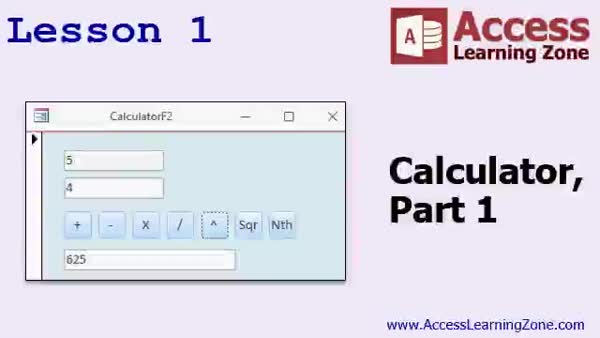
Lesson 1: Basic Calculator Form With VBA - In Lesson 1, we will start building a calculator form using VBA in Access. I will show you how to create a simple calculator with buttons for basic operations like addition, subtraction, multiplication, division, exponent, square root, and nth root. We will discuss naming controls, handling errors such as invalid use of null and division by zero, and using the Val function to convert text to numbers. Toward the end, we will talk about the problem of repeated code and mention how to streamline the code in the next lesson.
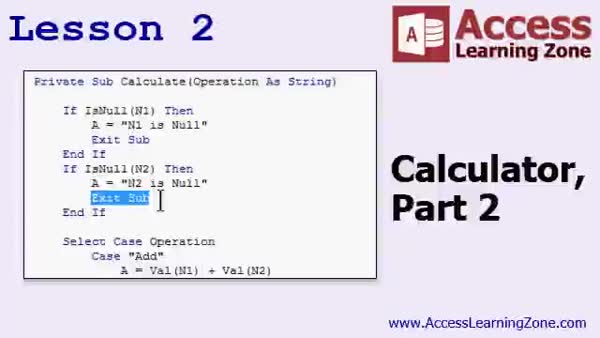
Lesson 2: Smart Calculator with Subs & Case - In Lesson 2, we continue building the calculator by creating a single custom subroutine called Calculate that handles all the different mathematical functions. We will walk through setting up the subroutine with parameters, discuss the difference between Private Subs and functions, and use both If...ElseIf blocks and the Select Case statement to organize our code for operations like add, subtract, multiply, divide, exponents, nth roots, and square roots. I will show you how to call the Calculate subroutine from each button and keep the code clean and easy to maintain.
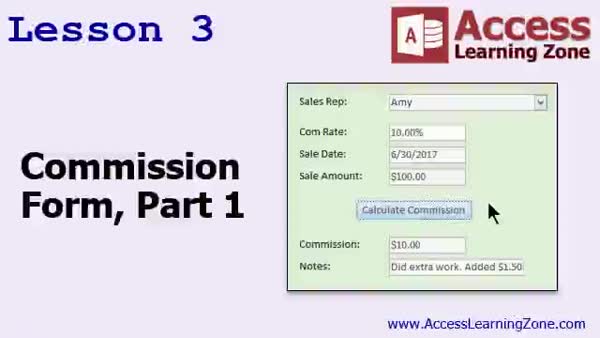
Lesson 3: Create a Commission Data Form - In this lesson, we will discuss how to provide text if you would like help correcting spelling, grammar, and punctuation.
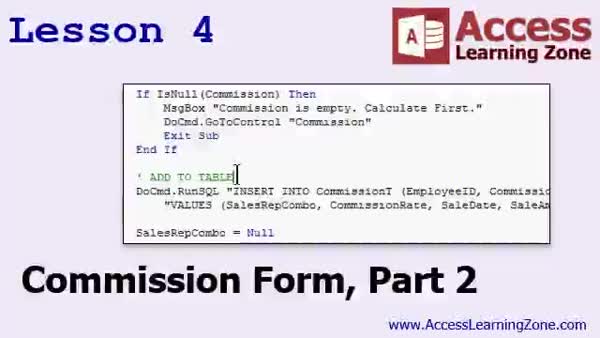
Lesson 4: Add Commission Records with SQL - In Lesson 4, we continue building the commission form by adding functionality to log commission data into the commission table using an SQL INSERT statement and the DoCmd.RunSQL command. I will show you how to validate form fields, handle empty or zero values, and use comments in your code. We will walk through updating field values, handling errors, and resetting the form after logging a commission. We will also discuss the difference between blank and null values, and I will assign homework on checking for duplicate entries and adding new sales reps directly from the commission form.
Lesson 5: Key Concepts & Next Steps - In this course we learned about next steps after completing Access Developer 2, current and upcoming developer materials, how to get free upgrades to future classes, and where to find additional seminars and resources. We also discussed how to ask questions in the forums, how customer service and tech support requests are handled, the importance of filling out the online survey, and licensing requirements for using these lessons in organizations.
NavigationKeywordsVBA calculator form, commission form, error handling, custom subroutine, Select Case statement, DoCmd.RunSQL, SQL INSERT, parameter passing, form validation, reset form, duplicate entry check, add sales rep, Val function, exponent function
More InformationTranscriptWelcome to Microsoft Access Developer Level 2, brought to you by AccessLearningsOn.com. I am your instructor, Richard Rost. Welcome to the Developer Series of Places. The Developer Series of Places covers Visual Basic programming and all kinds of other good stuff. It follows Access Developer Level 1, so this is Level 2 in the Developer Series. You should have also completed my Beginner, Expert, and, optionally, the Advanced Series. The Advanced Series is mostly macros, and a lot of people do not necessarily need to learn macros, but Beginner and Expert for sure. Of course, make sure you have finished Access Developer Level 1 before taking this class. This class was recorded using Microsoft Access 2016. Everything should work pretty much fine for you if you are using 2013, 2010, and probably 2007. If you are going all the way back to 2003, I think most of what I have covered in today's class will also be available. If you have that old of a version of Access, it is time to upgrade. I recommend you move up to at least 2013, but 2016 is where it should be. Get an Office 365 subscription. A couple of dollars a month and it is well worth it. All the upgrades, all the updates. The database for today's class can be found there: 599-cv.com-slash-databases. You do not have to download that database to build today's project. You can start from scratch. We are going to be building a brand new couple of forms that were not in the database from before. If you want to download it, go ahead, but you do not need it for today's class. Let's take a look at what is covered in today's class. In Lesson 1, we are going to start using DB to build a calculator form. In Lesson 2, we are continuing with our calculator. We are going to get a little more advanced with our Visual Basic code. We are going to learn some things like creating a custom sub and adding some parameters, and learning the Select Case statement. In Lesson 3, we are going to build another type of calculator to calculate sales rep commissions. In Lesson 4, we are continuing with the commission form that we started in Lesson 3. Thank you. IntroIn lesson 1 of Microsoft Access Developer Level 2, we will begin working with Visual Basic for Applications (VBA) by building a calculator form from scratch. Throughout the next few lessons, you will learn how to write custom subs, use parameters, and work with the Select Case statement in your VBA code. We will also create a second calculator to handle sales rep commission calculations and continue refining it as we progress. This course is recorded in Microsoft Access 2016 and is the next step after Developer Level 1. QuizQ1. What is the main focus of Microsoft Access Developer Level 2? A. Advanced form design only B. Visual Basic programming and related topics C. Macros exclusively D. Table relationships Q2. Which prerequisite series should you have completed before starting Developer Level 2? A. Advanced and Macros only B. Beginner and Expert, and ideally Developer Level 1 C. Macros and SQL only D. None, you can start at any level Q3. What does Richard recommend if you are using Microsoft Access 2003? A. It is fine, keep using it B. Upgrade to at least 2013 or later C. Do not use Access at all D. Switch to a different software Q4. Is it necessary to download the class database from 599-cv.com-slash-databases to follow along? A. Yes, it is required B. No, you can start from scratch C. You must buy it first D. Only for the last lesson Q5. What will be built in Lesson 1 of this course? A. A table relationship diagram B. A calculator form C. A macro to automate reports D. A customer data entry form Q6. What programming constructs are specifically mentioned as being taught in Lesson 2? A. Table joins and relationships B. Custom subroutines, parameters, and Select Case statement C. Database security D. Crosstab queries Q7. What is the focus of Lessons 3 and 4? A. Building a charting tool B. Building and continuing work on a sales rep commission calculator form C. Creating a navigation form D. Designing printable reports Answers: 1-B; 2-B; 3-B; 4-B; 5-B; 6-B; 7-B DISCLAIMER: Quiz questions are AI generated. If you find any that are wrong, don't make sense, or aren't related to the video topic at hand, then please post a comment and let me know. Thanks. SummaryToday's video from Access Learning Zone is Microsoft Access Developer Level 2. I am your instructor, Richard Rost. This course is part of the Developer Series, which focuses on Visual Basic programming in Access along with many other useful skills. Developer Level 2 builds on what we covered in Access Developer Level 1. Before starting this class, you should have already completed my Beginner and Expert Series for Access. The Advanced Series, which mainly covers macros, is optional, but for the best experience, you should absolutely finish both the Beginner and Expert levels, and definitely Developer Level 1, before starting here. The material in this course was created with Microsoft Access 2016. However, almost everything demonstrated should also work in Access 2013, 2010, and likely even 2007. If you are still working with Access 2003, most topics will still be relevant, though I would strongly encourage you to upgrade to at least Access 2013, with 2016 being ideal. An Office 365 subscription is a great way to get the latest version, with regular updates and new features. If you would like to follow along using the database for this course, you can find it at 599-cv.com/databases. However, it is not necessary to download this file to complete the lessons today. We will be building several new forms from scratch that were not part of any previous database, so it is fine if you start with an empty database. Here is an overview of today's lessons: In Lesson 1, we will begin working with Visual Basic in Access by creating a calculator form from scratch. Lesson 2 continues our calculator project, adding more sophisticated Visual Basic techniques. We will learn how to make a custom subroutine, use parameters, and work with the Select Case statement for branching logic. Lesson 3 introduces a new project where we design a calculator to compute sales rep commissions. Lesson 4 builds upon the commission calculator form we started in Lesson 3, adding more features and refining the process. You can find a complete video tutorial with step-by-step instructions on everything discussed here on my website at the link below. Live long and prosper, my friends. Topic ListBuilding a calculator form in Access Writing Visual Basic code for calculator functions Creating custom subs with parameters in VBA Using the Select Case statement in VBA Building a sales rep commission calculator form Developing and refining the commission form Primary TopicsAccess forms, Visual Basic programming, custom subs, parameters, Select Case statement, calculator form development, commission form development Secondary Topicsrecommended Access versions, course prerequisites |
||||||||||||||||||||||||||||||||||
|
| |||
| Keywords: VBA calculator form, commission form, error handling, custom subroutine, Select Case statement, DoCmd.RunSQL, SQL INSERT, parameter passing, form validation, reset form, duplicate entry check, add sales rep, Val function, exponent function PermaLink Microsoft Access Developer 2 |