|
||||||
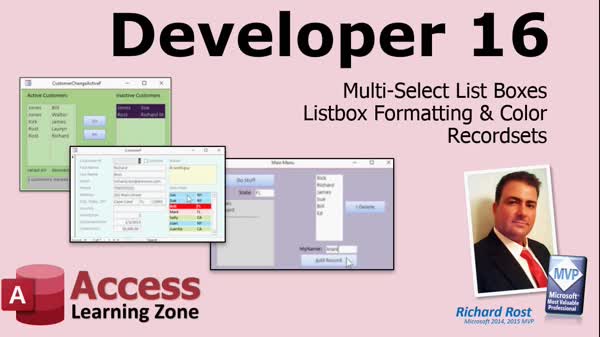
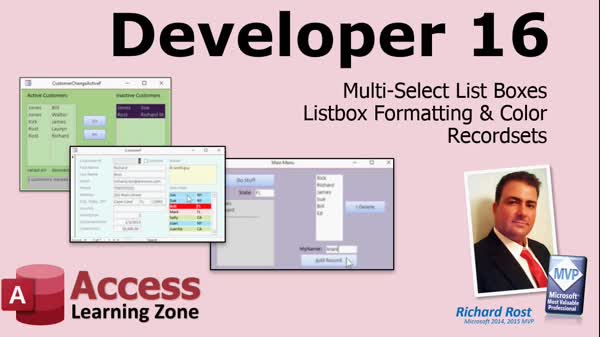
Access Developer 16Multi-Select Listboxes, Colors, RecordsetsWelcome to Access Developer 16. In this course you will learn how to use multi-select list boxes and explore whether color and formatting can be applied to them in Microsoft Access. We will discuss workarounds for visual enhancements, review solutions for common bugs and glitches, and begin working with recordsets to access table data directly from Visual Basic code. This series is intended for students familiar with previous Developer lessons and covers techniques you can apply in Access versions from 2007 and newer. Lessons
Database Files
Resources
Lesson SummaryWelcome! Multi-Select List Box Tips - Welcome to Microsoft Access Developer Level 16. In this course we will continue working with multi-select list boxes, discuss whether formatting and color can be used in list boxes, and explore a useful workaround if that is not possible. We will also begin working with record sets to see how to access data and tables directly from Visual Basic code. This course is designed for students who have already completed the Beginner, Expert, Advanced, and Developer lessons through Level 16, and is demonstrated using Microsoft Access 2019, though it should work for versions 2007 and newer.
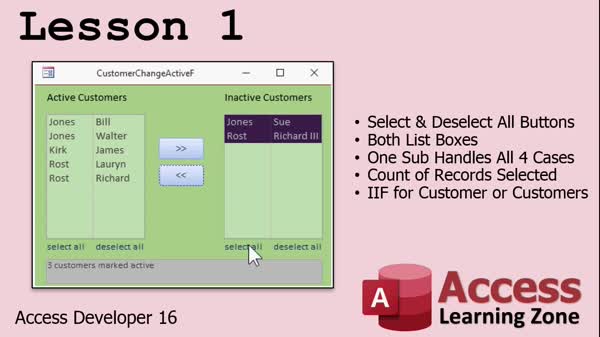
Lesson 1: Select/Deselect All Listbox - In Lesson 1, we will review the homework from Access Developer 15, focusing on creating "Select All" and "Deselect All" links for two listboxes using a single subroutine to handle all four cases. I will show you how to pass controls and optional parameters, count the number of records moved, and display messages like "one customer marked active." We will also discuss good user interface practices, such as ensuring only one listbox has selected items at a time and deselecting all items after moving records.
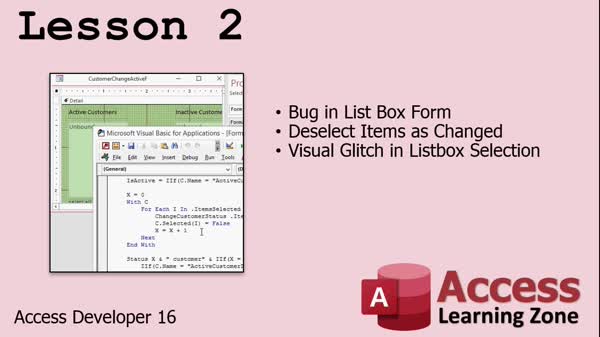
Lesson 2: Fix Multi-Select List Box Bugs - In Lesson 2, we address a bug fix related to a visual glitch in Microsoft Access list boxes. When you select multiple records and move them between list boxes, Access sometimes retains old selections incorrectly, causing unexpected behavior. I will walk through the troubleshooting steps that led to the solution, including adding diagnostic buttons and adjusting code to properly deselect items as they are moved. We will also discuss and resolve a visual glitch where selections appear incorrectly highlighted, using a setfocus technique to correct the display. Finally, we will briefly mention upcoming lessons about unbound list boxes.
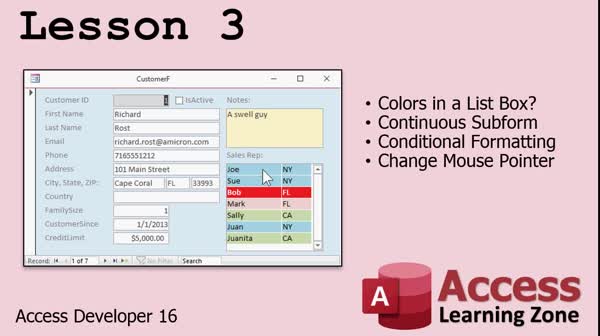
Lesson 3: Colors, Conditional Formatting List Boxes - In Lesson 3, we will explore whether it is possible to add color and formatting to a list box in Microsoft Access. Although list boxes do not support traditional formatting, I will show you how to use a continuous subform to mimic a list box with colored and formatted rows using conditional formatting. We will walk through creating a sales reps example, setting up conditional formatting based on states, linking the subform to the main form, and adding features like changing the mouse pointer and updating selections visually. We will also discuss the limitations and some possible enhancements.
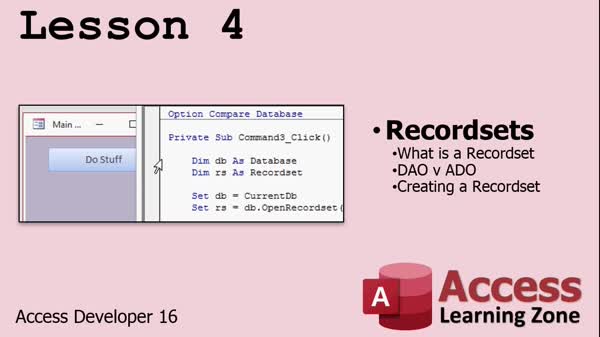
Lesson 4: Recordsets & Data Handling - In Lesson 4, we will learn the basics of working with recordsets in Access, which provide a more efficient and flexible way to interact with table data compared to using SQL statements in loops. I will explain what recordsets are, why they are valuable, and walk through setting up a simple recordset using DAO, including the key steps of declaring, opening, closing, and destroying database and recordset objects. We will also briefly discuss object library references for older Access versions and touch on the differences between DAO and ADO technologies.
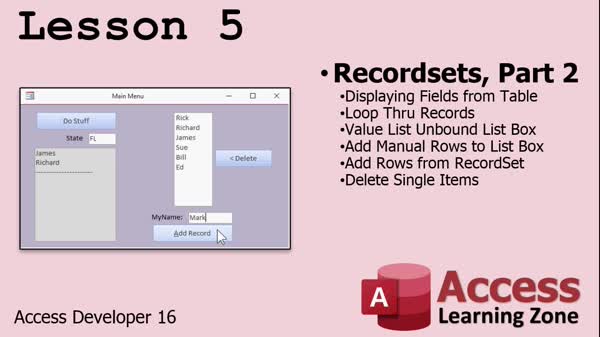
Lesson 5: Loop, Edit, and Filter Lists - In Lesson 5, we continue working with recordsets by learning how to display individual fields from a table, rather than just the recordset or database name. I will show you how to loop through all the records using a While loop, apply criteria to filter records (such as by state), and handle situations when no records are found. We will also set up an unbound list box (value list) on a form, manually add data to it, and then populate it directly from a recordset. Finally, we will walk through deleting items from the list box.
Lesson 6: Course Review & Next Steps - In this course we learned a variety of topics in Access Developer 16, including working with multi-select list boxes, unbound list boxes for displaying recently accessed customers, and recordsets. We discussed plans for the upcoming Developer 17 course, which will include techniques for removing items from a multi-select list box and possibly cover arrays. We also talked about supplemental resources like the Access forum, the TechHelp video podcast, and ways to ask questions or provide feedback through course surveys.
NavigationKeywordsmulti-select list box, unbound list box, listbox conditional formatting, listbox color, recordsets, select all listbox, deselect all listbox, move items between listboxes, listbox visual glitch, DAO, pass controls VBA, continuous subform
More InformationTranscriptWelcome to Microsoft Access Developer Level 16, brought to you by AccessLearningZone.com. I am your instructor, Richard Rost. In Developer 16, we are continuing our work with multi-select list boxes. We will learn whether or not it is possible to have formatting and color in list boxes. If it is not, we will learn a really cool workaround. Then we will begin working with recordsets to learn how to access the data in tables directly from our VB code. I will be using Microsoft Access 2019 with my Microsoft 365 subscription in this class. These lessons should work for anybody using 2007 and up. Of course, this is a Developer Level lesson. I strongly recommend that you have taken my Beginner, Expert, Advanced, and Developer lessons, levels 1 through 16. Now it is time to get our learning caps on and get started with Lesson 1. IntroIn lesson 16, we will continue working with multi-select list boxes in Microsoft Access, discuss whether it is possible to use formatting and color in list boxes, look at a clever workaround if it is not, and start working with recordsets to access table data directly in VBA code. QuizQ1. What is the main topic covered in Microsoft Access Developer Level 16? A. Multi-select list boxes and recordsets in Access B. Creating tables in Access C. Designing forms from scratch D. Importing data from Excel Q2. What formatting features are discussed regarding list boxes in this lesson? A. Embedding images directly in list boxes B. Adding sorting features to list boxes C. Formatting and color in list boxes, and workarounds if not possible D. Adding hyperlinks to list box items Q3. What new concept related to data access will be introduced in this lesson? A. Creating macros for automation B. Working with queries only C. Accessing data in tables directly from VB code using recordsets D. Using relationships to connect tables Q4. Which version of Microsoft Access is used by the instructor in this course? A. Access 2003 B. Access 2007 C. Access 2019 with Microsoft 365 subscription D. Access for Mac Q5. Who is the instructor for Developer Level 16? A. John Smith B. Susan Jones C. Richard Rost D. Mary Johnson Q6. Before taking this course, what does the instructor recommend? A. Having experience with SQL only B. Taking Beginner, Expert, Advanced, and Developer lessons 1 through 16 C. Using only Access 2013 D. Reading the Access user manual Q7. For which versions of Microsoft Access will these lessons work? A. 2003 and earlier only B. 2007 and up C. Access 365 only D. Access Web App only Answers: 1-A; 2-C; 3-C; 4-C; 5-C; 6-B; 7-B DISCLAIMER: Quiz questions are AI generated. If you find any that are wrong, don't make sense, or aren't related to the video topic at hand, then please post a comment and let me know. Thanks. SummaryToday's video from Access Learning Zone is Microsoft Access Developer Level 16. I am Richard Rost, your instructor for this course. In this lesson, we will continue working with multi-select list boxes. We will explore whether it is possible to apply formatting and color within list boxes. If it turns out that native formatting options are not available, I will show you an interesting workaround that can achieve a similar effect. After that, we will start working with recordsets, which involves accessing and manipulating data in tables directly through VBA code. For this course, I will be using Microsoft Access 2019 together with my Microsoft 365 subscription. However, the material covered should be applicable for anyone using Access 2007 or later versions. As a reminder, this is an advanced Developer Level lesson. If you have not yet completed my Beginner, Expert, Advanced, and Developer series through level 16, I highly recommend doing so before starting this course. Let's get started with Lesson 1 and continue building your Access development skills. You can find a complete video tutorial with step-by-step instructions on everything discussed here on my website at the link below. Live long and prosper, my friends. Topic ListMulti-select list boxes in Access Formatting and color in list boxes Workaround for colored list boxes Introduction to recordsets in VBA Accessing table data directly with VB code Primary Topicsmulti-select list boxes, conditional formatting, color workaround, recordsets, VBA, direct table data access Secondary TopicsAccess versions compatibility, software requirements |
||||||||||||||||||||||||||||||||||||||||||||||||||||||||||||||||||||||||||||||||||
|
| |||
| Keywords: multi-select list box, unbound list box, listbox conditional formatting, listbox color, recordsets, select all listbox, deselect all listbox, move items between listboxes, listbox visual glitch, DAO, pass controls VBA, continuous subform PermaLink How To Format Listbox Colors Multi-Select and Work With Recordsets in Microsoft Access Developer 16 |