|
||||||
Access SQL Server LessonsConnect, Secure, Query, Distribute, Web DisplayIn this seminar, you will learn how to connect multiple users to an online SQL Server database using Microsoft Access or a web browser, including steps for setting up hosting at Winhost.com, installing SQL Server Management Studio, linking and relinking tables, using pass-through queries, and working with ADO recordsets. We'll also discuss basic security measures such as disabling the Access bypass key and hiding database objects, as well as editing, backing up SQL Server tables, and displaying data on the web with ASP pages. Free VideosSo that you can see if this solution is going to be the right one, the first 4 videos (00 to 03) are FREE of charge. This way you can get your SQL Server set up, migrate some tables up to it, connect Access, and see how awesome an online database can be. Lessons
Course Files
Notes
Learn More
Links
Resources
Related News
Addendums
Linked Table Security NoticeI've always maintained that using an Access database to connect to an SQL Server back-end will give you much better security than using Access alone (even with a split database setup). However, you should be aware that if you connect to SQL Server from Access using manually linked tables, then it is possible for a sufficiently experienced Access user to figure out the password for your server based on the linked table connections. Colin Riddington recently posted an article explaining how the passwords for linked tables aren't masked (hidden) at all in the MSysObjects table, which maintains your database connection strings for linked tables. Hopefully Microsoft will one day fix this glaring security hole. Update 2024-07-23: I've put together a TechHelp video on the Security Flaw in linked tables between Access and SQL Server. I also show how to correct it in Part 2 and the Extended Cut. Lesson SummaryWelcome! Connect Users & Secure SQL Data - In this lesson, we provide an introduction to the Microsoft Access SQL Server Online Seminar, covering how to connect multiple users to an online SQL Server database using Microsoft Access or a web browser. We will discuss setting up hosting at Winhost.com, installing SQL Server Management Studio, linking tables, using pass-through queries, relinking tables with VBA, working with ADO recordsets, and basic security measures such as disabling the Access bypass key and hiding database objects. We will also talk about editing and backing up SQL Server tables, and displaying data on the web using ASP pages.
Lesson 1: SQL Server: Connect, Pros, Cons - In Lesson 1, we will provide an overview of why you might want to connect your Access database to an online SQL Server, discussing the main benefits and drawbacks, the differences in security and accessibility, and the tools and services you will need to get started. We will talk about issues such as speed, safety, reliability, management, and what your users will need to connect. We will also discuss considerations like licensing, recommended hosting providers, and how to use Access runtime and web interfaces for remote data access.
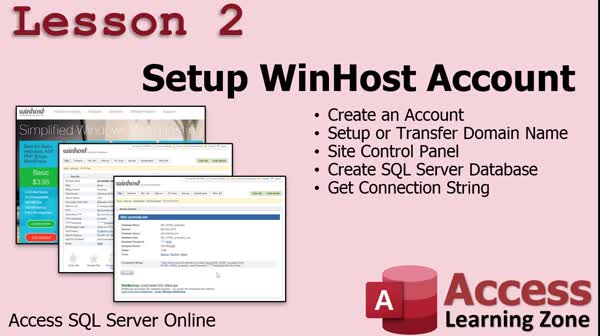
Lesson 2: Setup Winhost: Domain, Site & SQL - In Lesson 2, we will walk through how to set up a WinHost account, including registering a new domain name or transferring an existing one, and using the WinHost Site Control Panel. We will discuss selecting a hosting plan, entering billing information, and optional service features. I will show you how to update name server settings for domains registered elsewhere, order an SSL certificate, and set up your first online SQL Server database. Finally, we will get the database connection string, discuss passwords and security, and review relevant information provided by WinHost for managing your service.
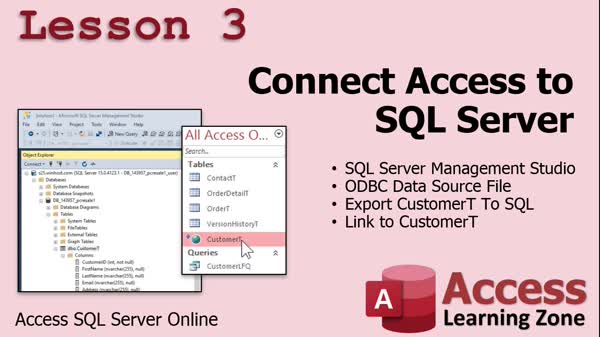
Lesson 3: Connect Access to SQL Server ODBC - In Lesson 3, we are going to connect Microsoft Access to SQL Server by setting up SQL Server Management Studio and creating an ODBC data source file. I will show you how to export a table from Access to SQL Server, delete it from Access, and then link the table back from the server. We will discuss the differences between file and machine data sources, review the process of linking tables, and go over some basics of interacting with your new SQL Server tables in both Access and SQL Server Management Studio.
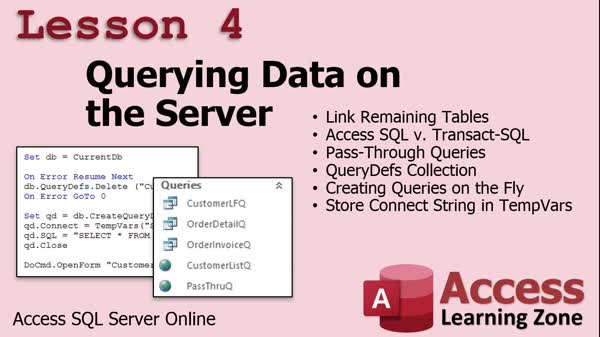
Lesson 4: Pass-Through Queries & Linked Tables - In Lesson 4, we focus on properly querying data on the server by linking additional tables and discussing key differences between Access SQL and Transact SQL used by SQL Server. We will talk about pass-through queries and their importance in efficiently downloading data from the server, learn about the QueryDefs collection, and see how to create queries on the fly using VBA. I will also show you how to store your ConnectString in TempVars to streamline working with server connections in Microsoft Access.
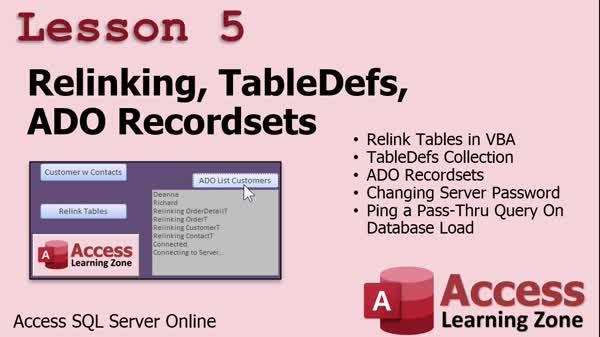
Lesson 5: Relink Tables, ADO, Passwords, Queries - In Lesson 5, we will walk through how to relink tables in VBA using the TableDefs collection and discuss using TableDefs to manage linked tables in Microsoft Access. We will also introduce working with ADO recordsets in contrast to DAO, show how to change the database password on the server, and address a common issue where Access does not always connect to linked tables correctly. Additionally, I will demonstrate a technique using a pass-through query to help ensure reliable database connections when the database loads.
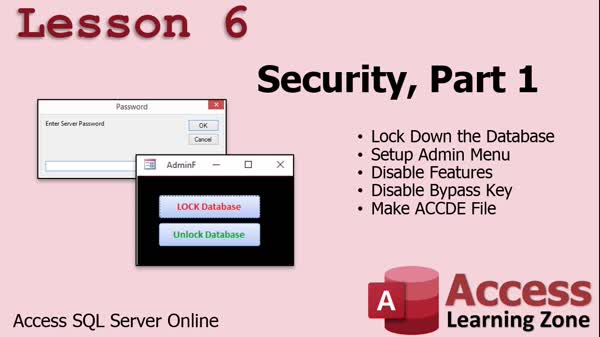
Lesson 6: Lock Down & Secure Front End Data - In Lesson 6, we begin looking at security for your database by setting up an admin menu with Lock and Unlock Database buttons to control user access, hiding the navigation pane, and disabling the bypass key to prevent users from accessing restricted features. We will walk through the process of locking down your Microsoft Access database, creating an ACCDE file for distribution, and ensuring that sensitive information, such as server passwords in pass-through queries, is protected before sharing the front-end file with others. We will discuss key steps and precautions for securely distributing your database.
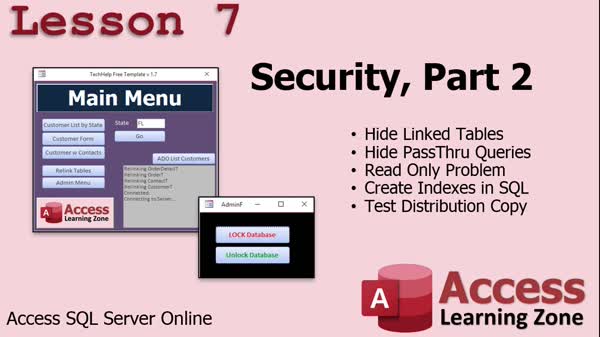
Lesson 7: Hide Linked Tables & Fix Read-Only - In this lesson, we continue with Security Part 2 by looking at ways to hide your linked tables and pass-through queries in Microsoft Access, making it more difficult for users to import them into other databases. We will discuss three levels of security paranoia, walk through the process for hiding objects via code, and explain the importance of primary key indexes for enabling read-write access to linked SQL Server tables. I will also show how to create and test a distribution copy on a second PC, and offer tips for additional security measures when distributing your database.
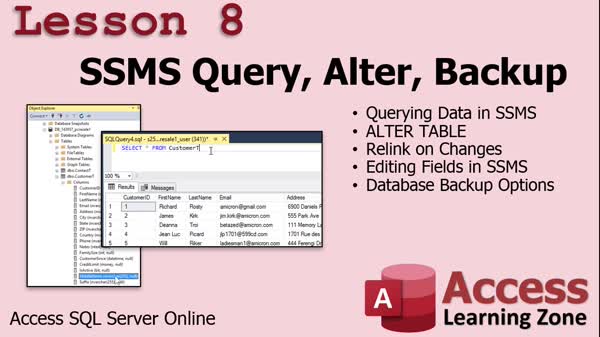
Lesson 8: Query, Edit Tables & Backup Data - In Lesson 8, we will cover how to query data directly in SQL Server Management Studio (SSMS), including running SQL statements to view or manipulate records. I will show you how to alter your tables in SSMS using both SQL commands and the graphical editor, and explain the importance of relinking tables in Access after backend structure changes. We will discuss backup options, including both manual and automated methods available on Winhost, and review key points about handling table design and making sure your database is properly backed up.
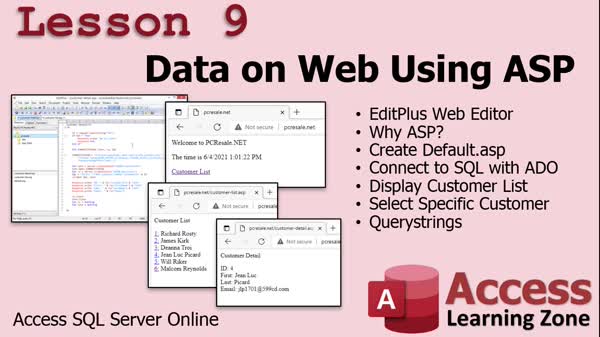
Lesson 9: Show SQL Server Data with ASP - In Lesson 9, we will walk through how to display data on the web using ASP by connecting your website to a SQL Server database with ADO. I will show you how to set up Edit Plus or your preferred web editor, create a default ASP page, connect to your database, and retrieve customer information. We will also discuss creating hyperlinks to view specific customer details using query strings, the importance of properly closing connections to prevent memory leaks, and where to find more advanced ASP resources and lessons if you want to expand further.
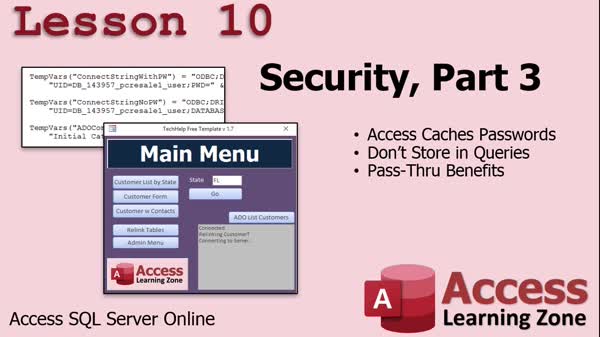
Lesson 10: Securely Cache SQL Passwords - In Lesson 10, we will discuss security with a focus on how Access caches passwords for SQL Server connections, eliminating the need to store passwords in your queries. I will show you how to relink a table with a password using VBA, explain the security benefits of not saving passwords in pass-through queries, and briefly discuss handling brute force attacks and ways to manage table relinking. We will also talk about the advantages of pass-through queries for performance and mention additional security considerations when using different database servers.
Welcome! Fix Cannot Delete Null Bit Records - In this lesson, we will cover an important issue addressed in Addendum 1 regarding null values in yes/no (bit) fields and date fields when linking Microsoft Access forms to a SQL Server backend. Specifically, we will discuss why records in Access subforms can become undeletable if default values for these fields are not set, and I will show you how to solve the problem by assigning default values both at the Access form level and directly in the SQL Server table properties. We will also briefly talk about the different behaviors of default values in Access versus SQL Server.
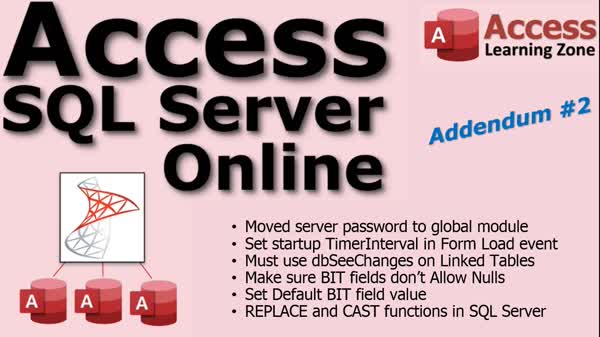
Welcome! Fix Null Bit Fields & Run SQL - In this lesson, we will cover several important updates and tips related to working with Access and SQL Server, including changes to storing connection information, handling TimerInterval issues in forms, and working with record sets on linked SQL Server tables that require the dbSeeChanges option. We will discuss problems with Bit fields allowing null values, how to correct existing nulls, and how to set appropriate defaults to prevent future issues. Finally, I will show you how to use the REPLACE and CAST functions in SQL Server to update text data efficiently, with a note about character limits when using REPLACE.
Keywordsconnect Access to SQL Server, ODBC data source, link tables, pass-through queries, Winhost setup, SQL Server Management Studio, ADO recordsets, ACCDE distribution, disable bypass key, lock database, hide navigation pane, ASP display SQL data, dbSeeChanges
More InformationTranscriptWelcome to the Microsoft Access SQL Server Online Seminar brought to you by AccessLearningZone.com. I am your instructor, Richard Rost. This seminar will teach you how to connect multiple users to an online SQL Server database using Microsoft Access or a web browser as your front end. We will learn how to set up web and SQL Server hosting at Winhost.com. We will connect Microsoft Access to the SQL Server. We will install the SQL Server Management Studio, which is free from Microsoft, to maintain our server. We will see how to link our tables to the server. We will learn how to get data from the server using pass-through queries, which allow the server to do most of the work before sending the data down to Access. We will learn how to relink our tables using VBA code. We will see how to connect directly to tables using ADO recordsets. We will learn how to secure the database, including locking down the front end and disabling the Access bypass key so people cannot get into your code. We will learn how to hide Access objects like our tables and queries, anything you do not want your end users seeing. We will learn how to edit the back end tables so once you have exported a table from Access up to SQL Server you can make changes. Finally, we will learn how to display data on the web using a simple web browser and ASP active server pages to connect to our database. This is a developer level seminar. I strongly recommend that you have taken my beginner and expert classes and up to developer level 1 so you know the basics of VBA. I also recommend you take Developers 16 if you want to learn the basics of recordsets before starting this class, although that is not a firm requirement. You do not have to do recordset programming to benefit from today's seminar. At the bare minimum, if you have not taken Developer 1, watch my free Access VBA intro class. There is a link right there; I will put it down in the links section below. To use Access and SQL Server, I strongly recommend also that you have taken my SQL language seminars. I have three different seminars that cover the basics of the SQL language, including how to select queries, modify data, and so on. Again, this is not required, but you will get more out of this class if you already know SQL. Another recommendation is to take my security seminar. I will show you today how to secure your database and lock it down to prevent unauthorized use. However, I am going to show you with a simple one database password. Anyone who knows the password can get into the database. If you want to set up user level security with different users and groups and permissions, I cover that in my Access Security seminar. I will be using the equivalent of Access 2019; I have a Microsoft 365 subscription. However, the techniques I am going to show in today's class should work for pretty much every version of Access going back to about 2007. If you have any questions regarding the material covered in today's class, just scroll down to the bottom of the page and post them there. Be sure to also take a minute to read through any other questions that have been posted as your question may have already been answered. Also, make sure you click on the subscribe button to get notified of any other questions and comments posted for this class, including updates. Sometimes I post update videos. Be sure to stop by my Access forum if you have any other Access related questions. Now let's take a closer look at exactly what is covered in today's seminar. In lesson one, we are going to discuss why you would want to connect your Access database to an online SQL Server. We will talk about the pros and cons. Then, we will discuss what you need to get started and what your users will need to connect to your database. In lesson two, we are going to set up an account at Winhost.com. We will talk about setting up a new domain name or transferring an existing one if you have one already. We will see how to use the Winhost Site Control Panel. We will create our first online SQL Server database and I will show you how to get the connection string. In lesson three, we are going to connect our Access database to SQL Server. We are going to set up the SQL Server Management Studio. We are going to set up an ODBC data source file to connect to SQL Server. Then, we are going to export the customer table up to the server, delete it from the Access database, and then link to it up on the server. Lesson four is all about properly querying data on the server. We are going to link our remaining tables. We are going to talk about the differences between Access SQL and Transact-SQL, which is what SQL Server uses. We are going to learn about pass-through queries and why they are important for downloading the right amount of data from the server. We are going to learn about the QueryDefs collection and how to create a query on the fly using VBA. We will learn how to store our connect string in TempVars. In lesson five, we are going to see how to relink our tables in VBA code using something called a TableDef. We will learn about the TableDefs collection. Then we will learn about ADO recordsets, which are very similar to DAO recordsets for those of you who have taken my developer classes. I will show you how to change the database password on the server. Then we will see how you can avoid a little quirk with the database not connecting to the tables correctly. All you have to do is learn how to read a value or ping a pass-through query when the database loads. So that is a cool little trick we will learn in this lesson. In lesson six, we are going to start talking about security for your database. We are going to lock down the database. We are going to set up an admin menu with two buttons on it - Lock Database and Unlock Database. The Lock Database button turns off all the features you do not want your end user having, the navigation pane, and so on. Plus, we will see how to disable the bypass key so they cannot hold down the Shift key to get into your database and see the navigation pane. Then we will make an ACCDE file to encrypt it and lock it up. For part two of security, we are going to see how to hide your linked tables and pass-through queries to make it harder for someone to import them into a different database. Then we are going to talk about a read-only problem with linked tables. I will show you how to create indexes in each of those tables so you can connect to them on the SQL Server and have read/write access. Then we are going to create and test a distribution copy on a second PC. In lesson eight, we are going to learn how to query data directly in SSMS, the SQL Management Studio. I will show you how to alter your tables. If you need to create new tables, it is best to create them in Access and publish them up like we did before. But you are going to want to make changes to your existing tables without having to reupload them. I will show you how to make alterations to your tables on the server using either SQL or the editor in SSMS. Then, of course, you will have to relink your changes for the table changes. Then we will talk about some backup options, how to manually back up your database, and I will show you about the automated nightly backup at Winhost. In lesson nine, we are going to see how to connect to our SQL Server data on the web using ASP directly from our website. I am going to talk about the EditPlus web editor, but you can use whatever web editor you are comfortable with. We are going to use ASP. We will create our first ASP page, default.asp. We will connect to SQL using ADO. We will display a customer list from our customer table. We will select a specific customer using a query string. I will teach you about that, and we will display the customer details that the user clicks on. In lesson ten, we are going to talk about security one more time. We are going to talk about how Access caches passwords for your connections to the server and that you do not have to store them in your queries once you have actually reestablished that connection. Then we will talk one more time about the benefits of pass-through queries. Thanks for watching. IntroIn this lesson, you will learn how to connect Microsoft Access to an online SQL Server database for multi-user access, set up web and SQL hosting at Winhost.com, install SQL Server Management Studio, and manage server-linked tables. We will cover pass-through queries, ADO recordsets, security techniques like locking down the front end and hiding database objects, as well as how to modify backend tables and display data on the web using ASP. You will also see how to work with ODBC connections, relink tables using VBA, manage user access, and handle backups and table alterations in SSMS. QuizQ1. What is the primary purpose of this seminar? A. To teach how to connect multiple users to an online SQL Server database using Microsoft Access or a web browser B. To sell hosting at Winhost.com C. To design websites using ASP.NET D. To create Microsoft Access reports Q2. What front ends are mentioned for accessing the online SQL Server database? A. Microsoft Excel and Power BI B. Microsoft Access or a web browser C. Visual Studio and Python D. Google Sheets and Tableau Q3. What tool is installed for maintaining the SQL Server? A. SQL Server Management Studio (SSMS) B. Microsoft Visual Studio C. Excel Data Connector D. Access Runtime Q4. Which method allows the server to process data before sending results to Access? A. Linked tables B. Local queries C. Pass-through queries D. Manual importing Q5. Why is learning how to relink tables using VBA code covered in the seminar? A. To automate the reconnection process as necessary B. To create new SQL databases C. To add new fields to tables D. To modify web page layouts Q6. What is recommended if you want to learn about recordsets before this class? A. Developers Level 16 B. SQL Basics Seminar C. Access Expert Level 1-5 D. Website Design Seminar Q7. How does the seminar recommend you keep your Access database secure? A. Using one database password and disabling the bypass key B. Storing data locally only C. Installing antivirus software D. Compressing the database Q8. What should users do if they have questions about the seminar material? A. Scroll to the bottom of the page and post their question B. Call customer support C. Email Microsoft D. Search on Bing Q9. What is the function of pass-through queries discussed in Lesson Four? A. To process data on the server before sending it to Access, improving efficiency B. To replicate data between databases C. To backup the database automatically D. To create new user accounts Q10. According to the video, which feature locks down the database front end to prevent unauthorized access? A. Disabling the Access bypass key and creating an ACCDE file B. Compacting the database C. Running regular backups D. Exporting all data Q11. What solution is demonstrated for addressing read-only issues with linked tables in SQL Server? A. Creating indexes in the tables B. Encrypting all data fields C. Using temporary tables D. Converting tables to Excel Q12. Which web technology is used to connect to SQL Server data via a web browser in this seminar? A. ASP (Active Server Pages) B. PHP C. Python Flask D. Ruby on Rails Q13. How should you handle table changes made in SQL Server Management Studio? A. Relink your tables in Access after making changes B. Delete and recreate the database C. Uninstall SQL Server Management Studio D. Only change tables in Access, never in SSMS Q14. What does the seminar suggest regarding password storage for SQL Server connections? A. Access caches passwords so you do not need to store them in queries after connecting B. Always save passwords in plain text on your desktop C. Email the password to all users D. Create a separate password file Answers: 1-A; 2-B; 3-A; 4-C; 5-A; 6-A; 7-A; 8-A; 9-A; 10-A; 11-A; 12-A; 13-A; 14-A DISCLAIMER: Quiz questions are AI generated. If you find any that are wrong, don't make sense, or aren't related to the video topic at hand, then please post a comment and let me know. Thanks. SummaryToday's video from Access Learning Zone focuses on connecting multiple users to an online SQL Server database using Microsoft Access or a web browser as your front end. In this seminar, I start by introducing the process of setting up both web and SQL Server hosting at Winhost.com. From there, we move on to connecting Microsoft Access directly to the SQL Server. We will cover the installation and use of SQL Server Management Studio, a free tool from Microsoft, which is essential for managing your server. Once that's set up, I'll walk you through linking Access tables to the server and show you how to retrieve server-side data using pass-through queries. These types of queries allow much of the data processing to occur on the server, which can help improve performance. I'll also demonstrate how to relink tables using VBA code and how to connect directly to SQL Server tables using ADO recordsets. Security is an important topic in this seminar. I'll show you how to make your database more secure by locking down the front end and disabling Access features like the bypass key, which could otherwise allow end users to access your code. I will also explain methods for hiding Access objects like tables and queries that you do not want users to see. You will also learn how to edit your back end tables after exporting them from Access to SQL Server. This part of the seminar covers how to make structural changes to these tables on the server side. Lastly, I'll demonstrate how to display your data on the web. This includes using a web browser and creating ASP pages to access and present information directly from your database. This seminar is designed for developers, and I recommend that you have completed my beginner and expert Access classes through at least Developer Level 1 so that you have a solid foundation in VBA. If you want to learn about recordsets in more detail, my Developer 16 class is a good prerequisite but not strictly required for understanding the content presented here. Even if you're not comfortable with recordset programming, you will still benefit from this seminar. At an absolute minimum, if you have not taken my Developer 1 course, I suggest watching my free Access VBA intro class. There's a link provided below. To get the most out of working with Access and SQL Server, it's also helpful if you have some background in the SQL language. I offer three separate seminars that introduce SQL basics, such as selecting and modifying data. While this knowledge isn't required, it will help you make the most of this seminar. I also recommend my security seminar if you're interested in learning about setting up more advanced user-level security with permissions for different users and groups. In today's class, I'll focus on using a single database password for securing the database, but for advanced setups, you'll find more information in the Access Security seminar. I am using Access 2019 via a Microsoft 365 subscription, but the methods and procedures I'll show you apply to most versions of Access from about 2007 onward. If you have any questions during or after the seminar, you can leave a comment below. Make sure to check the existing questions before submitting a new one, as your issue may already have been discussed. Stay updated on new questions and any video updates by subscribing to notifications for this seminar. If you have more general Access questions, I invite you to visit the Access forum I maintain. Here's an overview of what is covered in each lesson: Lesson one explains why you might want to link your Access database to an online SQL Server. I'll discuss the benefits and drawbacks, the requirements you need, and what your users need to connect successfully. Lesson two walks through creating an account at Winhost.com, securing a domain name (either a new one or transferring an existing one), navigating the Site Control Panel, setting up your first SQL Server database online, and obtaining your connection string. Lesson three is about connecting Access to SQL Server. We'll set up SQL Server Management Studio, create an ODBC data source, export a table to the server, remove it from Access, and then link the server-hosted version back into the Access database. In lesson four, we focus on how to query data on the server. You'll learn to link additional tables, understand the differences between Access SQL and Transact-SQL, set up pass-through queries, and use the QueryDefs collection along with VBA to generate queries dynamically. I'll also show you how to store your connection string with TempVars. Lesson five demonstrates how to relink tables in VBA code by working with the TableDef and TableDefs collections. I'll introduce ADO recordsets, which operate similarly to DAO recordsets. Changing the database password on the server is covered, as is addressing potential connection issues by reading a value or executing a pass-through query when the database loads. Lesson six opens our discussion about database security. We'll add an admin menu to your application with buttons to lock and unlock your database. Locking disables features and hides important panes so users cannot access what they should not see, and I'll show you how to turn off the bypass key. We'll finish this lesson by compiling an ACCDE file to fully secure your front end. Security continues in the following lesson, where I show how to hide linked tables and pass-through queries from users. I also address a common read-only issue with linked tables by teaching you how to create the necessary indexes to enable read-write access. This lesson concludes with the process for creating and testing a distributable version of your database. In lesson eight, you'll learn how to query data directly in SQL Server Management Studio and make changes to your tables server-side. While creating new tables in Access and pushing them to the server is generally preferable, I will show you how to alter existing tables directly on the server, then update your Access links accordingly. We'll also talk about backup options, both manual and the automated nightly backups available from Winhost. Lesson nine explores connecting to your SQL Server data from a website using ASP pages. I'll introduce you to a web editor (though you can use any one you prefer), demonstrate how to build an ASP page that connects to SQL Server using ADO, and show how to display a customer list and details for individual customers on your site. Finally, lesson ten discusses connection security. You'll learn how Access caches passwords for SQL Server connections and why you do not need to store passwords in your queries after the initial connection is established. We'll also revisit the benefits of using pass-through queries. You can find a complete video tutorial with step-by-step instructions on everything discussed here on my website at the link below. Live long and prosper, my friends. Topic ListConnecting Access to an online SQL Server database Setting up web and SQL Server hosting at Winhost.com Using the Winhost Site Control Panel Creating an online SQL Server database Obtaining and configuring the connection string Installing SQL Server Management Studio (SSMS) Connecting Access to SQL Server via ODBC data source Exporting and linking tables between Access and SQL Server Differences between Access SQL and Transact-SQL Using pass-through queries for server-side processing Creating and managing queries with the QueryDefs collection in VBA Storing connection strings in TempVars Relinking tables in VBA using TableDef objects Using the TableDefs collection in VBA Connecting directly to SQL Server tables using ADO recordsets Changing the database password on SQL Server Fixing connection issues with ping or pass-through queries Locking down Access databases for security Creating an admin menu for database locking and unlocking Disabling the Access bypass (Shift) key Compiling an ACCDE file to encrypt the front end Hiding linked tables and queries for added security Creating indexes to enable read/write access on linked tables Testing distributed copies of the Access database Querying and altering tables directly in SSMS Making schema changes to tables on SQL Server Relinking tables after backend changes Manual and automated backup options at Winhost Connecting to SQL Server from a website using ASP Writing ASP pages to display SQL Server data Using ADO in ASP to connect and query SQL Server Displaying and selecting customer records via the web Understanding Access password caching for SQL Server connections Primary TopicsAccess-SQL Server connection, multi-user database setup, Winhost setup, ODBC and connection strings, SQL Server Management Studio installation, table linking, pass-through queries, VBA relinking, ADO recordsets, database security, Access object hiding, ba Secondary Topicsdomain setup, database backup, Access version compatibility, best practices, using EditPlus, admin menu creation |
||||||||||||||||||||||||||||||||||||||||||||||||||||||||||||||||||||||||||||||||||||||||||
|
| |||
| Keywords: connect Access to SQL Server, ODBC data source, link tables, pass-through queries, Winhost setup, SQL Server Management Studio, ADO recordsets, ACCDE distribution, disable bypass key, lock database, hide navigation pane, ASP display SQL data, dbSeeChanges PermaLink How To Connect Multiple Users to Online SQL Server Databases Using Microsoft Access and Web ASP |