|
||||||
Access Expert 11Aggregate Queries, Grouping, Sums, DSum, TotalsWelcome to Access Expert 11. In this course you will learn how to create and work with aggregate queries in Microsoft Access, including how to calculate sums, averages, and totals for your data. We will discuss grouping and summarizing data, building queries for calculations like sales by state or month, using advanced query criteria, and applying functions such as DSum. You will also see how to handle employee work logs, use the expression option, and get tips on making the most of the student forums. Lessons
Resources
Lesson SummaryWelcome! Aggregate Queries: Sum, Avg, Total - Welcome to Microsoft Access Expert Level 11. In this course we will focus on aggregate queries, also known as summary queries, grouping queries, or totals queries. We will cover what aggregate queries are, when and how to use them, and walk through building queries to calculate totals, averages, counts, and more, such as sales by state or month, customer credit limits, and lowest product costs by vendor. We will also discuss advanced query criteria, creating employee work logs, using the D-Sum function, using the expression option, and provide guidance on getting the most from the lessons and student forums.
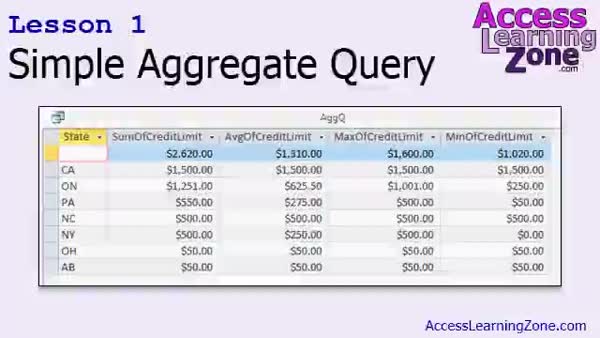
Lesson 1: Sum, Count, Max, Min Queries - In Lesson 1, we will learn what simple aggregate queries are, why they are useful, and how you can use them to summarize data such as totals, averages, counts, and more. I will show you how to build basic aggregate queries using functions like SUM, AVERAGE, MAX, MIN, and COUNT, and how to group your results by fields like state. We will walk through practical examples using a customer table to calculate credit limits, and I will demonstrate some helpful tips to structure and customize your queries. We will also briefly discuss alternative ways to create aggregate queries using the query wizard.
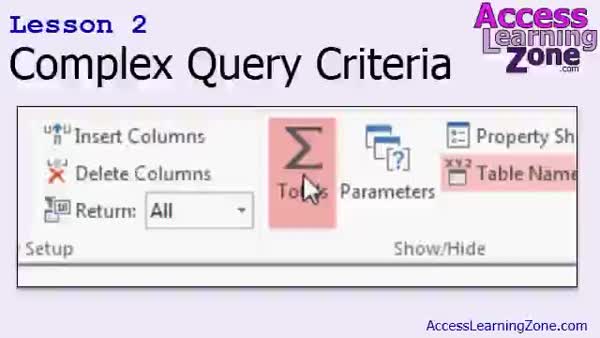
Lesson 2: Build Complex Aggregate Queries - In Lesson 2, we will walk through building aggregate queries with complex query criteria in Microsoft Access. I will show you how to use date functions, such as the Year function, to filter customers based on when they joined, and then demonstrate two methods for handling aggregate queries with additional criteria: breaking the process into two queries, or using the WHERE clause within an aggregate query. We will also briefly discuss how date and time functions work, and the benefits of using multiple queries for more complicated criteria.
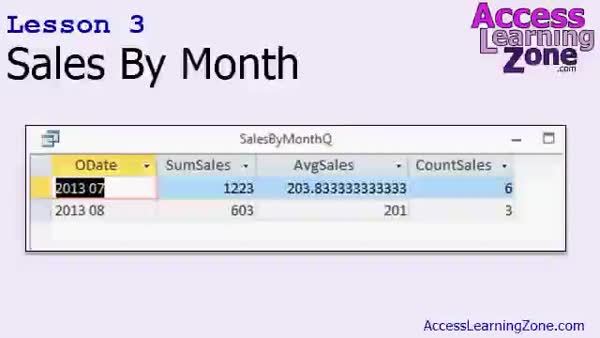
Lesson 3: Monthly Sales: Sum, Avg, Count - In Lesson 3, we will walk through building an aggregate query in Access to show sales totals by month. I will show you how to join the necessary tables, use outer joins, filter for paid orders, and create calculated line totals. We will discuss ways to format dates for grouping sales by month or week, and I will demonstrate how to display the sum, average, and count of sales for each month. Formatting number outputs in aggregate queries will also be discussed, and we will talk about pulling the results into forms or reports for further formatting.
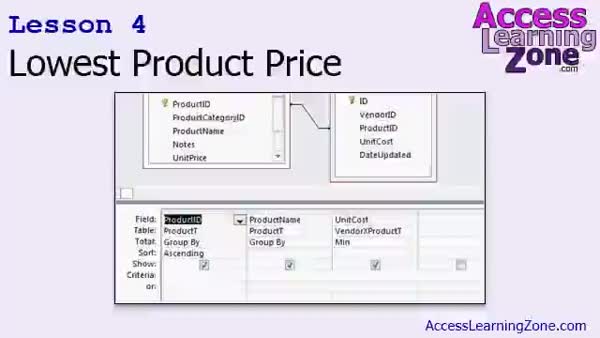
Lesson 4: Lowest Product Cost via Aggregates - In Lesson 4, we will walk through how to generate a list of products and the lowest product cost available from each vendor using a minimum aggregate query and DLookup statements. We will build queries to find the minimum unit cost for each product, identify which vendor offers that lowest price, and display additional information like vendor name and potential profit by comparing unit price with cost. We will also discuss handling cases where multiple vendors have the same lowest price and consider ways to further analyze product profitability.
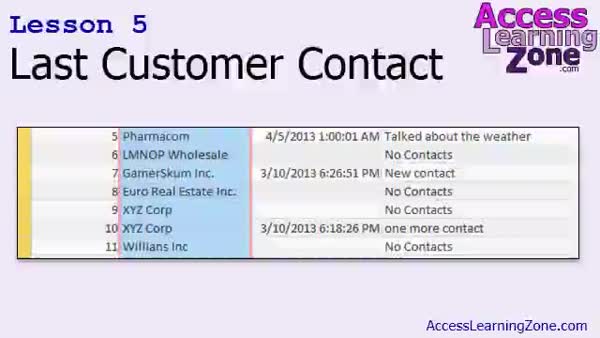
Lesson 5: Show Each Customer's Last Note - In Lesson 5, we will walk through how to use an aggregate query to generate a list of all customers with their most recent contact date and what was discussed. We will discuss how to join the customer and contact tables to include customers with or without contacts, set up the query to find the maximum contact date, and work around displaying the actual contact notes by using a DLookup function. I will show you how to handle null values and display a custom message when there are no contacts for a customer in your Last Customer Contact report.
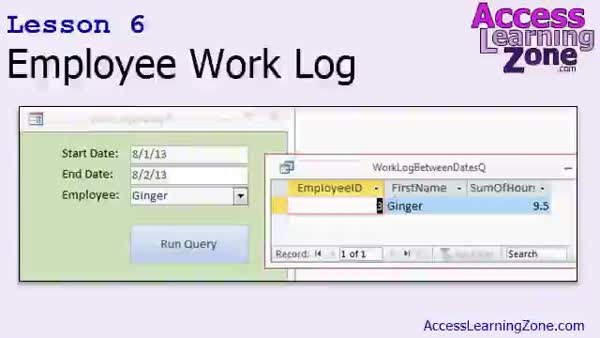
Lesson 6: Employee Work Log & Time Clock - In Lesson 6, we will build an employee work log in Microsoft Access, creating a WorkLog table to track employee time in and time out. We will walk through calculating hours worked using queries, address handling shifts spanning multiple time entries per day, and use aggregate queries to total hours by employee and date. We will set up a lookup form to allow searching for total hours worked by an employee within a specific date range, discussing how date criteria work in queries and how to handle regular and overtime calculations, which will be covered more thoroughly in the next lesson.
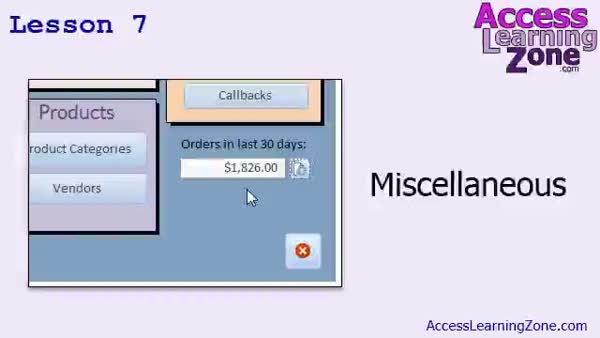
Lesson 7: DSum, Expressions, & Refresh Btn - In Lesson 7, we will cover several miscellaneous items, including the expression option in aggregate queries and how Access rewrites calculated fields as expressions. We will walk through creating a main menu box that displays the total of orders from the last 30 days using the DSum function, along with adding a manual refresh button. We will also discuss some quirks of refreshing data on unbound forms and go over your homework assignment, which involves creating order forms, main menu navigation buttons, and a data entry form for employee work logs with activity tracking.
Lesson 8: Aggregate Queries & DSum Tips - In this course we learned about aggregate queries, their various names, and the basic functions such as sum, average, count, max, min, first, and last. We built both simple and complex aggregate queries, including breaking down sales data by state and month, finding product costs by vendor, listing customers with their last contact, and creating an employee work log. We also discussed using the DSum function, setting up order summaries, and adding refresh buttons. Additional information covered where to find support, course updates, and how to provide feedback for improving these lessons.
NavigationKeywordsaggregate queries, sum queries, averages, totals queries, grouping queries, summary queries, count function, max function, min function, sales by month, customer credit limits, lowest product cost, DSum function, employee work log, DLookup
More InformationTranscriptWelcome to Microsoft Access Expert Level 11, brought to you by AccessLearningZone.com. I am your instructor, Richard Rost. Today's class is all about aggregate queries, also known as summary queries, grouping queries, or totals queries. They have lots of different names. We will begin by learning what aggregate queries are and when you want to use them. We will build some simple aggregate queries, such as "show me all of the sales totals broken down by state." We will learn about all the different aggregate query functions, like sum, average, count, max, min, and so on. We will learn about complex query criteria for our aggregate queries. We will perform some more advanced calculations, such as "show me the credit limit of all of my customers broken down by state," but only for customers after 1999 and things like that. We will learn about the Where field condition in our aggregate queries. Then we will go through a few more examples of aggregate queries, such as "show me sales totals by month," "show me the lowest product cost," since each of my products can be purchased from multiple vendors and each vendor sells multiple products. Remember we built that many-to-many relationship. I want to generate a list of all of my products and show me the lowest cost for each product and which vendor I can buy it from. Next is the last customer contact report. Show me a list of all of my customers, the date of the last contact with them, and what that contact was, and if there are no contacts, show that. This is great for seeing which customers you have not talked to in a while, and also for a brief synopsis of where each customer is at. Next we will build an employee work log where we can track employee time, pick the employee, put in their start date and end date or start time and end time for when they check in. Then, using an aggregate query, we can generate a report showing all of their hours worked between two dates. If you want to get their hours worked for the week, you just type in those dates, hit run query, and there is your report. Finally, we will go over a bunch of little stuff. We'll cover the expression option in aggregate queries. We'll use the D-Sum function, which is an aggregate function, to show the orders for the last 30 days right on the main menu, and we'll make a little refresh button so we can click on it and recalculate that value. Of course, there are lots of little tips and tricks to throw in throughout the lesson. This course follows Microsoft Access Expert Level 10. I recommend you watch Level 10 before watching today's class. Level 10 covers the D-Lookup function, which is very similar to the D-Sum function. We are going to work with this later today. It would be helpful if you understand D-Lookup first before learning about D-Sum. We cover generating quotes and invoices and using calculated table fields in Level 10. You can find more information on Level 10 on my website at AccessLearningZone.com. Today's class is recorded using Microsoft Access 2013. Everything in today's class should work just fine with 2007 and 2010. If you are using Access 2003, go to my website and get a copy of Access 221 from my older series. That class is roughly equivalent to this one, covering aggregate queries and such. My courses are broken up into four groups: Beginner, Expert, Advanced, and Developer. The Beginner lessons are designed to give you a basic overview of the simple features of Access. The Expert series, the one you are in now, is designed for more experienced users who are already comfortable with Access. The Advanced lessons cover working with macros, automation, and many more advanced features. The Developer lessons get into programming with Visual Basic for Microsoft Access. Each of the series is broken down into different numbered levels, starting with Level 1. The Beginner series, for example, had Levels 1 through 9. In addition to my normal Access classes, I also have seminars designed to teach specific topics. Some of my seminars include building web-based databases, creating forms and reports that look like calendars, securing your database, working with images and attachments, writing work orders, tracking accounts payable, learning the SQL programming language, and lots more. You can find complete details on all these seminars and more on my website at AccessLearningZone.com. If you have questions about the topics covered in today's lessons, please feel free to post them in my student forums. If you are watching this course using my custom video player software or the online theater on my website, you should see the student form for each lesson appear in a small window next to the class videos, as long as you have an active internet connection. Here, you will see all of the questions that other students have asked, as well as my responses to them, and comments that other students may have made. I encourage you to read through these questions and answers as you start each lesson and feel free to post your own questions and comments as well. If you are not watching the lessons online, you can still visit the student forums later by visiting AccessLearningZone.com/forums. To get the most out of this course, I recommend that you sit back, relax, and watch each lesson completely through once without trying to do anything on your computer. Then, replay the lesson from the beginning and follow along with my examples. Actually, create the same database that I make in the video, step by step. Do not try to apply what you are learning right now to other projects until you have mastered the sample database from this class. If you get stuck or do not understand something, watch the video again from the beginning, or tell me what is wrong in the student forum. Most importantly, keep an open mind. Access might seem intimidating at first, but once you get the hang of it, you will see that it is really easy to use. Now, let's take a closer look at exactly what is covered in today's class. In lesson one, we are going to learn what aggregate queries are, why they are useful, and we will build a few simple queries so you can see how they work. In lesson two, we are going to look at building an aggregate query that has complex query criteria. In lesson three, we will make an aggregate query to show you sales by month. We will show you the sum, average, and count of all of your sales grouped by month. In lesson four, we will use a minimum aggregate query, along with some D-Lookup statements, to generate a list of products and the lowest possible price you can get from each vendor. Since each of our products can be purchased from multiple vendors, we might want to know who are the cheapest vendors for each product. To do that, we can use a minimum aggregate query. In lesson five, we will use an aggregate query to generate a list of all of our customers, when the last contact date was for each customer, and what was discussed. In lesson six, we will build an employee work log. We will create a simple time clock table with a time in and a time out each day. We will calculate the hours worked, and we will make a lookup form so you can type in a start date and an end date, pick an employee from a combo box, and then, using an aggregate query, see the sum of hours worked between those two dates. In lesson seven, we are going to talk about a couple of miscellaneous items. We are going to learn about the expression option in your aggregate queries. We are going to make a box on your main menu showing the orders in the last 30 days using the D-Sum function. We will make a button to refresh that value manually, and I will give you your homework assignment for the next class. IntroIn lesson 11 of the Microsoft Access Expert series, we will focus on aggregate queries, also known as summary or totals queries. You will learn what aggregate queries are, when to use them, and how to create them step by step. We will cover all the main aggregate query functions including sum, average, count, min, and max, as well as building queries with complex criteria. Examples include sales totals by state or month, finding the lowest product cost by vendor, generating last customer contact reports, and calculating employee work hours with a time clock table. We will also explore using the D-Sum function and adding refresh buttons for real-time data updates. QuizQ1. What is the main focus of Microsoft Access Expert Level 11? A. Advanced report formatting B. Aggregate queries and summary functions C. Database security features D. Building calendar forms Q2. Which of the following is NOT another name for aggregate queries? A. Summary queries B. Grouping queries C. Totals queries D. Action queries Q3. Which aggregate query function would you use to display the total value of sales by state? A. Sum B. Max C. Min D. First Q4. What type of criteria might you apply to an advanced aggregate query covered in this course? A. All products in the database B. Customers after 1999 by state C. Every vendor regardless of price D. Only duplicate records Q5. What feature helps you display the lowest cost for each product and which vendor offers it? A. Max function B. Average function C. Min function with D-Lookup D. Crosstab query only Q6. If you need to know the last date you contacted each customer and what the contact was, which technique would you use? A. Find duplicates query B. Aggregate query C. Simple select query D. Append query Q7. What did the instructor suggest for tracking employee work hours in this course? A. Creating a text document for each employee B. Building a work log table and calculating hours with aggregate queries C. Using PowerPoint slides for time tracking D. Emailing timesheets daily Q8. What function is introduced for calculating the sum of values over a set of records right on the main menu? A. D-Max B. D-Count C. D-Sum D. D-Lookup Q9. What did the instructor recommend regarding the order of watching the Access courses? A. Any order is fine B. Only take Developer lessons C. Take Level 10 before Level 11 D. Skip the Beginner lessons Q10. Which previous function, similar to D-Sum, was covered in Expert Level 10? A. D-Lookup B. D-Last C. D-Max D. D-First Q11. Why is it recommended to watch lessons once without using your computer before trying the examples? A. To complete the homework assignment earlier B. To focus completely on understanding concepts first C. Because Access is not compatible with all computers D. To get through the course quicker Q12. What is the instructor's advice if you get confused during the lessons? A. Skip that lesson B. Review the video again or post in the student forum C. Wait for the next course D. Only read the manual Answers: 1-B; 2-D; 3-A; 4-B; 5-C; 6-B; 7-B; 8-C; 9-C; 10-A; 11-B; 12-B DISCLAIMER: Quiz questions are AI generated. If you find any that are wrong, don't make sense, or aren't related to the video topic at hand, then please post a comment and let me know. Thanks. SummaryToday's video from Access Learning Zone covers Microsoft Access Expert Level 11, where we focus on aggregate queries. You might know these as summary queries, grouping queries, or totals queries. No matter what you call them, aggregate queries are incredibly useful for summarizing data, and today, I will show you what they are, when you should use them, and how to build them step by step. We start the course by discussing the concept behind aggregate queries and their key purposes. I will demonstrate constructing simple queries, such as showing sales totals broken down by state. In addition, you will learn about the available aggregate functions: sum, average, count, max, min, and others. We'll talk about how to use different criteria within these queries to get exactly the information you need. Next, I will guide you through more complex scenarios. For example, you will see how to display the credit limits of customers by state but only for those customers added after 1999. We'll explore the details of using the Where condition field in aggregate queries to filter your results based on your needs. We continue with practical examples: breaking out sales totals by month, finding the lowest product cost from vendors, and organizing products from our many-to-many relationship setup. This lets you quickly identify the best vendor for each product, along with their lowest price. Later in the course, you will see how to produce a last customer contact report, listing each customer, the last time you reached out, and the details of that contact. If a customer has not been contacted, the report will clearly show that as well. This is very helpful for tracking client engagement. The course then explores building an employee work log. With this, you can record employee time by entering when each person starts and finishes their shift. You will be able to produce detailed reports showing how many hours each employee worked between any two dates, simply by running the appropriate aggregate query. I also touch on some additional features and techniques. You will learn about using the expression option within aggregate queries to perform more custom calculations. We take a look at the DSum function to provide a real-time summary of orders over the last 30 days right on your main menu, and I will show you how to set up a simple refresh button to update that total. There are plenty of useful tips and tricks sprinkled throughout the lesson as well. This Expert Level 11 course is a direct continuation of Access Expert Level 10. If you have not completed Level 10, I recommend that you do so first. Level 10 covers essential functions like DLookup, which is similar to DSum and will help you get more out of today's lessons. That course also covers topics like generating quotes and invoices and using calculated table fields. Today's video was recorded using Microsoft Access 2013, but the content applies to Access 2010 and 2007 as well. If you're on Access 2003, I recommend checking out my older Access 221 class, which addresses similar topics using that version. To give you a sense of where this fits in the broader curriculum: I have divided my courses into four categories. The Beginner lessons offer a basic introduction to Access's main features. The Expert series, like the one you are in now, is aimed at those who already have a strong grasp of Access basics. The Advanced lessons dive into macros and automation, while the Developer series introduces programming with Visual Basic for Access. Each of these collections is broken down further into numbered levels, so you can work through them at your own pace. Beyond the normal class series, I also have in-depth seminars that target specific applications, like building online databases, creating calendar views for forms and reports, securing your database, handling images and attachments, writing work orders, accounts payable tracking, learning SQL, and much more. All of these are listed on my website if you want to explore them further. If you have any questions about the material I cover in this class, you're invited to participate in the student forums. If you are using my video player software or viewing lessons online, you will usually see the forum window right next to the lesson video, provided you have an internet connection. There you'll find questions from other students, my replies, and additional comments. I encourage you to browse these discussions as you start each lesson and add your own questions or feedback. If you are viewing the videos offline, you can visit the Access Learning Zone forums through my website when you have internet access. For the best learning results, I suggest you watch each lesson all the way through the first time without stopping to try things in Access. This will help you see how everything fits together. On your second viewing, follow along step by step, building the sample database with me. This will solidify your learning. Avoid trying to immediately use these concepts on unrelated projects until you are completely comfortable with the examples shown in the class. If you get stuck or something is unclear, re-watch the lesson or reach out on the forums. Above all, keep an open mind. Access might seem a bit overwhelming initially, but once you get used to its workflow, you'll find it straightforward and efficient. Here's a breakdown of what we will cover in today's class: In lesson one, you will learn what aggregate queries are, why you need them, and how to build basic examples. Lesson two moves on to aggregate queries that require more advanced criteria to filter your records. Lesson three tackles building an aggregate query that displays monthly sales, calculating sum, average, and count of your sales grouped by month. In lesson four, you'll use the minimum aggregate function and DLookup statements to compile a list of products with each product's lowest available vendor price, helping you identify the most cost-effective supplier for each item. Lesson five covers how to generate a customer report that shows when each customer was last contacted and details from that interaction. In lesson six, I guide you through constructing an employee work log. You'll design a time clock table, calculate daily hours worked, and create a form to select a date range and employee. You will then sum up hours worked across that timeframe using an aggregate query. Lesson seven is a mix of extra skills. You'll look into using the expression feature in aggregate queries, set up an orders-in-the-last-30-days box using DSum, build a refresh button for real-time updates, and receive your homework assignment for the next session. If you would like to follow along with complete step-by-step video instruction on everything we have discussed here, you can find the full tutorial on my website at the link below. Live long and prosper, my friends. Topic ListIntroduction to aggregate queries in Access Building simple aggregate queries Overview of aggregate query functions (sum, avg, count, max, min) Applying complex criteria to aggregate queries Using the Where condition in aggregate queries Calculating customer credit limits by state with date filtering Grouping sales totals by month Finding lowest product cost by vendor using Min function Generating last customer contact reports Handling customers with no contacts in reports Building and using an employee work log table Calculating total employee hours worked between dates Creating a lookup form for employee work logs Using the expression option in aggregate queries Displaying orders from the last 30 days with DSum Adding a manual refresh button for summary data Primary Topicsaggregate queries, totals queries, grouping, query criteria, D-Sum function, D-Lookup, min/max/sum/avg/count functions, employee work log, customer last contact, advanced query expressions Secondary Topicsmany-to-many relationships, combo box forms, query-based reports, database version compatibility |
||||||||||||||||||||||||||||||||||||||||||||||||||||||||||||||||||||||||||||||||||||||||||
|
| |||
| Keywords: aggregate queries, sum queries, averages, totals queries, grouping queries, summary queries, count function, max function, min function, sales by month, customer credit limits, lowest product cost, DSum function, employee work log, DLookup PermaLink Microsoft Access Expert 11 |