|
||||||
|
||||||
|
||||||
|
||||||
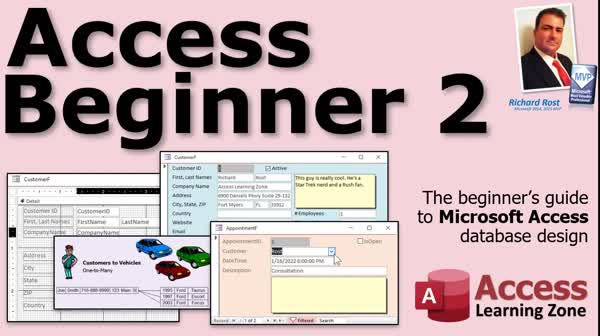
Access Beginner 2Forms, Security Warnings, Relationships, Combo BoxesWelcome to Access Beginner 2. In this course you will learn how to work with forms, handle security warnings, and set up relationships in Microsoft Access. We'll discuss downloading the sample database, configuring trusted locations, and creating desktop shortcuts. You will see how to modify a customer form, add and resize controls, adjust colors and themes, and work with form grids. We will also introduce primary and foreign keys, create an appointment table and form, set up a customer combo box, and use command buttons to filter records. Lessons
Database Files
Course Notes
What's Next?Links
Resources
Lesson SummaryWelcome! Forms, Security, and Relationships Basics - Welcome to Microsoft Access Beginner Level 2. In this course we will review the key concepts from Level 1, discuss downloading the sample database, address Access security warnings, and show you how to set up trusted locations and desktop shortcuts. We will walk through rebuilding and modifying a customer form, adding and resizing controls, and working with colors and themes. We will talk about form grids, discuss grid lines versus dots, and introduce database relationships, including primary and foreign keys. Then, we will create an appointment table and form, build a customer combo box, and use command buttons to filter records.
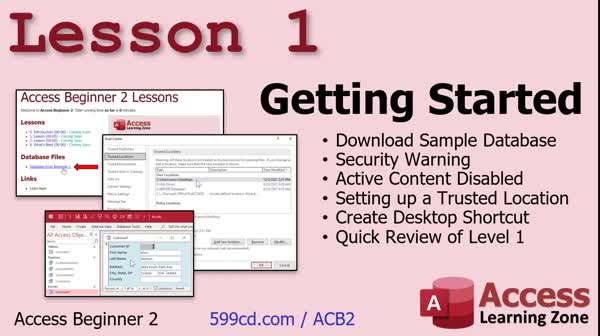
Lesson 1: Set Trusted Sites, Create Shortcuts - In Lesson 1, we are getting started by downloading the sample database from Access Beginner 1, and I will show you how to work with Access security warnings you may encounter when opening an unfamiliar database. We will walk through setting up a trusted location on your computer to avoid those warnings, cover how to make a desktop shortcut to your database, and review what we built in level 1, including customer tables, queries, forms, and reports. We will also briefly discuss backing up your database and sharing databases over a network.
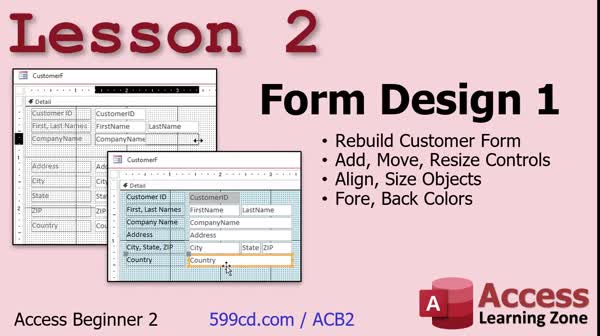
Lesson 2: Add, Move, Align & Format Form Controls - In Lesson 2, we will continue working on form design by rebuilding the customer form started in Access Level 1. We will walk through how to add, move, and resize controls, align and size objects, and change the foreground and background colors. You will see how to set the record source, manage field labels and text boxes, use keyboard shortcuts for precise placement, and adjust the appearance for usability. We will also discuss tips for making forms user-friendly, saving your work often, and touch on hiding tables and queries from end users.
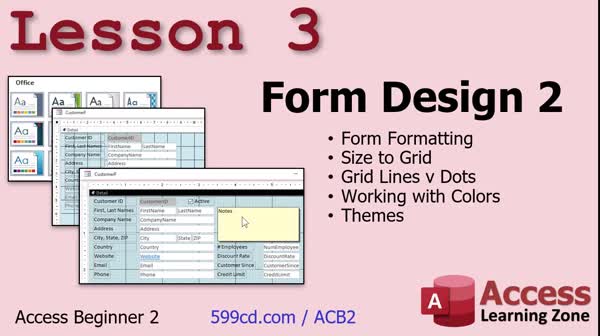
Lesson 3: Forms, Grids & Themes - In Lesson 3, we will continue with form design by adding more fields to our database form, adjusting object placement, and learning how to size objects to the grid. We will discuss the differences between grid lines and grid dots, and I will show you how to switch between them depending on your measurement settings. We will also cover resizing and aligning form fields, customizing labels, using the format painter, and working with colors and themes. I will demonstrate how to style fields like a sticky note and introduce basic formatting tools available for form design in Access.
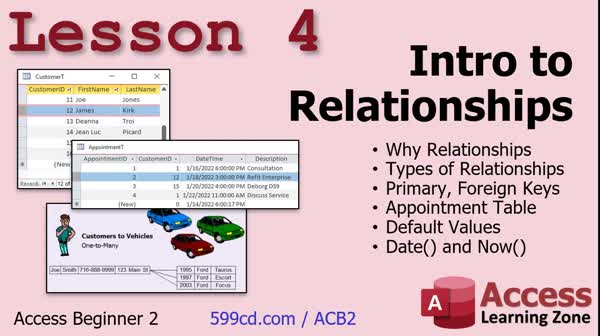
Lesson 4: Table Relationships, Keys & Defaults - In Lesson 4, we get a brief introduction to relationships in databases. We will discuss why relationships are important, the difference between primary and foreign keys, and the common types of relationships such as one to many. We will walk through setting up an appointment table, including how to link it to a customer table using keys, and talk about minimizing duplicate data. We will also cover setting default values in fields and using the Date and Now functions to manage appointment data efficiently.
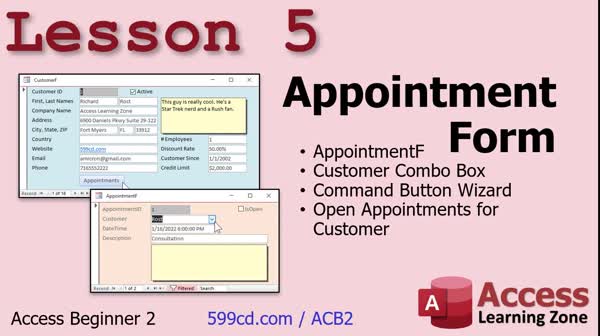
Lesson 5: Build an Appointment Form Fast - In Lesson 5, we will walk through building an appointment form similar to the customer form from the previous lesson. We will create a customer combo box using the combo box wizard, allowing us to select a customer for each appointment from a drop-down list. I will also show you how to use the command button wizard to add a button that opens the appointment form filtered to show only appointments for the selected customer. Additionally, we will discuss form design tips, setting up tab order, and briefly touch on using subforms for related records.
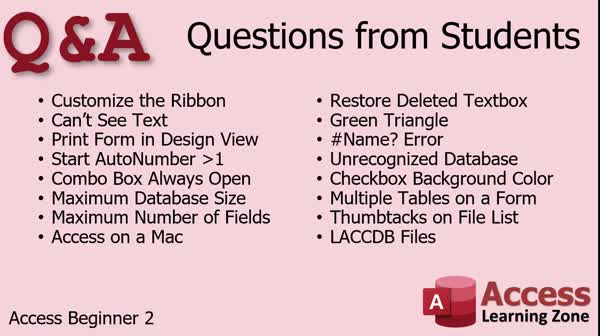
Lesson 6: Student Questions: Forms & Tables - In this lesson, we will address a variety of Q&A from students covering common issues and questions in Microsoft Access. Topics include customizing the ribbon and Quick Access Toolbar, troubleshooting form display problems, printing form layouts, managing auto numbers, distinguishing between combo boxes and list boxes, Access database size limits, maximum fields per table, Access availability on Mac, recovering deleted form controls, understanding form control errors, handling database corruption, changing checkbox backgrounds, using data from multiple tables in forms, the purpose of the thumbtack on recent files, and the function of LACCDB files. Additional resources and future lesson previews are also mentioned.
Lesson 7: Key Concepts & Next Steps - In this course we learned the foundational material covered in Access Beginner Level 2 and discussed what is coming next in Access Beginner Level 3, including topics like table field properties, field sizes, formatting, input masks, default values, and validation rules. We talked about minor changes in Access versions, the longevity of the material, and resources such as the Learning Connection membership and the TechHelp video series for ongoing support. The video also covers how to search for answers on the Access Learning Zone website, provides ways to share feedback, and lists ways to follow updates and contact the instructor.
NavigationKeywordsforms, form design, form controls, form alignment, combo box, command button, table relationships, primary key, foreign key, grid lines, grid dots, trusted locations, security warning, appointment table, default value, subforms, input mask, validation rul
More InformationTranscriptWelcome to Microsoft Access Beginner Level 2 brought to you by AccessLearningZone.com. I am your instructor, Richard Rost. This is Level 2 of my Beginner's Guide to Microsoft Access Database Design. This class follows Access Beginner Level 1, which I strongly recommend you watch first before continuing with this class. Access Beginner Level 1 is absolutely free. You can find it on my website right there. It is also on my YouTube channel. It is about four hours long and covers all the basics and the fundamentals that you should know before watching today's class. As I always say, my lessons are meant to be followed one after the other, so please do not skip levels. This class is recorded with Access 365, roughly equivalent to Microsoft Access 2019. However, if you are using Access 2016, you should be fine as well. If you are using an older version of Access, come to my website and get the version that is for you. The classes are broken up into Beginner, Expert, Advanced, and Developer. This is Level 2 of the Beginner Series. I recommend you sit back, relax, watch each video once through, and pay attention to details. Then watch the video again and build the database with me. Do not just grab the copies off my website, which you can download, but it is better if you build them yourself. Keep an open mind and watch the video again if you have to. The material is not that hard to learn. That light bulb will go off. You will get it. Trust me. Avoid building serious projects until you get to at least Expert Level 2, because you are going to learn a lot of things between now and then. Build the class database, build a hobby database if you collect baseball cards or whatever. Do it for fun. Use Access for fun. You will get there. OK, let's take a look at exactly what we are going to cover in today's class. In lesson one, we are going to get started for the day by downloading the sample database from my website that we built in Access Beginner 1. We will talk about a security warning that you get if you run an unfamiliar database. We will show you how to set up a trusted location on your computer or on your network so you can put databases in there and not have to deal with that security warning. I will show you how to set up a desktop shortcut to your database, and we will go over a quick review of what we covered in Level 1. In lesson two, we will be working with Form Design. We are going to rebuild the customer form that we started in Access Level 1. We will learn how to add, move, and resize controls, align and size objects, and we will change the foreground and background colors. In lesson three, we are going to be continuing with Form Design. We will be focusing on more form-adding. I will show you how to size objects to the grid. We will talk about grid lines versus grid dots. I get the email all the time from people. Some people see the grid lines, some people see the grid dots, and I will show you how to switch between them. Then we will do a lot more with working with colors and with themes. In lesson four, we are going to get a brief introduction to relationships in our database. We will learn why we want to use relationships, the different types of relationships, the difference between primary and foreign keys, we will set up an appointment table, and learn about default values and the date and now functions. In lesson five, we are going to build an appointment form very similar to the customer form that we built in the last class. We will make a customer combo box using the combo box wizard so we can pick a customer from a drop-down list of customers for the appointment. Then we will learn about the command button wizard so we can make a button to open up the form and show just appointments for the customer that we are on. There is a lot of cool stuff in lesson five. IntroIn lesson 1 of Microsoft Access Beginner Level 2, we will learn how to download the sample database from Access Beginner 1, handle security warnings, set up trusted locations, and create desktop shortcuts. Lesson 2 covers rebuilding and customizing customer forms, working with controls, and changing colors. In lesson 3, we continue with form design, exploring object sizing and the differences between grid dots and grid lines, plus more on themes. Lesson 4 introduces table relationships, primary and foreign keys, setting up an appointment table, and using default values and date functions. Lesson 5 focuses on building an appointment form, creating combo boxes with wizards, and adding command buttons. QuizQ1. What does the instructor recommend you do before starting Access Beginner Level 2? A. Watch any video you want B. Begin building your own serious projects C. Take Access Beginner Level 1 first D. Skip to Advanced Level directly Q2. Which version of Microsoft Access is this tutorial recorded with? A. Access 2010 B. Access 2016 C. Access 365 D. Access XP Q3. What is the recommended way to learn according to the instructor? A. Skip ahead to developer topics B. Watch the whole series in one sitting C. Watch each video, then build the database yourself D. Only download completed databases from the website Q4. According to the class outline, what will you learn to set up regarding database safety? A. Automatic backups B. Security warning handling and trusted locations C. Cloud synchronization D. Data encryption techniques Q5. In lesson two, what is the main focus while working with forms? A. Writing VBA code B. Building reports C. Adding, moving, and resizing controls and working with colors D. Importing data from Excel Q6. What will you learn about grid lines and grid dots? A. How to write macros for them B. How to switch between them in form design C. How to remove all grid guides from Access D. How to print grids on your reports Q7. What is introduced in lesson four? A. Importing external data B. Relationships between tables C. Advanced SQL queries D. Automation with macros Q8. What is the difference between a primary key and a foreign key as mentioned? A. Primary key identifies the table, foreign key is for security B. Primary key is always a number, foreign key is always text C. Primary key uniquely identifies records, foreign key creates relationships D. There is no difference Q9. In lesson five, which control will you use to select a customer for an appointment? A. Checkbox B. List box C. Combo box D. Option button Q10. What does the command button wizard help accomplish in lesson five? A. Create a report of all customers B. Open a form to show just appointments for the current customer C. Automatically backup the database D. Change the theme of the database Answers: 1-C; 2-C; 3-C; 4-B; 5-C; 6-B; 7-B; 8-C; 9-C; 10-B DISCLAIMER: Quiz questions are AI generated. If you find any that are wrong, don't make sense, or aren't related to the video topic at hand, then please post a comment and let me know. Thanks. SummaryToday's video from Access Learning Zone is Microsoft Access Beginner Level 2. I'm your instructor, Richard Rost. This is the second level of my Beginner's Guide to Microsoft Access Database Design. It is important that you begin with Access Beginner Level 1 before proceeding with this class. The first level is completely free and available on both my website and YouTube channel. It runs about four hours and introduces all the basic concepts necessary before starting today's material. I design these lessons to be taken in order, one after the other, so please do not skip any steps. The material in this class is demonstrated using Access 365, which is similar to Access 2019. If you are using Access 2016, you should have no issues following along. If your version is even older, visit my website to find a class that matches your program. The curriculum is divided into Beginner, Expert, Advanced, and Developer levels. This course is the second installment of the Beginner series. My recommendation is to watch each lesson all the way through once, paying close attention to the details. After that, watch it again while building the database alongside the instruction. Although you can download the database files from my website, building them yourself is far more beneficial for your learning. If you feel stuck, keep an open mind and rewatch any parts of the lesson you need to. The material is not too difficult, and with practice, it will start to make sense. Stay patient and you will master it. Hold off on attempting serious database projects until you reach at least Expert Level 2. You will gain many useful skills as you progress further. For now, focus on the class database or create a fun, personal project such as a collection or hobby database. Enjoy the process and let Access be a fun learning experience. Here is what we are going to cover in today's course: In the first lesson, we start by downloading the sample database we built in Access Beginner 1 from my website. We'll address the security warning that appears when you open a database from an unfamiliar source and show you how to designate a trusted location either on your computer or your network to avoid this warning. You will also learn how to create a desktop shortcut for your database, along with a quick review of the topics from Level 1. The second lesson moves into working with Form Design. We will recreate the customer form from Access Level 1. You will learn how to add, move, resize, align, and match the sizes of controls, as well as customize the foreground and background colors. In the third lesson, we continue with more form design concepts. This includes aligning objects to the grid, clarifying the difference between grid lines and grid dots, and instructions for toggling between these two view options. We'll continue to experiment with color customization and working with themes. The fourth lesson introduces the concept of relationships in your database. We will discuss why relationships are important, explore the various types, clarify the distinction between primary and foreign keys, set up an appointments table, and explain default values along with the Date and Now functions. Lesson five involves building an appointment form very similar to the customer form from the previous class. You will make use of a combo box wizard to create a dropdown list of customers. This allows you to select a customer for each appointment. Additionally, you will learn to use the command button wizard to create a button that opens the form and filters it to display only appointments for the current customer. There is a wealth of useful content in this section. You can find a complete video tutorial with step-by-step instructions on everything discussed here on my website at the link below. Live long and prosper, my friends. Topic ListDownloading the sample database from Beginner Level 1 Dealing with Access security warnings Setting up a trusted location in Access Creating a desktop shortcut to a database Review of Access Beginner Level 1 concepts Rebuilding the customer form in Form Design Adding, moving, and resizing controls on forms Aligning and sizing objects on forms Changing foreground and background colors on forms Sizing objects to the grid in Form Design Switching between grid lines and grid dots Using colors and themes in form design Introduction to table relationships in Access Understanding primary and foreign keys Creating an appointment table Setting default values in tables Using Date and Now functions in tables Building an appointment form Adding a customer combo box with the combo box wizard Creating a command button to filter appointments by customer Primary Topicstrusted locations, security warnings, form design, control manipulation, color and theme settings, grid lines and dots, database relationships, primary and foreign keys, appointment tables, combo box wizard, command button wizard Secondary Topicsreview of Level 1, default values, date and now functions |
||||||||||||||||||||||||||||||||||||||||||||||||||||||||||||||||||||||||||||||||||||||||||
|
| |||
| Keywords: forms, form design, form controls, form alignment, combo box, command button, table relationships, primary key, foreign key, grid lines, grid dots, trusted locations, security warning, appointment table, default value, subforms, input mask, validation rul PermaLink How To Design Forms Set Up Relationships And Build Appointment Forms In Microsoft Access Beginner 2 |