|
||||||
|
||||||
|
||||||
|
||||||
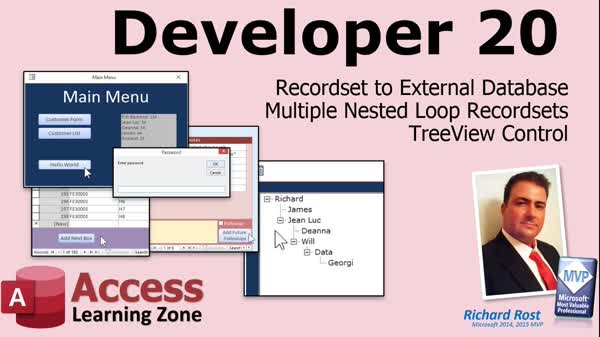
Access Developer 20External Recordsets, TreeView, Nested LoopsWelcome to Access Developer 20. In this course you will learn how to work with external database recordsets, including setting up secure connections and handling encrypted passwords. We'll discuss methods for adding records with custom numbering logic using nested loops and ASCII codes, as well as how to automate follow-up entries at set intervals. You will also see how to use the TreeView control to display hierarchical data like employee supervision structures, manage nodes, and handle related forms. Prior knowledge of recordsets and VBA is recommended for this level. Lessons
Database FilesResources
Lesson SummaryWelcome! Recordsets, Loops & Tree View - Welcome to Access Developer Level 20. In this course we will cover working with recordsets to connect to external databases, including setting up a secure connection with an encrypted password. We will discuss adding records using different methods, exploring custom numbering logic with ASCII codes and nested For loops, and how recordsets can streamline those operations. You will also learn how to use the tree view control to display hierarchical data, such as employees and supervisors, and how to manage nodes, prevent selecting yourself as your own supervisor, and open related forms. Prior knowledge of recordsets and VBA is recommended.
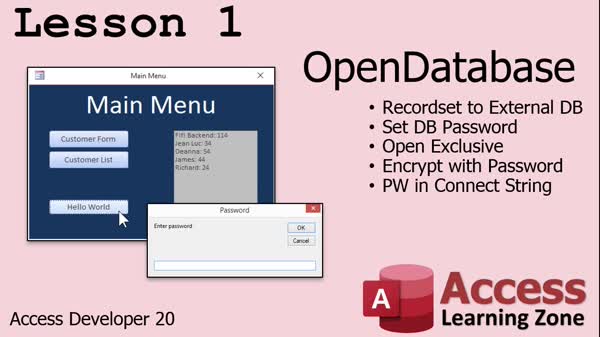
Lesson 1: Connect to Password-Protected DB - In Lesson 1, we will walk through how to use a recordset to connect to an external database in Access using the OpenDatabase command. I will show you how to set up both a front end and a back end database, explain options for shared or exclusive access, and demonstrate how to work with tables in the external database. We will discuss securing your back end with a password, how to open a password-protected database in exclusive mode, and how to pass the password in VBA using the connect string, along with prompting users for a password and handling related errors.
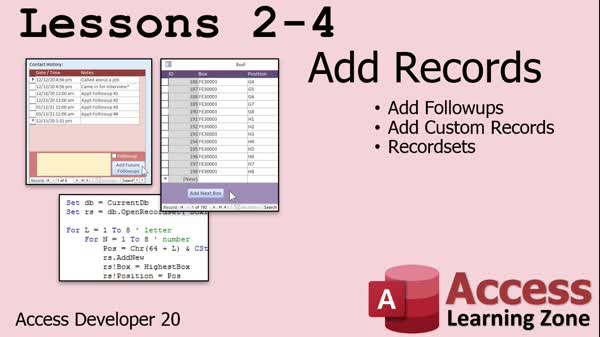
Lesson 2: Auto-Add Follow-Up Records - In Lesson 2, we will walk through how to add follow-ups in an Access database by creating a button that automatically enters multiple follow-up records at 5, 10, 30, and 90-day intervals after an appointment date. I will show you how to use form controls and basic VBA to automate the process, including prompting users for the appointment date, setting fields like description and follow-up status, and ensuring records appear correctly in your follow-up query. We will also discuss adjusting form settings to allow record deletions and how to display follow-ups using queries.
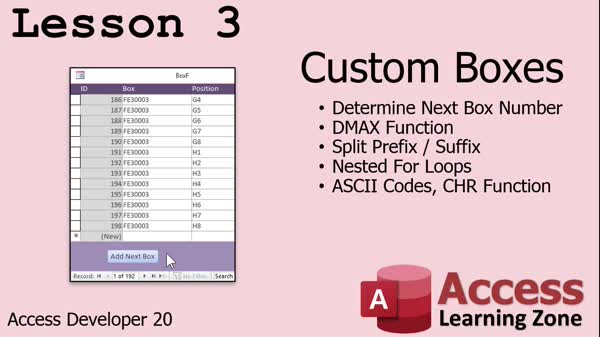
Lesson 3: Auto-Add Sequential Box Records - In Lesson 3, we will walk through how to add records using GoToRecord in Microsoft Access by building a custom box numbering system. You will see how to determine the next available box number with a specific prefix, split out the numeric portion, and use nested loops along with ASCII codes to automatically generate 64 position records (from A1 to H8) for each new box in a single table. We will also discuss why this GoToRecord method is slow and mention that a faster method using recordsets will be covered in a future lesson.
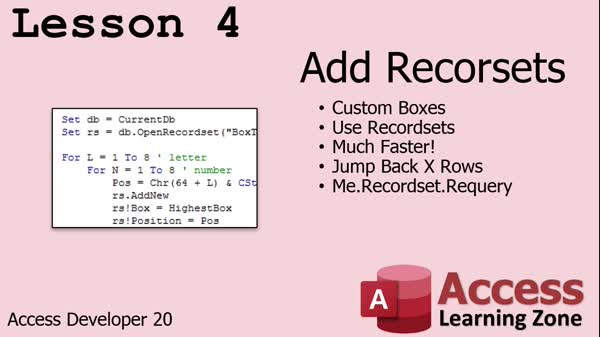
Lesson 4: Fast Multi-Record Add with Requery - In Lesson 4, we will take the custom box-adding process from the previous lesson and rewrite it using record sets for greater efficiency. I will show you how to use record set loops in VBA instead of relying on slower methods like GoToRecord, and we will discuss different options for refreshing and displaying new records in a Microsoft Access form. You will see several methods for updating the display smoothly, including using filters, moving through records, and requering the record set behind the form. This lesson demonstrates how to add with record sets in a faster and more reliable way.
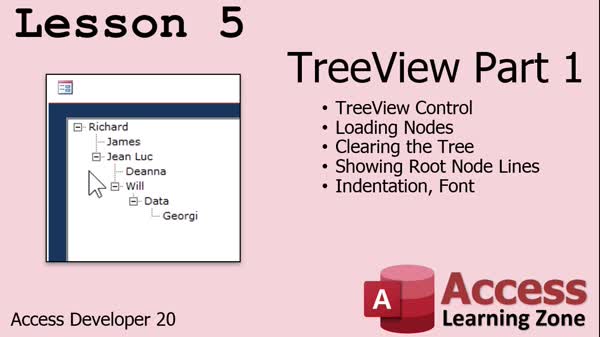
Lesson 5: TreeView with Recordsets & Nodes - In Lesson 5, we are introduced to the TreeView Control in Microsoft Access and learn how to display hierarchical data using recordsets. We will walk through setting up the TreeView control, loading nodes in a hierarchy such as an employee-supervisor structure, handling root and child nodes, and clearing the tree when needed. We will also discuss potential issues with distributing external controls and how to adjust properties such as root node lines, font, and indentation for each node. Additionally, I will point out important considerations when working with ActiveX controls in Access.
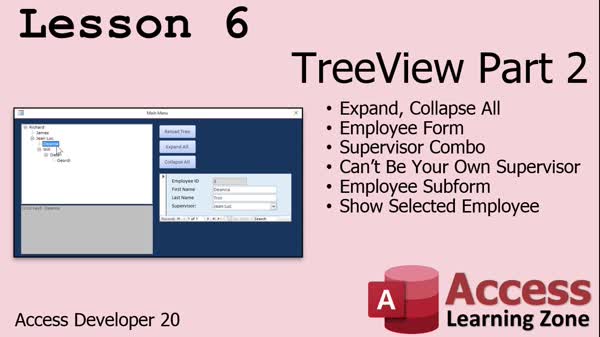
Lesson 6: Expand/Collapse All TreeView Nodes - In Lesson 6, we continue working with the TreeView control by adding buttons to expand and collapse all records in the tree, creating a simple employee form with a supervisor combo box that prevents users from selecting themselves as their own supervisor, and displaying an employee's record in a subform when their name is clicked in the TreeView. We will talk about handling form-level variables, dynamically setting the RowSource for the supervisor combo, and ensuring subforms update correctly based on TreeView selections. Additional points include discussing how to prevent label editing in the TreeView and ideas for expanding its functionality.
Lesson 7: Course Review & Next Steps - In this course we learned about the key topics covered in Access Developer Level 20, including participation in the TechHelp video series, information about YouTube and website memberships, forum usage for questions, and details about consulting services. We discussed the reasons for preferring forum posts over emails, the importance of course surveys for providing feedback, and ongoing plans to focus on recordsets in future lessons. There was mention of upcoming content, as well as the instructor's commitment to continuing both Access and other Microsoft Office training based on student interest.
NavigationKeywordsrecordsets, external database connection, encrypted password, OpenDatabase, add records, custom numbering, nested loops, ASCII codes, TreeView control, hierarchical data, employees supervisors, prevent self selection, ActiveX controls
More InformationTranscriptWelcome to Access Developer Level 20 brought to you by AccessLearningZone.com. I am your instructor, Richard Rost. Today's class is going to cover record sets to external databases, multiple nested loop record sets, and working with the tree view control. You will learn how to use the open database command so we can connect a record set to an external database. This is handy because not only can you use it to connect to other databases on your network - maybe the accounting department has their own database or the sales department - but you can set up a password-protected database that could even be in a shared folder somewhere that lots of people have access to. If you put a password on it, then you can open this database with your encrypted password that's stored in your VB so that others can't get hold of your encrypted data. I'll show you how to send the password in the connect string, and that's a good way to secure your data in the back end without using a database server. Yes, a database server like SQL Server is better, but this is pretty good. Lessons 2 through 4 have to do with adding records to your database in a couple of different methods. Lesson 2 is simply adding follow-ups in intervals of 5, 10, 30, and 90 days. Lesson 3 is actually a request that came from one of my students. He's got custom boxes with customized numbering, and he wants to be able to add those automatically. We'll do some custom work with his box naming conventions. I'll teach you about ASCII codes and the CHR function, and we'll work with some nested for loops. Lesson 4 is doing the same thing we did in Lesson 3, but we're going to use record sets, which makes it much, much faster. Lessons 5 and 6 have to do with the tree view control. I'll show you how to set up the tree view control in a form so we can display hierarchical data. For example, employees with their supervisors - a self-join in the table - and we'll learn how to load up the nodes in a tree view using a record set. We'll do a lot more with that tree view in Lesson 6. We'll expand and collapse all the nodes. We'll open up the employee form as a subform when you click on one of the nodes, one of the employees. We'll set up the combo box there for the supervisor, so you can't be your own supervisor. That's a common question I always get asked: How can I set it up so I can't pick myself as my own supervisor? There's a lot you can do with this tree view control. I am using Microsoft 365. I've got a subscription. If you're using Access 2019, that's the closest to the retail version. You should be okay going back all the way to about 2007 though. This version should work with all of those. Prerequisites: This is a developer level class. You should know VBA from my Developer Level 1 class. I strongly suggest you take the Beginner and Expert series first. Developer 13 is definitely recommended, and of course 16 and on for the introduction to record sets. If you haven't taken Developer 16, 17, 18, and 19, you may be lost in today's class. Even if you just picked this up for the tree view lessons, you've got to know how to work with record sets in order to load up that tree view. Now it's time to sit back, relax, and enjoy Access Developer Level 20. Thank you. IntroIn lesson 20 of Microsoft Access Developer, we will learn how to connect record sets to external databases, manage multiple nested loop record sets, and work with the tree view control to display hierarchical data in your forms. I will show you how to use the open database command with password protection, add records using different methods including custom numbering with ASCII codes and the CHR function, and load data efficiently with record sets. You will also see how to set up and manage the tree view control, handle supervisor assignments, and prevent users from selecting themselves as their own supervisor. QuizQ1. What is one key benefit of using the open database command in Access? A. It allows connecting a record set to an external database. B. It upgrades your database server automatically. C. It only works with local databases. D. It encrypts all external database files automatically. Q2. How can you secure a backend database without using a server like SQL Server? A. By deleting unused tables. B. By putting a password on the database and sending it in the connect string. C. By exporting the data to Excel. D. By only allowing access during business hours. Q3. What kind of loop technique is covered in this class when adding records with custom naming? A. Do While loops B. Nested For loops C. If-Then-Else loops D. Foreach loops Q4. What function is mentioned in relation to working with ASCII codes? A. CDate B. Chr C. Val D. Nz Q5. Why does the instructor recommend using record sets in Lesson 4 instead of previous methods? A. Record sets are slower but more reliable. B. Record sets are better for exporting data. C. Record sets make adding records much faster. D. Record sets can only be used with SQL Server. Q6. What data structure is used in Lessons 5 and 6 to display hierarchical relationships? A. List box B. Subform C. Tree view control D. Tab control Q7. When displaying employees and supervisors in the tree view, what kind of table relationship is demonstrated? A. Many-to-many join B. Self-join C. One-to-one join D. Outer join Q8. Which limitation is set in the supervisor combo box within the tree view setup? A. Supervisors must be from another department. B. You cannot pick yourself as your own supervisor. C. Supervisors are assigned randomly. D. Supervisors must be a manager. Q9. What does the instructor say about Access versions compatible with this course? A. Only Access 365 is supported. B. The lessons work with Access versions going back to about 2007. C. Only Access 2016 is compatible. D. The course is for Access 97 only. Q10. Which prerequisites does the instructor strongly recommend before taking this class? A. Only the Beginner series is enough. B. Only Developer 1 and 2 are required. C. Developer Level 1, 13, 16 and onward, and the Beginner and Expert series. D. No prerequisites are needed. Answers: 1-A; 2-B; 3-B; 4-B; 5-C; 6-C; 7-B; 8-B; 9-B; 10-C DISCLAIMER: Quiz questions are AI generated. If you find any that are wrong, don't make sense, or aren't related to the video topic at hand, then please post a comment and let me know. Thanks. SummaryToday's video from Access Learning Zone focuses on Access Developer Level 20. I'm Richard Rost, and in this class, we are going to cover several advanced topics that will help you work with external databases, manage complex record sets, and utilize the tree view control in your Access applications. We begin by exploring how to use record sets that connect to external databases. I will show you how to connect to another database using the open database command, allowing you to bring in data from sources outside your current file. This is especially useful if your organization has different databases for various departments, like accounting or sales, and you want to access them securely. For added security, you can store your database in a shared location, protect it with a password, and connect using a password embedded within your VBA code. I will explain how to include the password in your connection string. While a dedicated database server like SQL Server is usually the best choice for security, securing a shared database in this way is still quite effective for many environments. Lessons 2 through 4 will focus on methods for adding records to your tables. In Lesson 2, I'll demonstrate how to automatically create follow-up records for intervals of 5, 10, 30, and 90 days. Lesson 3 is based on a request from a student who needs to generate custom boxes with unique numbering patterns, so we will delve into custom naming conventions, discuss ASCII codes, work with the CHR function, and utilize nested for loops to automate his process. In Lesson 4, we take the approach from Lesson 3 and make it more efficient by leveraging record sets. This method significantly speeds up the process of adding multiple records. Lessons 5 and 6 highlight the tree view control. I'll teach you how to implement a tree view on a form so that you can show hierarchical relationships, such as employees and their supervisors, using a self-join in your data. You'll see how to populate the tree view with data from a record set. In Lesson 6, we'll expand this functionality by learning how to expand and collapse all nodes, and how to display an employee's details as a subform when a node is selected. I will also explain how to configure a combo box so users cannot assign themselves as their own supervisor, which is a common question. You'll see just how much can be achieved with the tree view control in Access. I'm using Microsoft 365 for these demonstrations. If you're working with Access 2019, you should have nearly the same feature set. In fact, these lessons are relevant all the way back to Access 2007, so most users should be able to follow along, regardless of their version. Before working through this course, you should have a strong understanding of VBA, as introduced in my Developer Level 1 course. I highly recommend that you complete the Beginner and Expert series first. Developer Level 13 is important for foundational knowledge, and Developer Levels 16 and higher are crucial for working with record sets, which are central to today's lessons. If you have not taken courses 16, 17, 18, and 19, you may find this material challenging, especially when working with the tree view, which requires a solid grasp of record sets. I encourage you to relax and enjoy Access Developer Level 20. You can find a complete video tutorial with step-by-step instructions on everything discussed here on my website at the link below. Live long and prosper, my friends. Topic ListConnecting to external databases with record sets Using the OpenDatabase command in VBA Securing external databases with password in connect string Adding follow-up records at specified intervals Custom box numbering and automation Using ASCII codes and the Chr function Implementing nested For loops for record creation Automating record creation with record sets Setting up the TreeView control on forms Displaying hierarchical data with TreeView Loading TreeView nodes using record sets Expanding and collapsing TreeView nodes Opening related forms from TreeView nodes Configuring supervisor selection to prevent self-selection Primary Topicsrecordsets, external database connections, nested loops, tree view control, VB connect strings, password protection, hierarchical data display Secondary TopicsASCII codes, CHR function, form subforms, combo box constraints, self-joins |
||||||||||||||||||||||||||||||||||||||||||||||||||||||||||||||
|
| |||
| Keywords: recordsets, external database connection, encrypted password, OpenDatabase, add records, custom numbering, nested loops, ASCII codes, TreeView control, hierarchical data, employees supervisors, prevent self selection, ActiveX controls PermaLink How To Connect Recordsets To External Databases And Build TreeView Controls in Microsoft Access |