|
||||||

|
|
||||||
|
Backup AccessBy Richard Rost
 5 years ago
Backup Your Microsoft Access Databases Properly In this video, you will learn how to properly backup your Microsoft Access databases using the Access database backup routine and Google Backup and Sync. Damian from Tampa, Florida (a Gold Member) asks: I've been using Google Backup and Sync like you recommended in your New PC Setup video, however it's not backing up my Access databases properly. Any advice you can give? MembersMembers will learn how to automate this process with one click of a button. We will also learn how to perform an automatic backup when the database is closed, and to force all of the other users out of the database at a set time, like 4am.
Silver Members and up get access to view Extended Cut videos, when available. Gold Members can download the files from class plus get access to the Code Vault. If you're not a member, Join Today!
Links
Keywordsmicrosoft access, ms access, #msaccess, #microsoftaccess, #help, #howto, #tutorial, #instruction, #learn, #lesson, #training, #database, backup access database automatically, ms access backup database vba, ms access create backup on close, ms access automated backup
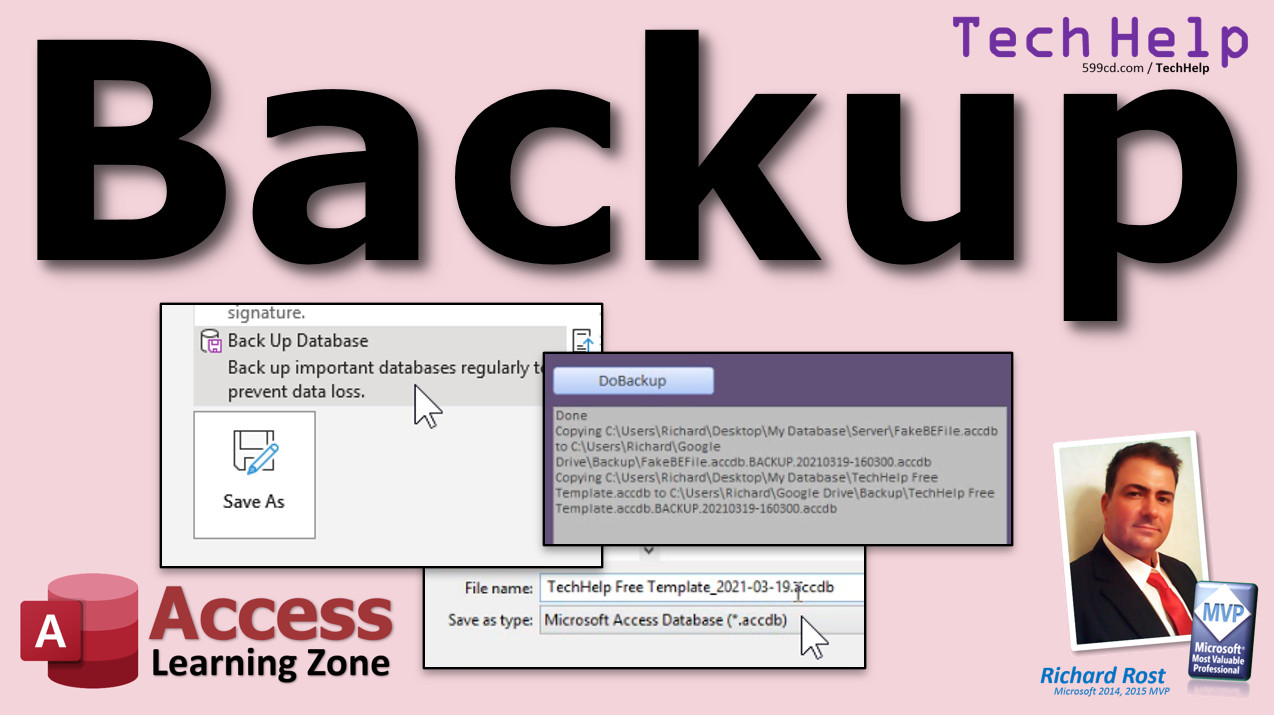
More InformationTranscriptWelcome to another TechHelp video brought to you by AccessLearningZone.com. I am your instructor Richard Rost. In today's video, I am going to show you how to properly back up your Microsoft Access Database files. Today's question comes from Damien in Tampa, Florida, one of my gold members. Damien says, I have been using Google Backup and Sync like you recommend in your new PC setup video. However, it is not backing up my Access Databases properly. Any advice you can give? Yes Damien, Google Backup and Sync is what I recommend to keep all of your files backed up in the cloud so they are not on your computer and they are not even in your house or your office. So if the place burns down, you have a copy of them sitting up on Google's server. I cover Backup and Sync in my free new PC setup video. If you have not had a chance yet, go watch this first. Right around the 42-minute mark, I cover installing Google Drive and Google Backup and Sync. Now, the problem with any backup program is that it is not good at backing up open files. If a file is open, including your Access Database, your backup software, no matter what it is, might not be able to back it up, or if it does, it might corrupt it. So, an important step in backing up your database is to make sure the database is closed. At least make sure no one is in it editing records or making design changes especially. So, if someone leaves the office for the day and your backup routine runs at 3am, it might not back up those Access Database files, including with Google Backup and Sync. It might see it and either skip it, or it might start backing it up and it gets corrupted because someone makes an edit. You have to make sure you run this at a time when no one is using the database. Now, what I suggest you do is set up your database in a folder, of course. I have my My Database folder right here. Open that up. Now, when you run your backup, when you create your backup file, you are going to save that in your Google Drive folder wherever you happen to have that. Mine is in my user's Richard Rost Google Drive folder. So, let's go into our database and I will show you how to properly make a backup. When you are inside your database, go to File and then Save As Backup Database, and then click the Save As button. Now, do not save it here. Do not save it in your database folder. Save it in your Google Drive folder like I showed you before. The benefit is once you save this, now your Google Drive Backup and Sync can pick it up and send it up to the cloud. So you have an off-site copy. Click your backup folder or set up a backup folder of some kind in here. I already have one set up. You can see all my normal database stuff is in here, like my server front end. Now, the benefit of using the backup routine this way is that Access automatically appends the date on the end of the file name. That is kind of nice. Hit Save. That is it. You are backed up. Your files are backed up. Make sure you do this with your back end files too, if you have a split database. If you do not know what a split database is, go watch my video on splitting your database. That is where you have your tables in separate back end files. If you are on a network, that is pretty much a given. So, you have to make sure you back up those too. All you generally have to do is make sure everybody is out of the network and then you copy those files, even using Windows Explorer like I just showed you. Copy those right to that backup folder. Here I am back in my Explorer. Let's pretend this is a backup file. Just copy it, Control-C. Go to my Google Drive. Go to my backup folder. There is my backup that Access created. Now, in here, I would just paste and drop that copy of my back end file. That is really all you have to do to make sure your stuff is backed up. The key here is do not have Google or any backup program, any backup utility, whether you are backing up to an old tape drive, an external hard drive, or another cloud service, whatever you use, do not back up your Access directory directly because if those files are open, sometimes they will not back up at all, or they might back up corrupted. If the backup routine happens to run while someone is in the database, for example if someone comes in at 3 o'clock in the morning to do some work, and now the database is copying parts of the file that are being written, it might corrupt the whole thing. Make sure you also keep rotating backups. So you have a couple days in a row, you have a couple months back. I save the last 3 days, then I save the first of each month, then I save the first of each year going back. So I have March 1st, February 1st, January 1st, and so on. Want to learn more about backing up your database? Backing up should not be a difficult manual process. It needs to be easy, simple, and quick, if not automatic. In the extended cut for members, I will show you how to make a one click backup. We will start with that. We will make a button that says Do Backup. Click the button, it performs the backup. You do not have to go up into File and do all that stuff. I will talk about backing up your back end files if you have a split database. Then we will graduate to backup on close. Whenever you close your database, it will back up automatically. Then I will show you how you can use a timer event to force all the users on your network out of the database. It will just shut Access down if 4am comes around or whatever time you specify. This way, if someone leaves the office and leaves the database open, at 4am it shuts down. That way, at 5am you are going to leave your database open when you leave the office, because at 5am your database will perform the backup because everyone else is out, and then it will close. If you have any other backups that run, network based backups or whatever, you can have them run at 6am or whatever times you want. That is all covered in the 30-minute extended cut for members. Silver members and up get access to all of my extended cut videos. There are well over 100 of them now, so plenty of stuff to watch. I also have a database backup template available. You can incorporate this directly into any database, set it to back up at a particular time like 4am, and then it will back up all of the files in your database folder to a destination location. I will put a link to that down below as well. How do you become a member? Click the Join button below the video. After you click the Join button, you will see a list of all the different types of membership levels that are available. Silver members and up will get access to all of the extended cut TechHelp videos, live video and chat sessions, and more. Gold members get access to a download folder containing all the sample databases that I build in my TechHelp videos, plus my Code Vault where I keep tons of different functions that I use. Platinum members get all the previous perks plus access to my full beginner courses and some of my expert courses. These are the full-length courses found on my website and not just for Access. I also teach Word, Excel, Visual Basic, ASP, and lots more. Do not worry, these free TechHelp videos are going to keep coming. As long as you keep watching them, I will keep making more. If you liked this video, please give me a thumbs up and feel free to post any comments that you have. I do read them all. Make sure you subscribe to my channel, which is completely free, and click the bell icon and select All to receive notifications when new videos are posted. Click on the Show More link below the video to find additional resources and links. You will see a list of other videos, additional information related to the current topic, free lessons, and lots more. YouTube no longer sends out email notifications when new videos are posted, so if you would like to get an email every time I post a new video, click on the link to join my mailing list. If you have not yet tried my free Access Level 1 course, check it out now. It covers all the basics of building databases with Access. It is over 3 hours long and you can find it on my website or on my YouTube channel. If you like Level 1, Level 2 is just 1 dollar, and it is also free for all members of my YouTube channel at any level. Want to have your question answered in a video just like this one? Visit my TechHelp page and you can send me your question there. Click here to watch my free Access Beginner Level 1 course, more of my TechHelp videos, or to subscribe to my channel. Thanks for watching this video from AccessLearningZone.com. IntroIn this video, I will show you how to properly back up your Microsoft Access database files to ensure your data is safe and recoverable. We will talk about why cloud sync tools like Google Backup and Sync may not back up open Access databases correctly, the importance of backing up when your database is closed, steps to safely create backups using the built-in Access tools, and tips for organizing your backups with date-based naming and rotating copies. I will also address how to handle backup routines for both front end and back end files if you use a split database. QuizQ1. What is the main point of the video? A. How to upgrade Microsoft Access to the latest version B. How to properly back up Microsoft Access database files C. How to design forms in Access D. How to synchronize Access with Excel Q2. Why is Google Backup and Sync recommended for backing up files? A. Because it compresses files to save space B. Because it keeps files backed up in the cloud and away from your local device C. Because it creates multiple copies on your desktop D. Because it updates all programs automatically Q3. What is a major limitation of most backup programs when it comes to Access database files? A. They cannot back up any files larger than 1GB B. They only work with split databases C. They have trouble backing up open files, which can result in skipped or corrupted backups D. They automatically delete old backups Q4. What should you do before running a backup on your Access database? A. Minimize the Access window B. Make sure the database is closed and no one is editing records or making design changes C. Rename the database file D. Connect to a VPN Q5. Where should you save your backup file for best results? A. In the root of your C drive B. In your Google Drive backup folder C. On your desktop D. On a USB stick left attached to the computer Q6. What is a "split database" as mentioned in the video? A. A database divided into multiple tables B. A database where front end and back end are separate files C. A database that is split between two users D. A database with multiple security levels Q7. What does Access automatically do when you use the Save As Backup Database function? A. Encrypts the file B. Appends the current date to the file name C. Sends it directly to Google Drive without user input D. Deletes the old backup Q8. What is the risk if backup software tries to back up an Access database while it is open? A. The backup will be faster than normal B. The database may be skipped or the backup file may become corrupted C. The network will disconnect D. The Access software will update itself Q9. What does the instructor recommend regarding rotating backups? A. Only keep one backup at a time B. Keep backups for the last few days, the first of each month, and the first of each year C. Delete backups after one week D. Only keep backups on tape drives Q10. What additional backup features does the instructor discuss in the extended cut for members? A. How to password-protect your database B. How to create a one-click backup, back up back end files, automate backups on close, and use timer events to close the database before backing up C. How to export data to Excel D. How to find and replace data in Access Answers: 1-B; 2-B; 3-C; 4-B; 5-B; 6-B; 7-B; 8-B; 9-B; 10-B DISCLAIMER: Quiz questions are AI generated. If you find any that are wrong, don't make sense, or aren't related to the video topic at hand, then please post a comment and let me know. Thanks. SummaryToday's video from Access Learning Zone focuses on how to properly back up your Microsoft Access database files. Damien from Tampa wanted to know why his Access databases are not being backed up correctly using Google Backup and Sync. This is a common question, especially since many users rely on Google Drive or other cloud backup solutions to keep their files safe off-site in case something happens to their computer or office. One key issue to remember with any backup program is that they usually cannot back up files that are open. If your Access database is running or someone is making changes to it while the backup runs, the backup program may skip it or, worse, create a corrupted backup. So it is important to be sure your database is fully closed before you run your backup routine, especially if your backup is scheduled to happen overnight and someone might leave the database open. The process I suggest involves storing your backup copies in your Google Drive folder. When you are ready to make a backup of your Access database, use the built-in Backup Database feature inside Access. Instead of saving that backup file in your usual database folder, save it inside your Google Drive backup folder. This ensures your backup gets synced to the cloud, giving you an off-site copy for added protection. Another nice feature is that Access will automatically add the current date to the file name each time you create a backup. If you use a split database, remember to back up both your front-end and back-end files. If you are not familiar with split databases, my other video explains that topic in detail. In a split setup, your data (tables) are stored in a separate back-end file, often on a network share. To back up these files, just make sure all users are out of the database, then copy the files to your backup folder. It is also a good idea to keep rotating backups, not just a single copy. I recommend keeping daily backups for the last few days, the first backup of each month, and even the first backup each year. This way, if you discover a problem, you can recover an older version of your data. Backing up your database should not be a difficult or manual process. Ideally, it should be quick, simple, and even automated when possible. In today's Extended Cut for members, I go even further. I demonstrate how to create a one-click backup function right inside your database, so you just press a button to perform the backup. For those working with split databases, I explain how to back up the back-end files as well. Then, I show you how to trigger an automatic backup when the database is closed, making sure no one forgets to run it. I also cover using a timer event to force all users out of the database at a certain time, such as early in the morning. This ensures backups are performed reliably, even if someone forgets to close out of Access before going home. All these techniques are covered in detail in the 30-minute extended cut video, which is available to Silver members and above. Members have access to over 100 extended cut videos, along with features like sample databases and my Code Vault. Higher membership levels unlock even more courses, including advanced lessons for Access and other software like Word, Excel, and Visual Basic. For those who want to implement these backup routines easily, I have designed a database backup template. You can add this tool to your database, set it to run at a specific time, and have all your database files backed up where you want them. If you are interested in these extended lessons, there are several membership options to choose from. To learn about the differences between membership levels and what you get at each tier, you can find more information on my website. I will continue to publish these free TechHelp videos, so as long as you keep watching and subscribing, the lessons will keep coming. I also encourage you to check out my free Access Level 1 course, which is over three hours long and covers all of the basics of building a database in Access. It is available both on my website and my YouTube channel, and Level 2 is just one dollar or free for YouTube channel members. As always, I appreciate your comments and feedback. Subscribe to the channel to make sure you stay up to date with the latest tutorials, and consider joining my mailing list for alerts about new videos since YouTube no longer sends email notifications. If you would like your own question answered in a future video, just visit my TechHelp page and submit your question there. You can find a complete video tutorial with step-by-step instructions on everything discussed here on my website at the link below. Live long and prosper, my friends. Topic ListProblems with backing up open Access database files Why backup programs may skip or corrupt open Access files Ensuring the database is closed before backup Recommended folder setup for database backups Using Access Save As Backup Database feature Choosing correct location for backup files in Google Drive Benefits of Access appending date to backup file name Backing up back end files for split databases Copying back end files manually to Google Drive Importance of not backing up open Access directories directly Risks of corrupting database during scheduled backups Maintaining rotating and archival backup copies Primary TopicsAccess database backup, Google Backup and Sync, avoiding backup corruption, backup timing, split database considerations, backup folder organization, rotating backups Secondary TopicsMicrosoft Access interface navigation, network considerations, membership options |
||||||||||||||||||||||||||||||||||||||||||||||||||||||||||||||||||||
|
| |||
| Keywords: TechHelp Access backups backup access database automatically, ms access backup database vba, ms access create backup on close, ms access automated backup PermaLink Backup Your Microsoft Access Databases |